Who should read this article: Administrators, Supervisors
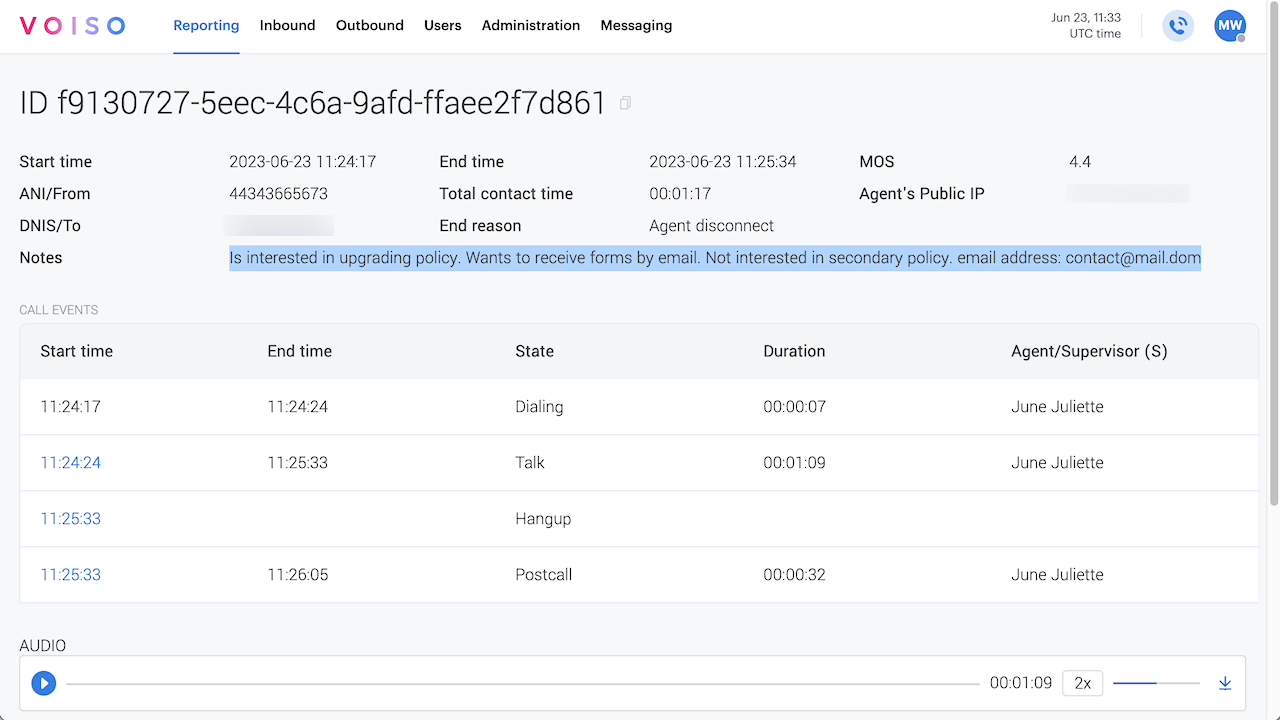
Agents can add notes about a call in the Agent Panel or Workspace during a call or during after call work. The note is saved in the Call Details Record.
Introduction
The wrap-up code and call recording are not always enough information to convey the outcome of a call. The Call notes feature enables agents to record salient information about a conversation that provide insight for agents when calling the contact back or for supervisors to review call details without having to read through a transcript.
Once the Call Notes feature is enabled for your contact center, it becomes available to agents in Agent Panel during a call by clicking the Notes button, or after a call if After Call Work is enabled.
Note: depending on the number of call features enabled in Agent Panel, the Notes button might be "hidden" under the More… button.
If an agent ends a call before the call connects, it is not possible to leave a call note unless after call work activities are enabled and there is at least one wrap-up code configured in your contact center.
Enabling Call notes
To enable call notes, first ask Voiso support to activate the feature for your contact center, then enable After Call Work in System settings. Next, grant call notes access to agents either through Security Access Groups or user profile permissions, depending on your configuration. Finally, create wrap-up codes and wrap-up code groups and assign them to the teams that will use call notes.
Prerequisites
- One or more Agent Users in your contact center with WebRTC or Omnichannel access enabled.
- One or more Teams with the Agent user(s) assigned.
Procedure
Follow these steps to assign the call notes feature to an Agent:
- From the Voiso navigation bar, select Administration > System settings.
- Click the Contact center tab then select Enable After Call Work activities and wrap-up codes.
- Click Save.
- Enable the call notes feature for Agents:
- For contact centers using security access groups:
- From the Voiso navigation bar, select Administration > Security Access Groups.
- Open a security access group.
- Scroll down to the Outbound section.
- Enable Enable Call Notes in WebRTC.
- Click Save.
- For contact centers not using security access groups:
- Contact your Voiso representative to request that call notes be enabled for your contact center.
- In the user profile, scroll down to the Permissions section and select Call Notes Enabled.
- For contact centers using security access groups:
- (Optional — if you want to make the after call work stage mandatory) Create at least one Wrap-up code for your contact center:
- Navigate to Administration > Wrap-up codes.
- Select the Wrap-up codes tab.
- Click Add Wrap-up code, name the wrap-up code and give it a code number.
- Click Save .
- (Optional — if you want to make the after call work stage mandatory) Create at least one Wrap-up code group for your contact center.
- Navigate to Administration > Wrap-up codes.
- Select the Wrap-up code groups tab.
- Click Add wrap-up code group then name the group.
- In the Assigned wrap-up codes section, click Manage, then in the Wrap-up codes assignment panel, select one or more wrap-up codes and click Assign.
- In the Assigned teams section, click Manage, then in the Teams assignment panel, select one or more teams and click Assign.
- Click Save.
Using Call notes
Users with the Call notes feature enabled have the Notes button availble in the call controls.
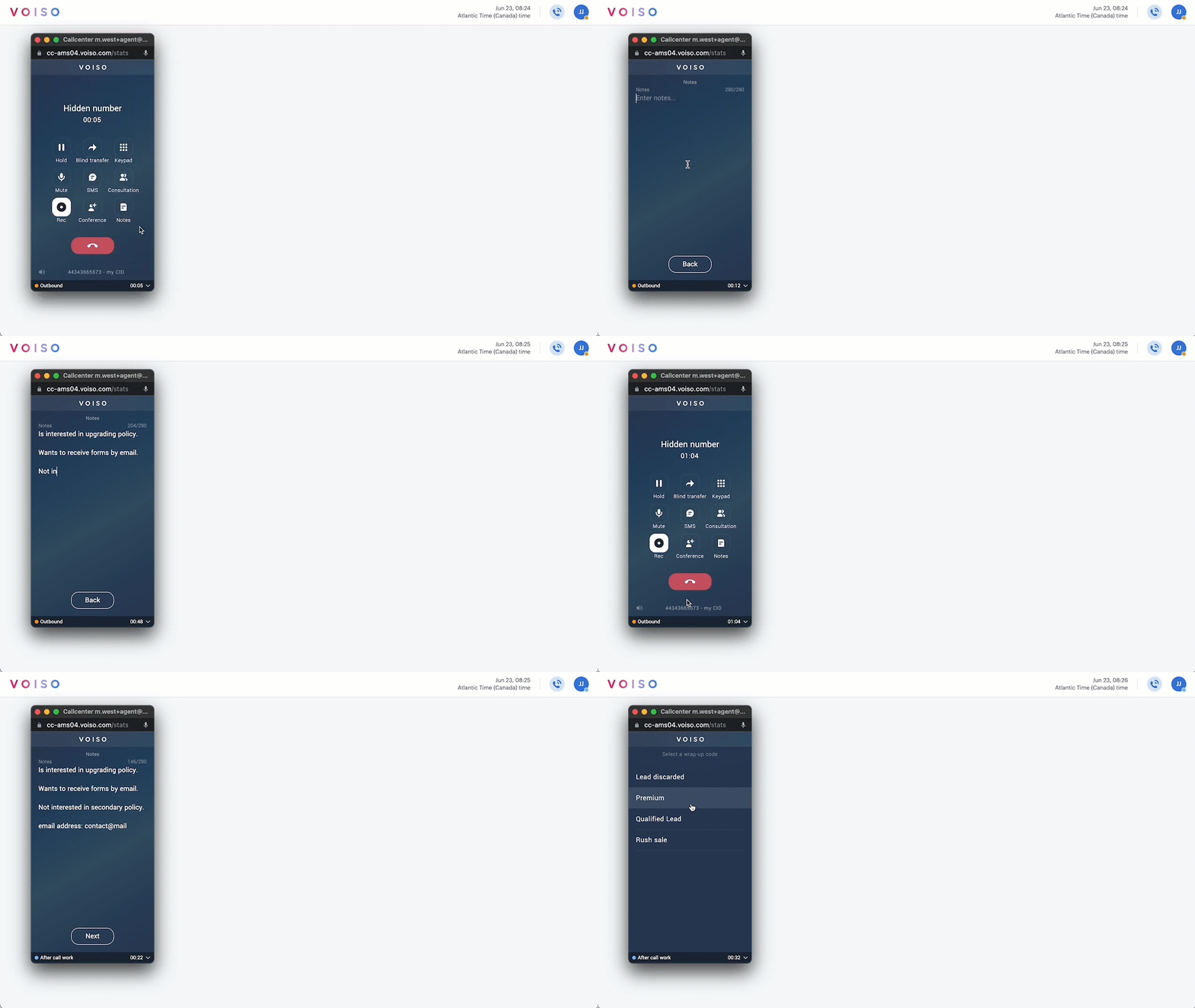
To use the Call notes feature, follow these steps:
- During a phone call, click the Notes button in the call controls page.
- Enter your notes in the Notes page.
- Click Back to return to the call controls page.
- If After Call Work is mandatory in your contact center, then after the call ends, during the After Call Work stage, the Notes page displays again. Add or edit your notes.
- Click Next to save your notes.
- Select a wrap-up code.
Reviewing Call notes
Administrators and supervisors can access call notes by using the Call Detail Records page. To view a call note, follow these steps:
- From the Voiso navigation bar, select Reporting > Call Detail Records.
- Find a call record.
- Click the call to display the Call details view.
- The call note is displayed in the Notes section.
- If you export call detail records as a CSV, the call notes are available in the Call notes record field.