Who should read this article: Administrators
How to integrate Voiso with the GetLogic CRM.
Introduction
The Voiso GetLogic integration connects GetLogic contact lists directly to Voiso Dialer campaigns. Instead of exporting contact lists from GetLogic and manually importing CSV files into Voiso, administrators can use GetLogic as a live lead source for outbound campaigns.
The integration automatically retrieves leads from GetLogic and populates Dialer campaigns with up-to-date contact data. This helps keep campaigns supplied with fresh leads, reduces manual administration, and enables organizations to take full advantage of Voiso AI Predictive Dialer capabilities.
Features
The Voiso Integration app for GetLogic enables the following CRM features:
| Feature | Description |
|---|---|
| Calling List Import | Automatically retrieves contact lists from GetLogic and uses them as a live data source for {{variable.BrandName}} Dialer campaigns, eliminating manual CSV exports and imports. |
Calling list import
This feature allows you to import Calling lists from GetLogic to Voiso.
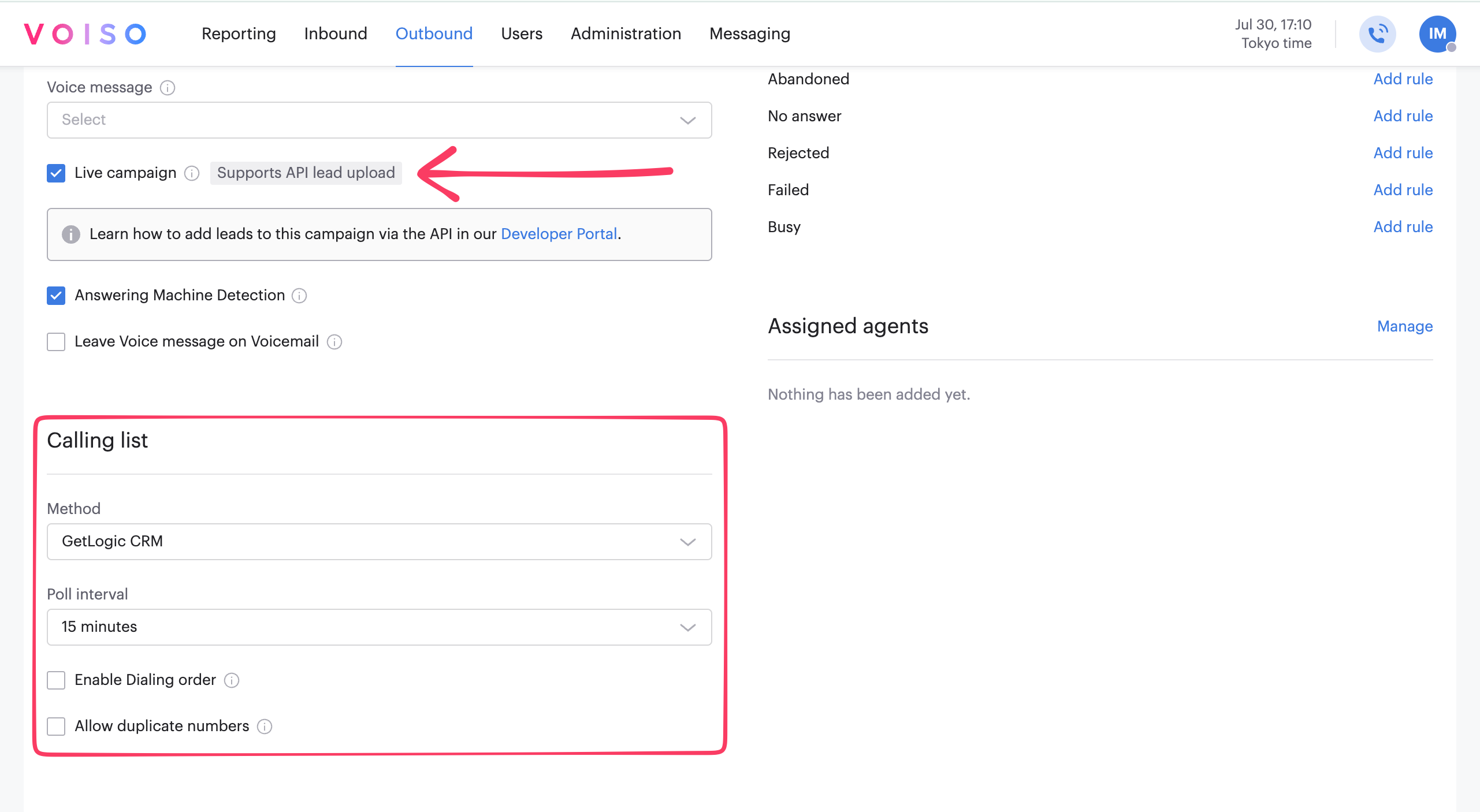
First, create a list of leads or contacts with account IDs and phone numbers in GetLogic, then use the list as a data source in the Voiso Dialer campaign builder. Both static and active contact lists are supported. The Voiso live campaign feature uses the GetLogic active contact lists.
When you create a Dialer campaign, on the Add campaign page, click Live campaign, select GetLogic CRM from the Method menu, and choose a Poll interval (how frequently Dialer should check for new contacts on GetLogic).
Integration
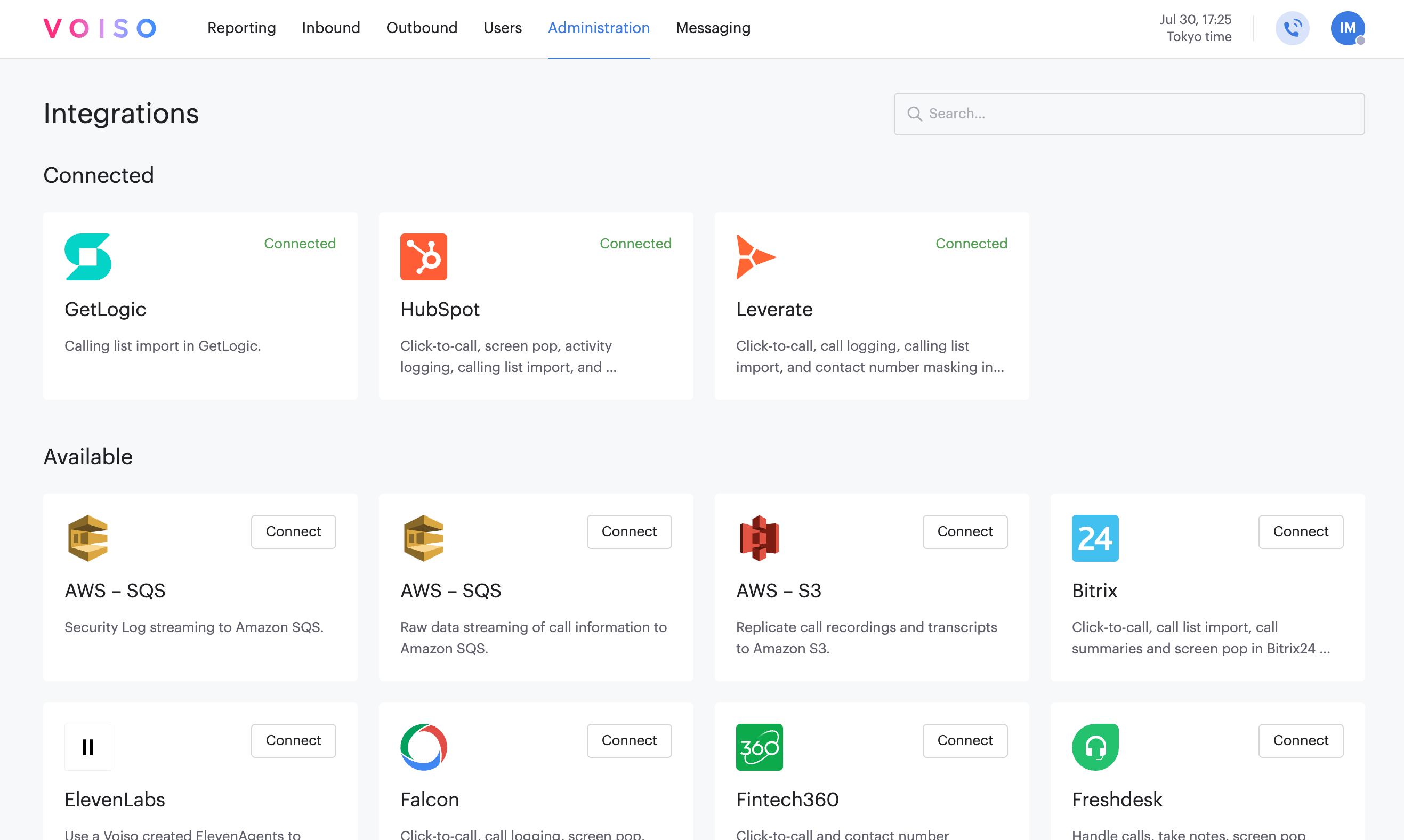
To integrate Voiso with GetLogic, navigate to Administration > Integrations, then click the GetLogic tile.
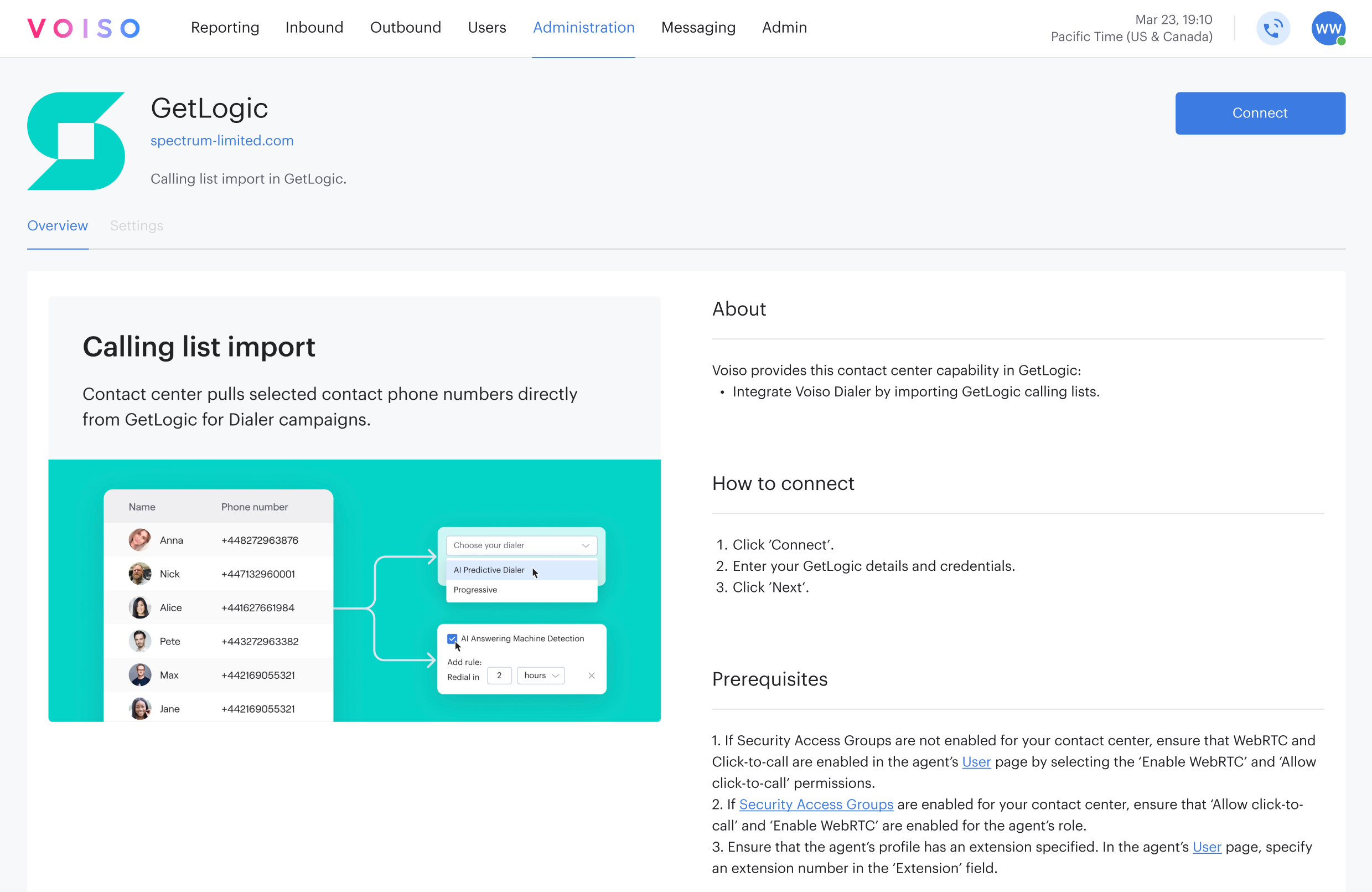
The GetLogic page provides information about the integration, instructions for connecting the integration, and a list of prerequisites you should have in place before clicking Connect.
When you click Connect, the Connection setup panel is displayed.
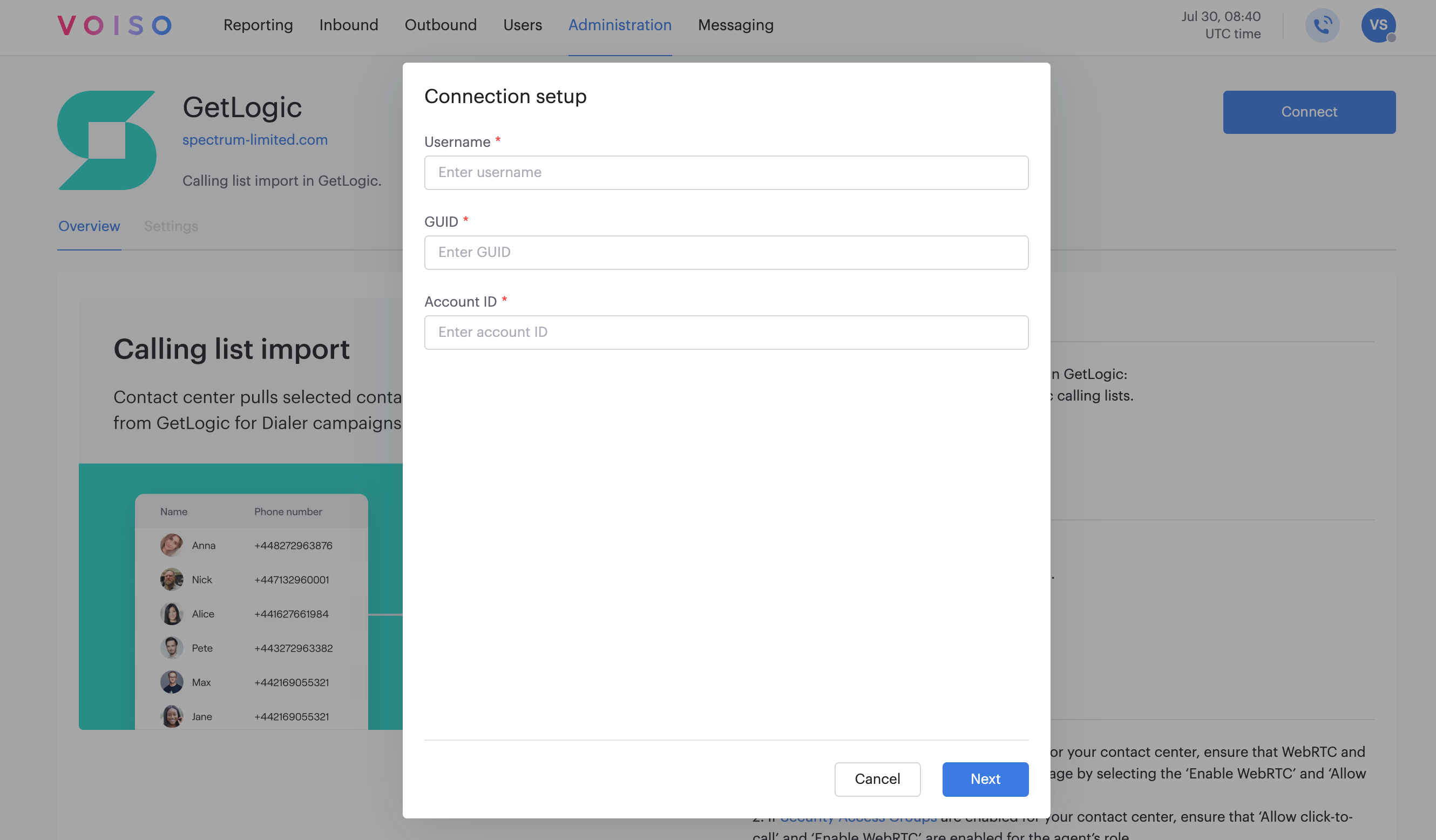
Enter the following information, then click Next to complete the integration:
- Username
- GUID
- Account ID
Managing your integration
To manage an existing GetLogic integration, navigate to Administration > Integrations, then click the GetLogic tile.
On the GetLogic integration page, you can reconnect an integration that has lost connection or disconnect a connected integration.
Reconnecting an integration
To reconnect an integration that has been disconnected, either manually or as the result of an error, or to modify the connection, click Edit connection, then select Reconnect.
Follow the on-screen instructions to connect your integration.
Disconnecting an integration
To disconnect an integration, click Edit connection, then select Disconnect.
In the Disconnect integration panel, click Disconnect to remove the integration from your contact center.