Who should read this article: Administrators
A knowledge base is a set of documents your AI agents answer questions from. You upload the files, Voiso converts them to plain text, and any AI agent you assign the knowledge base to uses that content during conversations.
Voiso enables the AI Agents feature for your contact center. If AI Agents does not appear in the navigation bar, contact your account manager.
Introduction
An AI agent knows two things: what you told it to do in its prompt, and what it can read in its knowledge bases. Put the stable facts of your business in a knowledge base — FAQs, policies, price lists, product documentation — and keep the prompt for how the agent should behave.
Group your documents into separate knowledge bases when different agents need different knowledge. A support agent and an outbound agent can each have their own, and both can share a third that holds company-wide information.
A knowledge base can be assigned to several AI agents, and an AI agent can use several knowledge bases.
Build your knowledge bases before you create an agent. They are then ready to assign in the Assigned knowledge bases section of the agent. Refer to AI Agents for more information.
The Knowledge bases page
From the Voiso navigation bar, navigate to AI Agents > Knowledge bases.
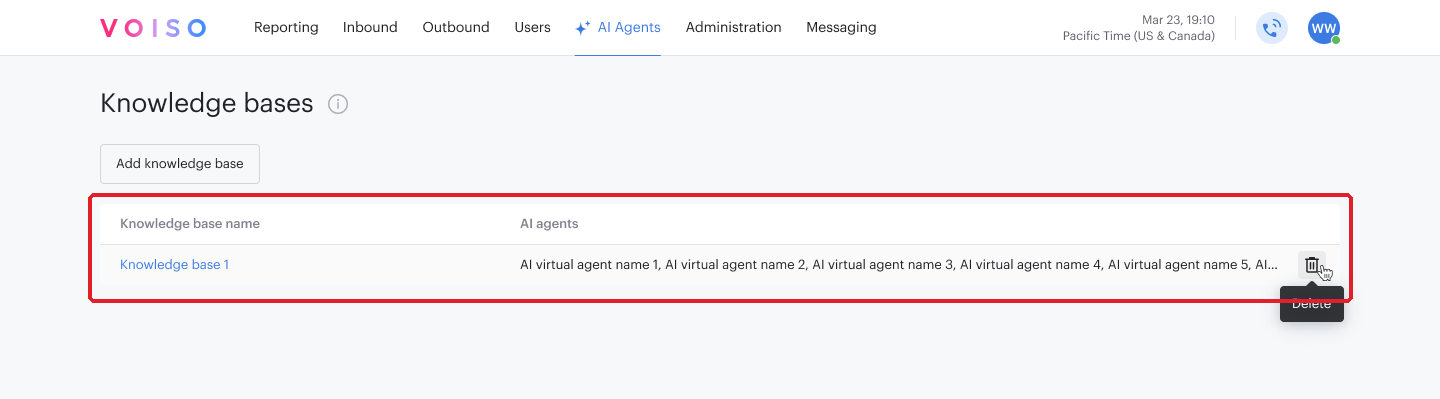
The page lists every knowledge base in your contact center. The table contains the following information:
| Column | Description |
|---|---|
| Knowledge base name | The name given to the knowledge base. Click the name to open the Edit knowledge base page. |
| AI agents | The AI agents this knowledge base is assigned to. |
Point at a row to show its Delete control.
Adding a knowledge base
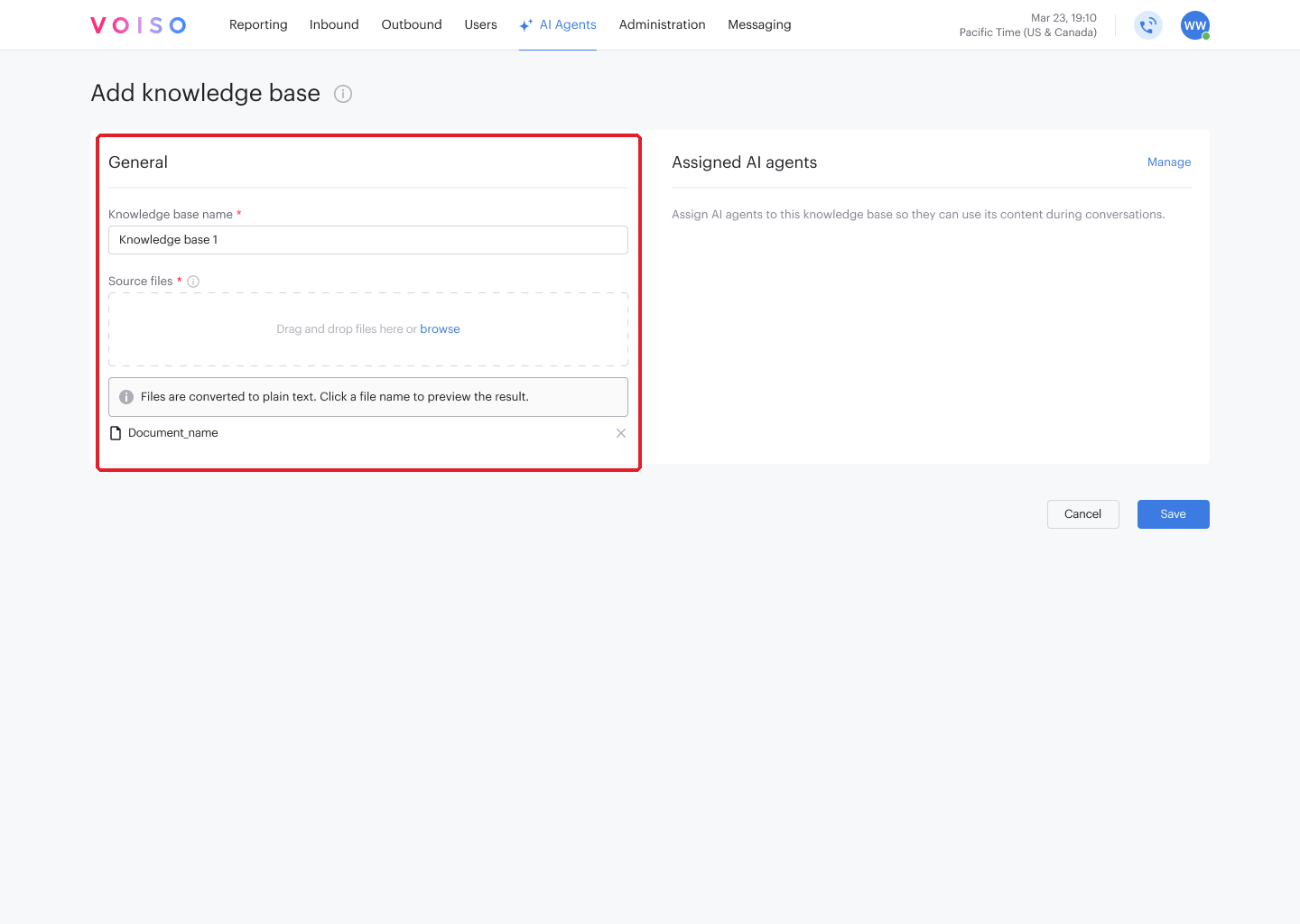
On the Knowledge bases page, click Add knowledge base, then fill in the sections described below and click Save.
General
| Setting | Description |
|---|---|
| Knowledge base name | Required. The name that identifies this knowledge base, up to 100 characters. The name must be unique in your contact center. |
| Source files | Required. The documents the AI agent answers from. Drag and drop the files onto the upload area, or click browse and select them. |
Assigned AI agents
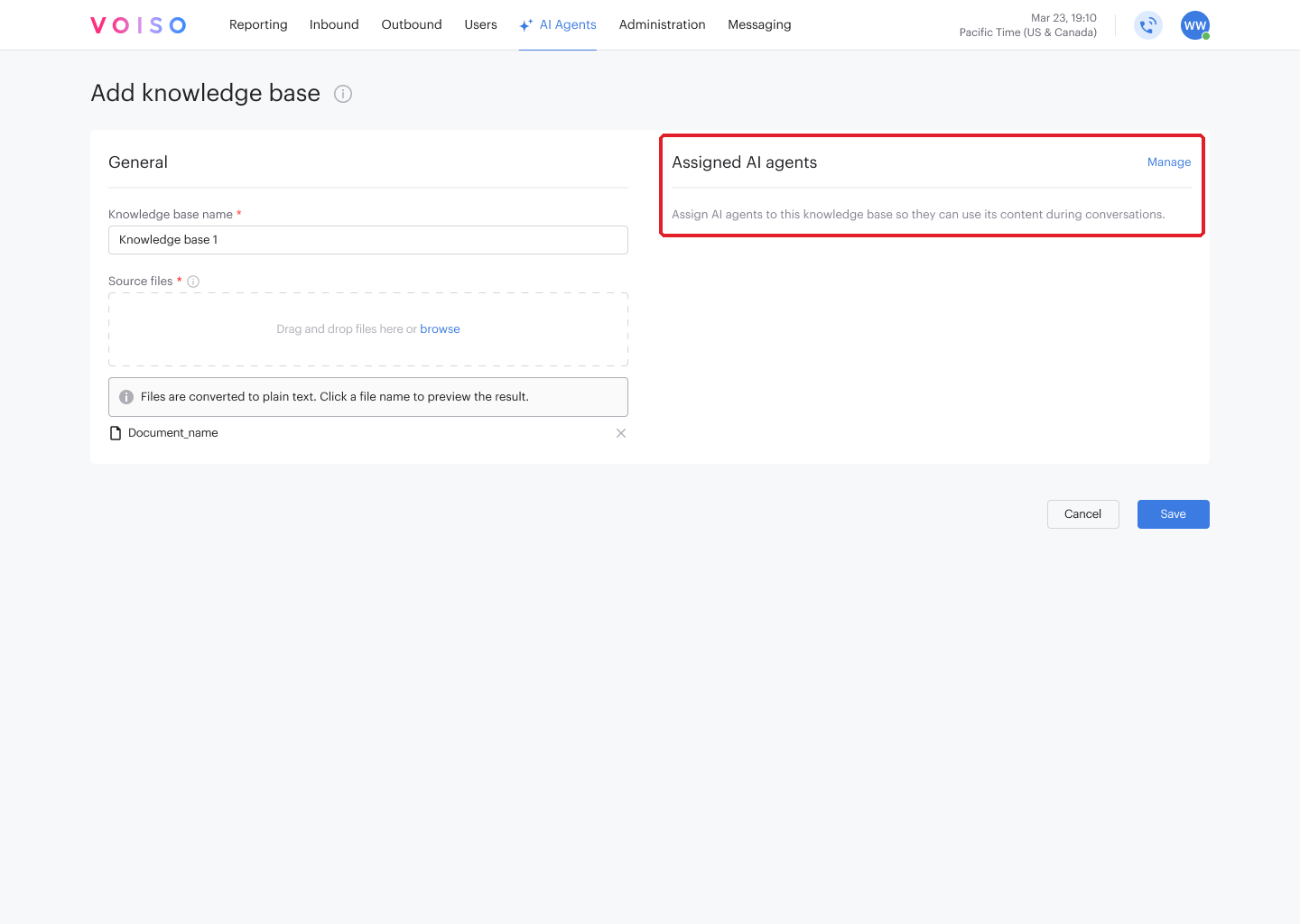
Click Manage, select the AI agents that should use this knowledge base, then click Assign. You can leave this empty and assign the knowledge base from the agent instead.
Source files
Supported formats and limits
| Item | Value |
|---|---|
| Formats | CSV, MD, PDF, DOC, DOCX, TXT, PPTX |
| Maximum size per file | 50 MB |
| Maximum files per knowledge base | 15 |
A file in any other format is rejected with Unsupported file format. Please try again. Archives are not processed — upload the documents themselves.
How a file is processed
Each file is uploaded and then converted to plain text, which is what the AI agent actually reads. While this happens, the file shows its progress: first Loading, then Extracting the content from and the file name. You can cancel a file while it is still being processed.
When conversion finishes, the file appears in the list as a link. If conversion fails, the file shows an error saying the text could not be extracted — remove it and try a different format.
Checking what the agent reads
Click a file name to preview the extracted text, and check that the content came through the way you expect. A scanned PDF or a slide deck with text inside images converts poorly, and the agent can only answer from what the conversion produced.
From the preview you can download the extracted text. From the file row you can download the original file or the converted one.
- Keep each document focused on one subject so the agent retrieves the right passage.
- Write out what a reader would infer from layout. Tables and columns flatten during conversion.
- Re-check the preview after replacing a file, so nothing is silently lost.
Editing and deleting a knowledge base
To edit a knowledge base, click its name on the Knowledge bases page. You can rename it, add and remove files, and change which AI agents use it. Changes reach the assigned agents once you click Save.
To delete a knowledge base, click its Delete control on the Knowledge bases page. The confirmation lists the AI agents the knowledge base is assigned to, so you can see which agents lose that content before you confirm.
An AI agent with no knowledge base still runs. It answers from its prompt alone and can no longer draw on the deleted documents.