Who should read this article: Administrators
Use AI Agents to build an AI agent that handles calls inside your contact center, using a prompt you write, a voice you choose, and documents you upload.
Voiso enables the AI Agents feature for your contact center. If AI Agents does not appear in the navigation bar, contact your account manager. The feature is in beta.
Introduction
A Voiso agent is an AI agent built and run inside Voiso. You describe what it should do in a prompt, choose the voice it speaks with, and assign the knowledge bases it answers from. From then on it works like any other member of your team: it takes interactions from a queue, transfers a conversation to a human when one is needed, and its calls are recorded and logged in your reports and Call Detail Records.
There is no separate publish step. An agent starts working as soon as you assign it to a queue, route calls to it from an Inbound call workflow in Workflow builder, or add it to a Dialer campaign.
Voiso charges the time an AI agent spends on calls by the minute. Refer to AI Agent plans and billing for more information about how usage is billed.
An AI agent answers questions from the documents you give it, so build your knowledge bases first. Refer to Knowledge bases for more information.
The AI Agents page
From the Voiso navigation bar, navigate to AI Agents > AI Agents.
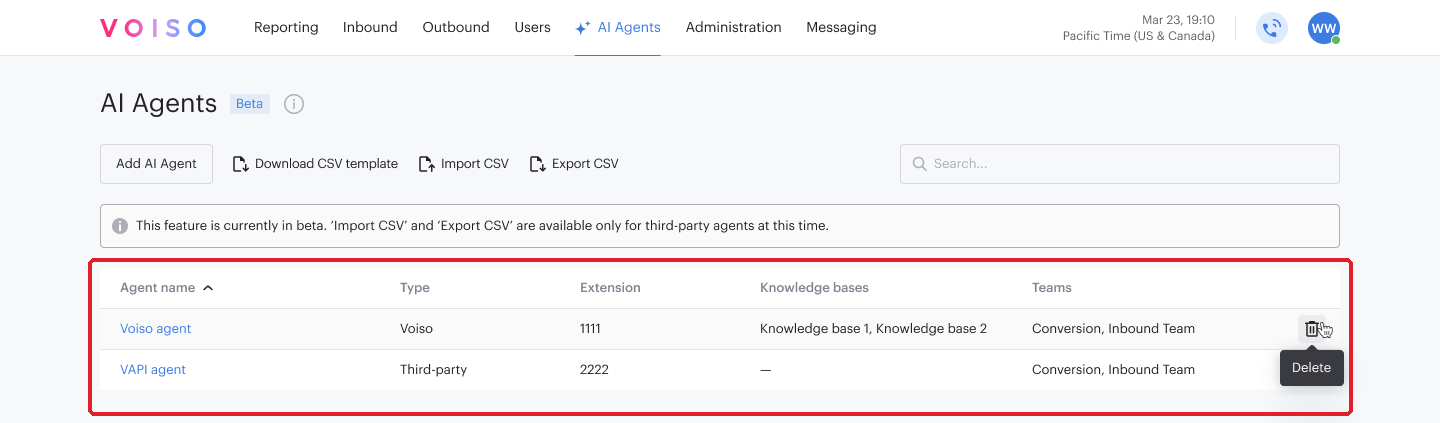
The page lists every AI agent in your contact center. The table contains the following information:
| Column | Description |
|---|---|
| Agent name | The name given to the agent. Click the name to open the Edit AI Agent page. |
| Type | Voiso for an agent built in Voiso, Third-party for an external agent connected over SIP. |
| Extension | The extension assigned to the agent, if any. |
| Knowledge bases | The knowledge bases the agent answers from. |
| Teams | The teams the agent belongs to. |
Use the search field to filter the list by agent name. Point at a row to show its Delete control.
This article describes the Voiso agent type. You can also connect an external AI agent over SIP by choosing the Third-party agent type. Refer to Bring Your Own Bot overview for more information about external agents.
Adding an AI agent
On the AI Agents page, click Add AI Agent, then fill in the sections described below and click Save.
General
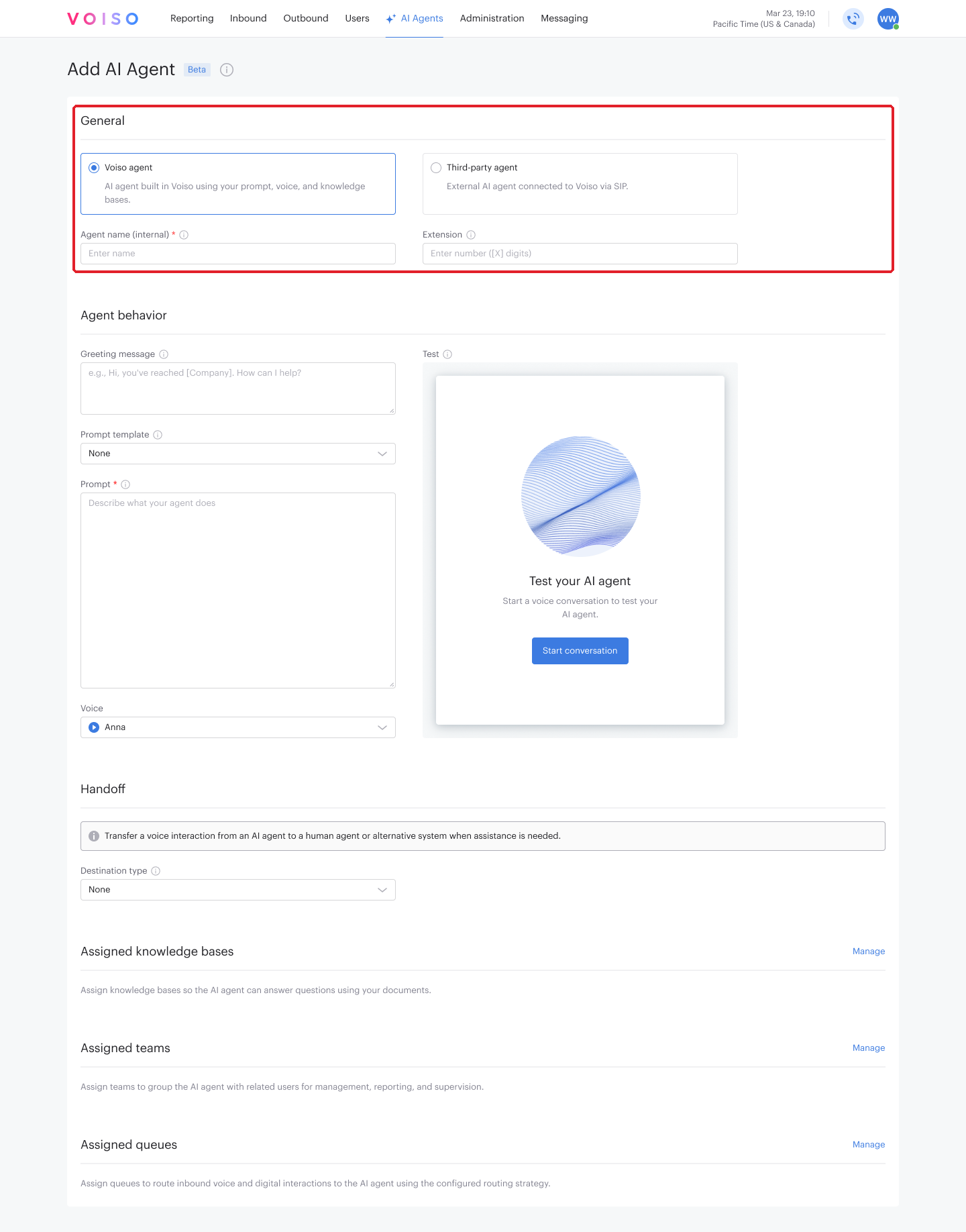
Select the Voiso agent type. The type is fixed once the agent is saved, so choose it before you save.
| Setting | Description |
|---|---|
| Agent name (internal) | Required. The name that identifies this agent in lists, reports, and settings, up to 100 characters. It is not what the agent calls itself on a call — put that in the prompt. The name must be unique in your contact center. |
| Extension | The extension used to direct calls to the agent. Other users with WebRTC enabled can dial it. Extension length is set on the Contact Center tab of System settings. |
Agent behavior
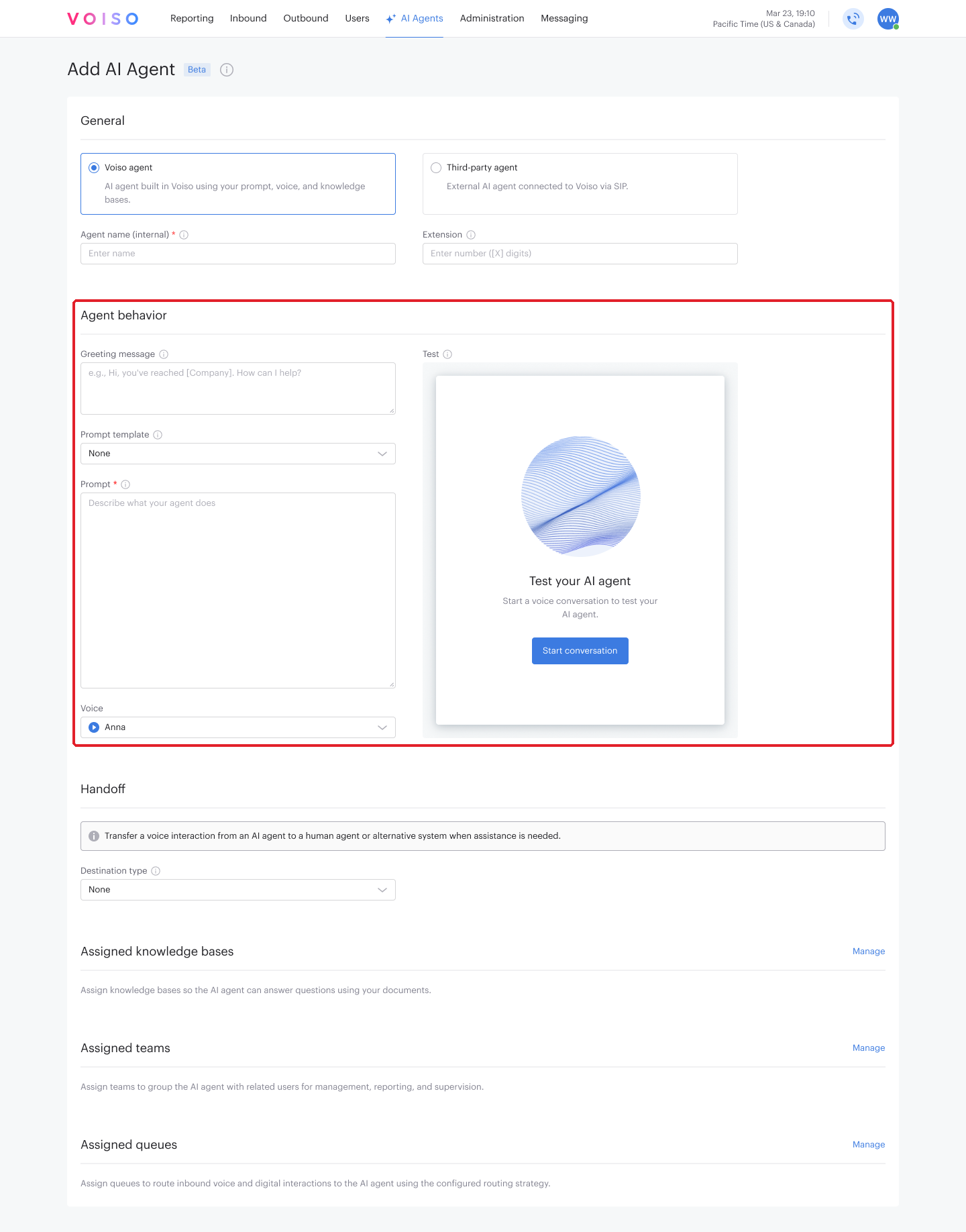
This section gives the agent its instructions and its voice.
| Setting | Description |
|---|---|
| Greeting message | The first thing the agent says when a conversation starts, up to 300 characters. Leave it empty and the agent waits for the contact to speak first. On Dialer campaign calls, you can personalize it with variables, such as the lead's name. Refer to AI agent variables. |
| Prompt template | A ready-made prompt for a common use case: Receptionist, Support, or Outreach. Selecting one fills in the Prompt field, which you then edit. Choose Custom to write the prompt from scratch. A new agent starts on the Receptionist template. The templates contain placeholders in double braces, such as {{platform_or_brand}}. Replace them with your own text; they are not variables. |
| Prompt | Required. The agent's role, tone, rules, and conversation context, in plain text, up to 20,000 characters. On Dialer campaign calls, you can use variables with details of the call and the lead. Refer to Prompting guide for how to write one, and AI agent variables for variables. |
| Voice | The voice the agent speaks with. Click the play button next to a voice to hear a sample. |
Wrap-up codes
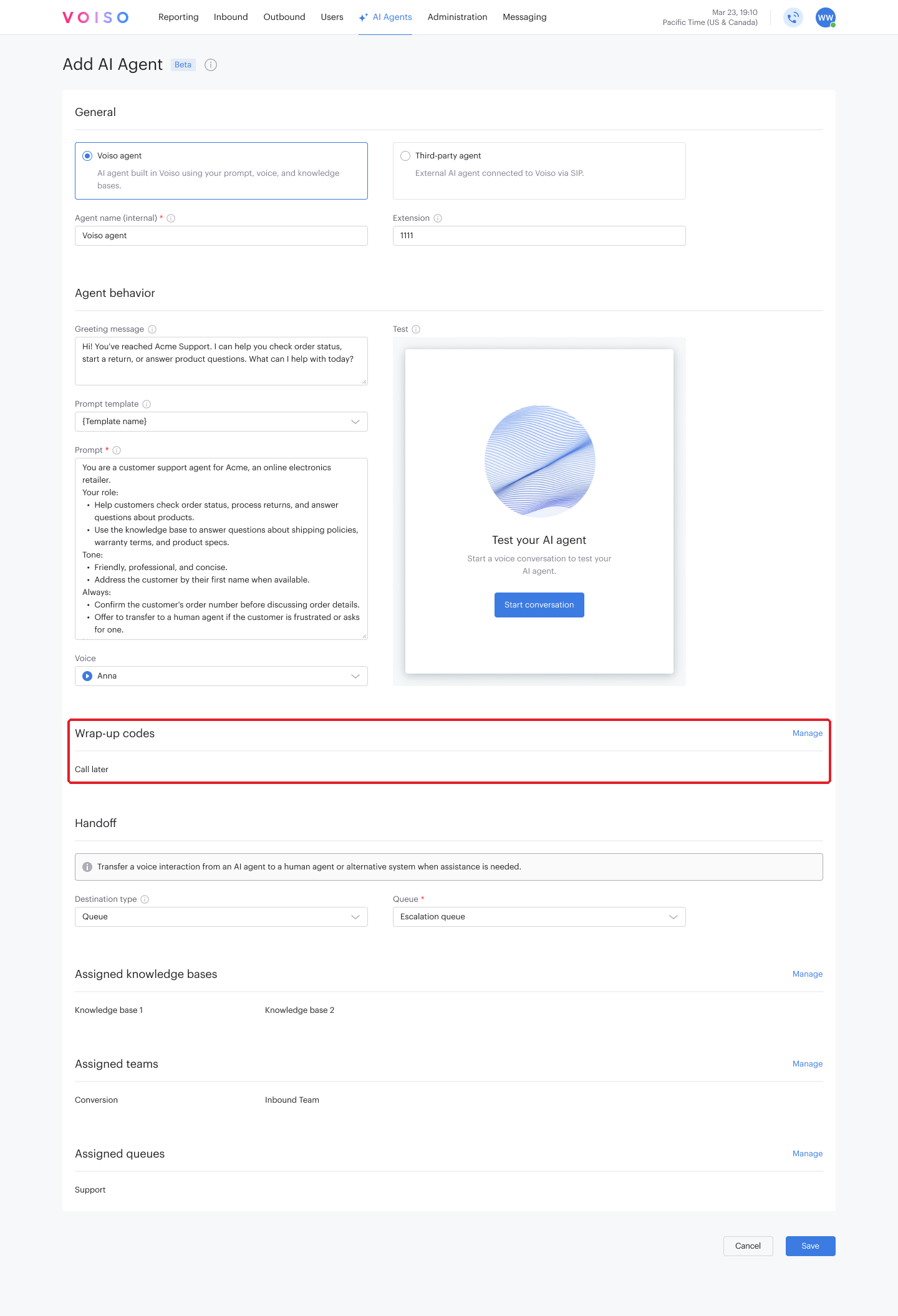
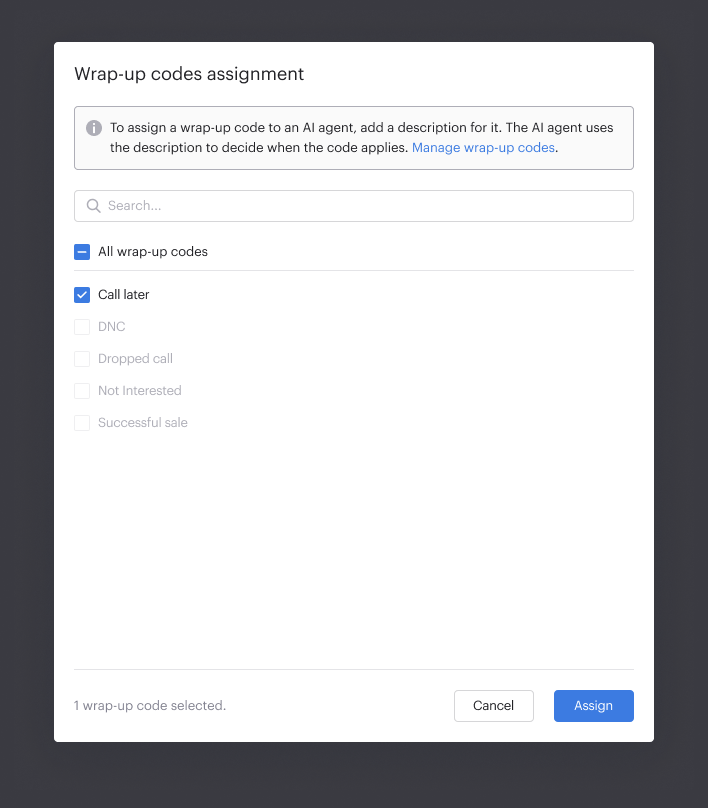
At the end of every call, the AI agent applies a wrap-up code, the same way your agents do during their after-call work. This section sets the codes it is allowed to use, and the agent picks the one that fits the conversation.
Click Manage to open the Wrap-up codes assignment panel, select the codes, then click Assign.
The agent decides which code applies by reading the Code description of each code, so a code without a description cannot be selected in the panel. Point at such a code to see what is missing. To add the description, navigate to Administration > Wrap-up codes and open the code.
When the agent cannot choose a code, and when you assign it no codes, the call ends with the default code 9999 Handled by Virtual agent.
Wrap-up code groups do not apply to an AI agent. The agent uses only the codes you assign to it here.
Handoff
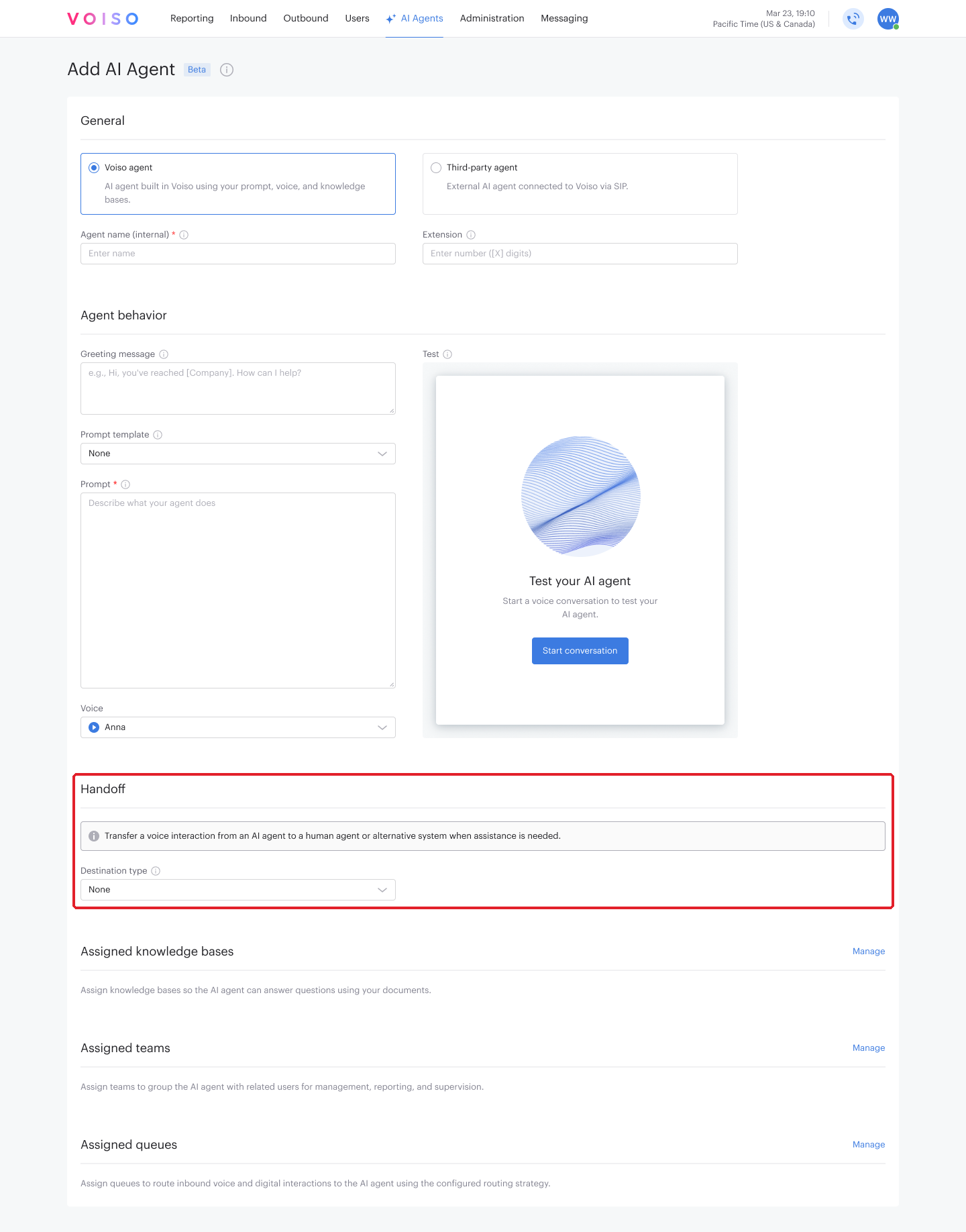
Handoff transfers a voice interaction from the AI agent to a human agent or another system when help is needed.
Select a Destination type, then fill in the field that appears next to it:
| Destination type | What you provide |
|---|---|
| Queue | The queue that receives the transferred interaction. |
| Agent | The user who receives the transferred interaction. |
| Phone number | The number the interaction is transferred to. |
Assigned knowledge bases, teams, and queues
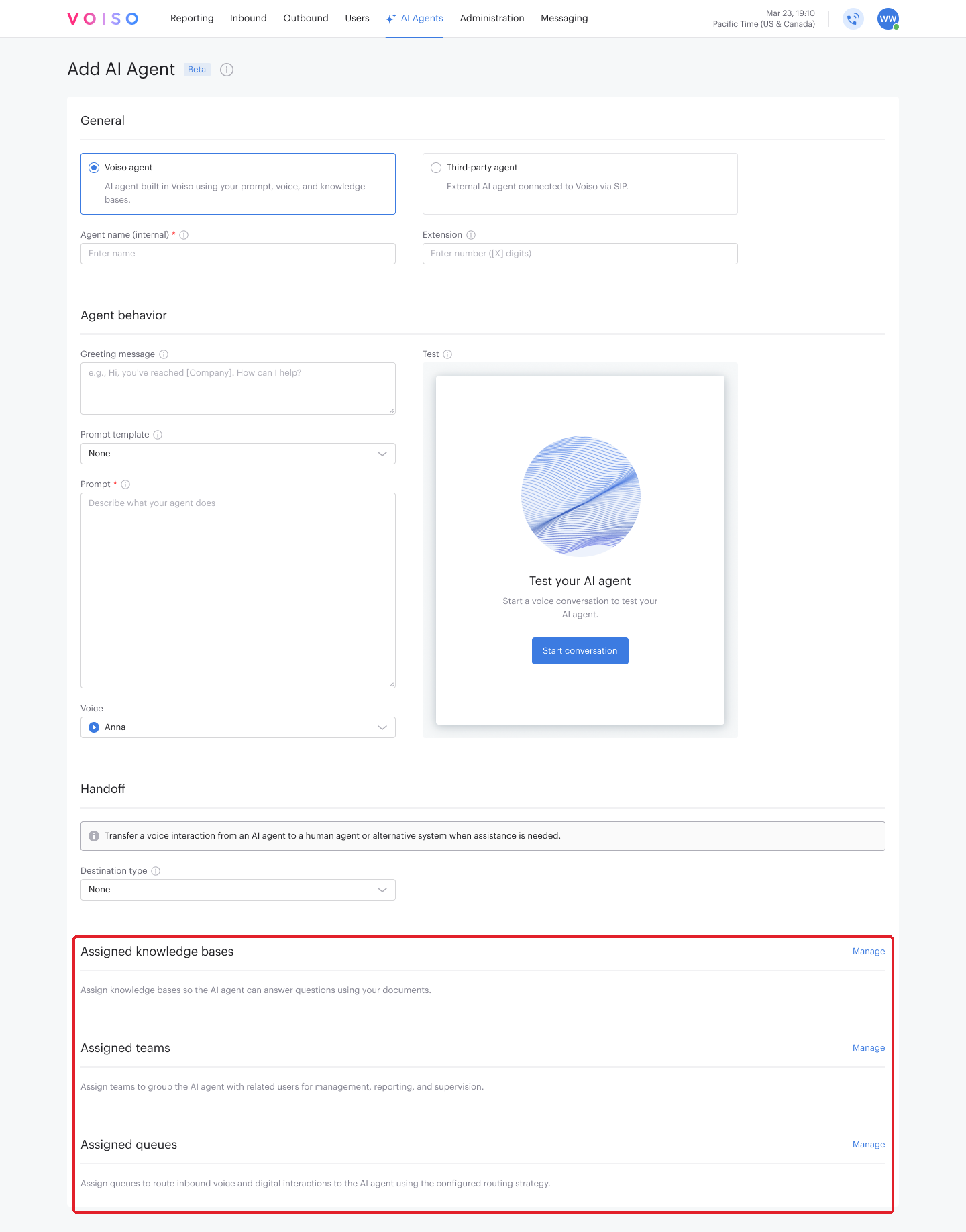
Each of these sections has a Manage link that opens an assignment panel. Select the items you want and click Assign.
| Section | What it does |
|---|---|
| Assigned knowledge bases | Gives the agent the documents it answers questions from. |
| Assigned teams | Groups the agent with related users for management, reporting, and supervision. |
| Assigned queues | Routes inbound voice and digital interactions to the agent, using the routing strategy configured on the queue. |
Testing your AI agent
Use the Test panel next to the Agent behavior section to talk to the agent as it is currently configured, before any contact reaches it.
- Click Start conversation and have a voice conversation with the agent.
- Ask the questions your customers actually ask, and a few the agent should refuse.
- Adjust the prompt and test again until the agent behaves the way you want.
- Click Save.
The Test panel does not fill in variables. To check a prompt that uses variables, run a short test Dialer campaign with a lead you control. Refer to AI agent variables.
Change the prompt during a test session and the panel offers to restart the conversation, so you always hear the version you are editing.
Putting your AI agent to work
An AI agent handles interactions anywhere calls are handled:
- Assign it to a queue in the Assigned queues section, and inbound interactions reach it through that queue's routing strategy.
- Route calls to it from an Inbound call workflow in Workflow builder.
- Add it to a Dialer campaign for outbound calling.
Voiso AI Agents work with inbound interactions by default. Outbound calling requires verification. Where that applies, the AI Agents page shows an Unlock Voiso AI Agents for outbound banner with a Request verification button. Click it to ask Voiso to review your account.
Editing and deleting an AI agent
To edit an agent, click its name on the AI Agents page. The Edit AI Agent page opens with the same sections, and a Delete action in the header. You cannot change the agent type after the agent is saved.
To delete an agent, click Delete on the Edit AI Agent page, or point at the agent's row on the AI Agents page and click its Delete control. The confirmation lists the teams, queues, and Dialer campaigns the agent is currently assigned to, so you can see what the deletion affects before you confirm.
Where AI agent activity appears
An AI agent's work shows up in the same places as a human agent's:
- Its calls are recorded, transcribed, and logged in Call Detail Records.
- It appears in your historical reports and real-time dashboard.
- Speech Analytics covers its conversations.
- The wrap-up code it applied is stored with the call, so it reaches your wrap-up code reports, dashboard widgets, and CDR filters like any other code.