Who should read this article: Administrators
Variables let an AI agent use details about the call and the lead it is calling. You insert a variable into the agent's Greeting message or Prompt, and on each Dialer campaign call, Voiso replaces it with the value for that call.
For example, this greeting:
Hi {{context_first_name}}, this is Anna from Acme. I'm calling about your {{context_plan}} plan.
is spoken to the lead as: "Hi Maria, this is Anna from Acme. I'm calling about your Premium plan."
Variables are filled in only on calls from a Dialer campaign. They are not filled in on inbound calls, or when you talk to the agent in the Test panel. If the agent also handles inbound calls, write the prompt so it still works when the values are missing.
Types of variables
Variables come in two groups.
| Group | What it contains | Setup needed |
|---|---|---|
| System variables | Details of the call itself: the date, the time, and the campaign name. | None. You can insert them in any Voiso agent. |
| Custom variables | Fields from your Dialer campaign leads, such as a first name, company, or plan. | Map the field on the Interaction context mapping page with Voiso AI Agents selected under Show in. |
System variables
| Variable | What it contains | Example |
|---|---|---|
system_call_date |
The date of the call, with the day of the week, in your contact center's time zone. The date is written in English. | Friday, 21 August 2026 |
system_call_time |
The time the call started, in your contact center's time zone, in 24-hour format. | 14:32 |
system_campaign_name |
The name of the Dialer campaign the call belongs to. | Summer promo 2026 |
An AI agent has no clock of its own. Use system_call_date and system_call_time when the agent needs to know what day it is, say whether your office is open, or suggest a time for a callback.
Custom variables
Each field you map on the Interaction context mapping page can become a variable. Its name is the field's Auto-generated context key, which always starts with context_. For example, a field with the display label Company name becomes context_company_name.
A custom variable is available to your AI agents when:
- its Metadata source is Dialer campaign lead list (leads from a CSV upload or the Calling List API), and
- Voiso AI Agents is selected under Show in for that field.
On each call, the variable takes its value from the lead being called. Values longer than 256 characters are cut to 256.
- Custom variables appear in the list only for users who can view the Interaction context mapping page. Other users see the system variables only.
- Fields mapped before Voiso AI Agents could use them were switched on automatically, if their only source is Dialer campaign lead list. A field that also uses the SIP header source cannot be used by AI agents. Create a separate field for the dialer source instead.
Inserting a variable
- From the Voiso navigation bar, navigate to AI Agents > AI Agents and click the agent's name.
- In the Agent behavior section, click in the Greeting message or Prompt field where you want the value to appear.
- Type
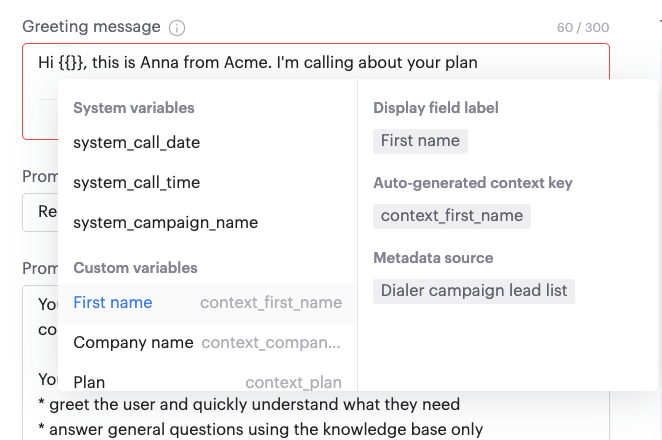
{{, or click the Variables icon ({ }) in the bottom-right corner of the field. The list of variables opens, grouped into System variables and Custom variables. Custom variables are listed by their Display field label, with the variable name next to it. - To narrow the list, keep typing. The search matches both the display label and the variable name.
- Point at a variable to see its details:
- For a system variable: an Example value.
- For a custom variable: its Display field label, Auto-generated context key, and Metadata source.
- Click the variable to insert it. It appears in the field in double braces, for example
{{context_company_name}}. - Click Save.
The variable counts toward the field's character limit as it is written, including the braces. The Greeting message allows 300 characters and the Prompt 20,000.
Writing prompts with variables
- Keep the greeting safe. The agent speaks the Greeting message almost word for word. Only use a variable there if every lead in the campaign has a value for it.
- Tell the agent what to do when a value is missing. A lead may have no value for a field. For example: "If the customer's first name is not provided, greet them without a name. Never guess a name, company, or amount."
- Present values as facts in the prompt. For example: "The customer's current plan is
{{context_plan}}. Their renewal date is{{context_renewal_date}}." - Check the result on a real call. The Test panel does not fill in variables. To check them, run a short test Dialer campaign with a lead you control, then read the call's transcript in Call Detail Records.
The Receptionist, Support, and Outreach prompt templates contain placeholders in double braces, such as {{platform_or_brand}} and {{call_purpose}}. They are not variables, Voiso does not fill them in, and it does not warn you about them when you save. Replace them with your own text.