Who should read this article: Administrators
Interaction context mapping lets administrators map incoming interaction data from supported sources to standardized fields in Voiso, so the information is displayed clearly to agents during the interaction, saved in Call Detail Records, and available to Voiso AI Agents as variables.
Introduction
Use the Interaction context mapping page to map incoming interaction data from supported sources, such as SIP headers and dialer campaign lead lists, to standardized Voiso UI fields. For each field, you choose where it is shown:
- Agent Workspace: agents see the field in Agent Panel during the interaction.
- Voiso AI Agents: the field becomes a variable you can use in an AI agent's greeting and prompt.
Mapped values are always saved in Call Detail Records, whatever you choose.
Dialer campaign lead list
Dialer campaign lead list covers lead data captured from your dialer campaigns, whether the leads were added through the Add leads to a campaign API (Calling List API) or uploaded as a CSV file when creating or editing a campaign. Both intake methods are treated as one source for mapping purposes.
You can map any extra field present in your lead data — such as tier, language, or notes — to a display field. Field names and values are accepted in any format; there is no rejection based on SIP-header syntax.
Note: the system captures up to 15 extra context fields per lead. Any additional fields beyond the 15th are silently ignored — the lead is not marked invalid and the CSV upload is not rejected on this basis. This applies to both the CSV and Calling List API intake methods.
Note: values longer than 256 characters are cut to 256.
Note: for CSV uploads, the header row is optional and auto-detected. Files without a header row continue to work exactly as before; only files with a header row get the extra-column treatment described above.
For example, lead data might include:
"Client Order Id": "1234",
"Call Context": "discount_promo_code"
When you map these fields to a context field, you might create one called Order ID and one called Call context. These fields are displayed in Agent Panel and the Call Details Record with the associated value.
Reaching Voiso AI Agents
Fields from the dialer campaign lead list can be used by Voiso AI Agents. When Voiso AI Agents is selected under Show in, the field becomes a custom variable named after its context key, for example context_order_id. Insert it into an AI agent's Greeting message or Prompt, and on each Dialer campaign call it is replaced with the value from the lead being called. Refer to AI agent variables for more information.
Unlike third-party bots, Voiso AI Agents also receive fields whose names contain spaces or special characters, because the variable uses the context key, not the original field name.
Reaching third-party bots via SIP
When Voiso sends dialer campaign lead list context to a third-party bot via SIP headers on a call:
- Field names that already match the SIP-safe character set (letters, numbers, and
- _ . ! ~ * +) are sent as-is. - Field names that are SIP-safe but missing the required
X-prefix haveX-added automatically before being sent. - Field names or values containing characters outside the SIP-safe set are silently excluded from the SIP INVITE — they are NOT sent to the bot, but they still appear in Agent Panel and Call Detail Records.
Unmapped fields are never sent to bots, shown in Agent Panel, shown in Call Detail Records, or offered to Voiso AI Agents.
BYOB SIP headers
Bring Your Own Bot (BYOB) SIP headers are metadata sent with inbound calls through custom SIP headers in the INVITE request. These headers can include information such as customer name, language, scenario, or Custom SIP headers, such as x-name or x-language. Any header can be mapped to Voiso fields for display to agents and in Call Detail Records.
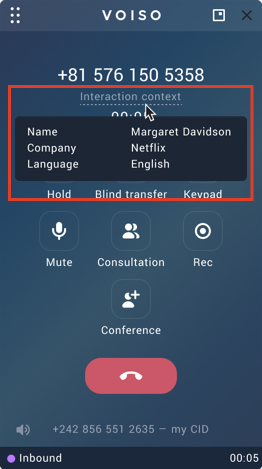
When you map these headers to a context field, you might create one called Name and one called Language. These fields are displayed in Agent Panel and the Call Details Record with the associated value.
Note: SIP header fields cannot be used by Voiso AI Agents. Refer to Choosing where a field is shown.
Interaction context mapping page
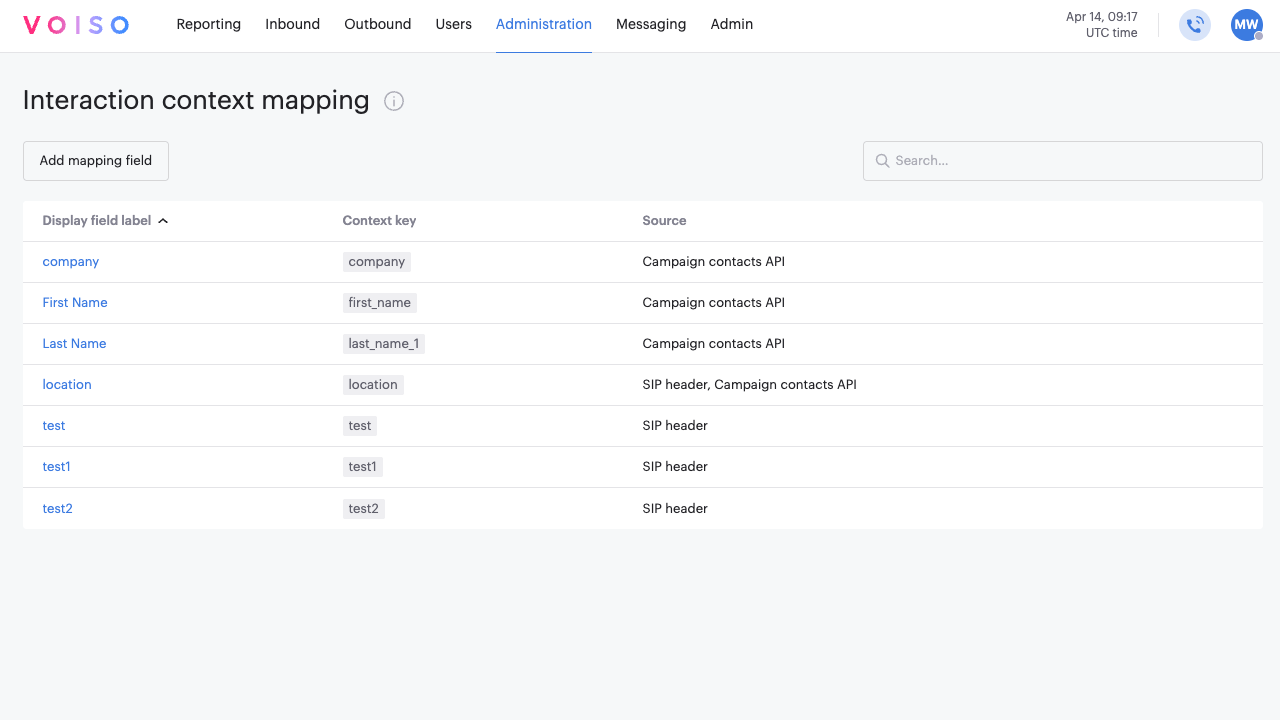
To view the Interaction context mapping page, navigate to Administration > Interaction context mapping. The page contains a table that lists your context mapping fields.
| Head | Description |
|---|---|
| Display field label | The unique label shown in Agent Panel and reports defining or describing the context value. |
| Context key | A system generated key based on the display field label. It is used to match metadata from the source field, and it is the variable name used in Voiso AI Agents. |
| Source | The source that is providing values for the context key. Either Dialer campaign lead list (CSV upload or Calling List API) or SIP header. |
Adding mapping fields
To add a new interaction context mapping field, follow these steps:
-
Click Add mapping field. A panel opens requesting that you provide a display name (Display field label) for the metadata that you want to display in Agent Panel or in reporting. This label is used to generate the suggested field key in the next step. Specify a name that is short and descriptive. Note: after you click Continue, the display label cannot be edited.
-
Click Continue to display the Add mapping field page.
-
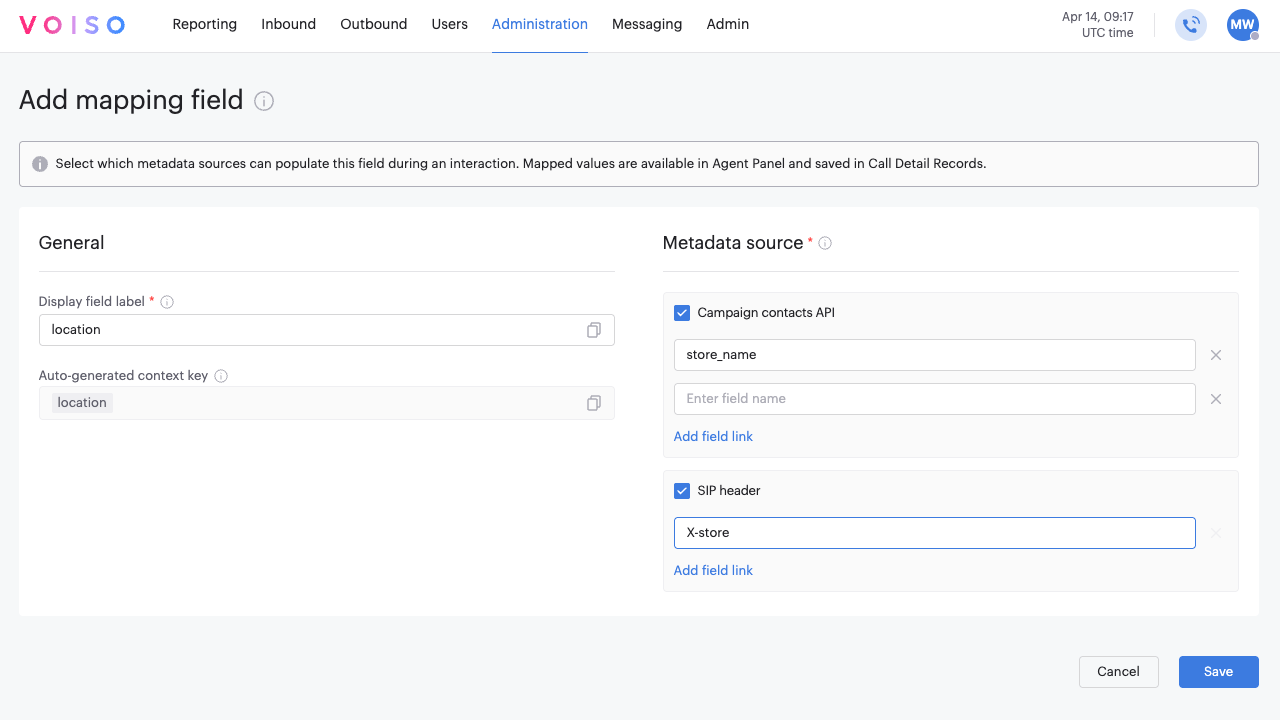
The following fields are shown in the General section.
- Display field label: the display name you specified in step 1. You may copy but not modify this value.
- Auto-generated context key: the name of the variable used to store metadata values.
-
In the Metadata source section, select one or more data sources to map to the context key. The following data sources are supported:
- Dialer campaign lead list: refer to Dialer campaign lead list. Field name input placeholder: "Enter the field name as it is in your file or API".
- SIP header: refer to BYOB SIP headers. Field name input placeholder: "Enter the header name as it arrives on the call".
Note: when Dialer campaign lead list is selected, an info banner is shown inside that section: "Fields sent to third-party bots must contain only: [A-Z, a-z, 0-9, _, -, ., !, ~, *, +]. Fields with such names will still show in Agent Workspace and CDR, but won't reach the bot."
-
When you select a source a field is displayed that enables you to specify a field name from the data source, such as
tier,name, or other parameter. Enter the source field name to be associated with the mapping field. To specify more than one possible field name, click Add field to add another field. Note: the first field found in the source data matching one of the specified field names will be used. -
In the Show in section, select where the field is shown: Agent Workspace, Voiso AI Agents, or both. At least one option is required. Refer to Choosing where a field is shown.
-
Click Save.
Choosing where a field is shown
The Show in section controls where a mapped field appears. Values are saved in Call Detail Records whichever options you select.
| Option | What it does | Selected by default |
|---|---|---|
| Agent Workspace | Shows the field to agents in Agent Panel during the interaction. | Yes |
| Voiso AI Agents | Makes the field available as a variable in AI agent greetings and prompts, filled in on Dialer campaign calls. Refer to AI agent variables. | Yes |
Note: fields created before the Show in section was added keep Agent Workspace selected. Voiso AI Agents was selected automatically on those fields whose only source is Dialer campaign lead list.
Voiso AI Agents receive fields from the Dialer campaign lead list only. For that reason, Voiso AI Agents and the SIP header source cannot be selected on the same field:
- When Voiso AI Agents is selected, SIP header is disabled, with the tooltip "Not available when Voiso AI Agents is selected."
- When SIP header is selected, Voiso AI Agents is disabled, with the tooltip "Not available for SIP Header fields."
To create a field for SIP headers, clear Voiso AI Agents under Show in first. The SIP header source then becomes available.
Editing mapping fields
To edit a mapping field, click the display name of the field in the table on the Interaction context mapping page. Follow steps 4 through 7 above to change its sources or where it is shown. Click 'X' next to a field to remove it from the mapping. Note: A context mapping field must have at least one associated metadata source field. Click Save when you are done.
If an AI agent's greeting or prompt uses a field as a variable, clearing Voiso AI Agents or deleting the field means the agent no longer receives its value. Check your AI agents' prompts before you make the change.
Agent Panel
When the Interaction context mapping feature is enabled in your contact center a link is displayed in Agent Panel during inbound and Dialer campaign calls providing the display fields you defined and the associated values from the call metadata. Only fields with Agent Workspace selected under Show in are displayed.
Call Detail Records
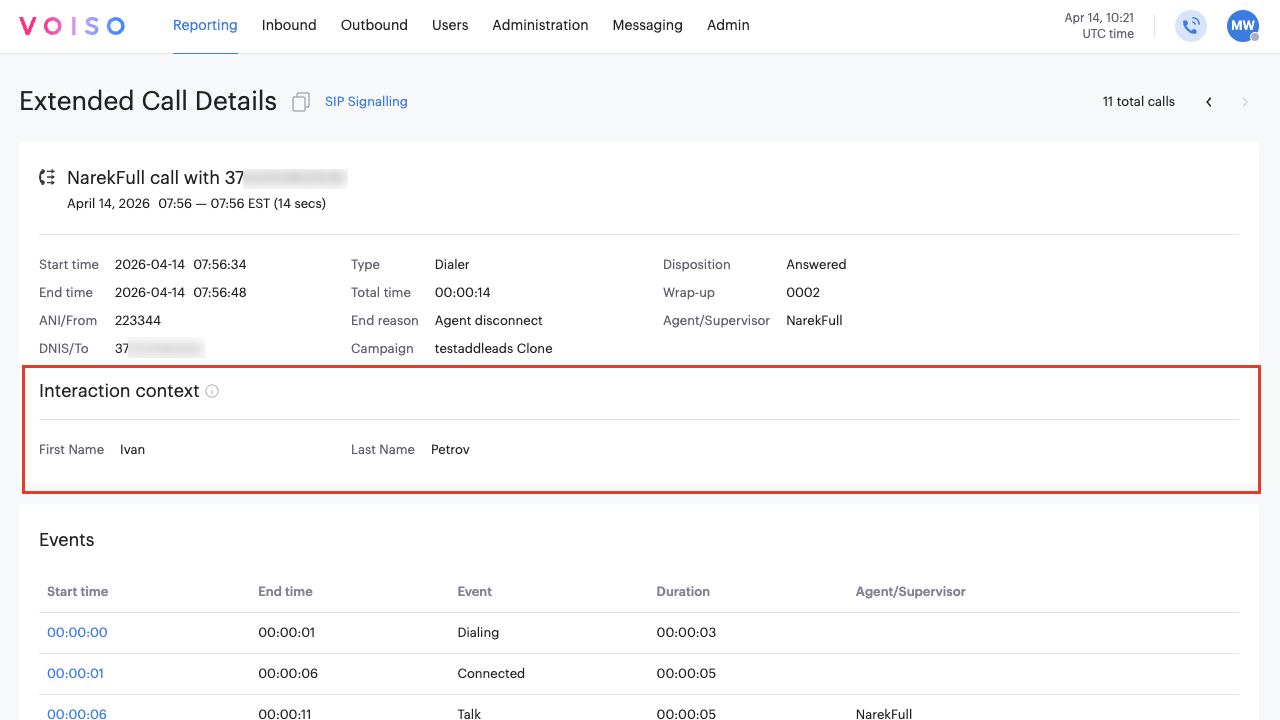
When the Interaction context mapping feature is enabled in your contact center the Interaction context section is added in Extended Call Details for inbound and Dialer campaign calls providing the display fields you defined and the associated values from the call metadata.