Follow the steps below to migrate your existing WhatsApp channel to Voiso.
Before You Begin
Before starting the migration, make sure that:
- You have administrator access to your Meta Business Portfolio.
- You have administrator access to your Voiso account.
- You can receive the verification code (OTP) sent to your WhatsApp phone number.
Part 1. Disable Two-Step Verification in Meta
-
Open https://business.facebook.com/ and sign in to your Meta Business Portfolio.
-
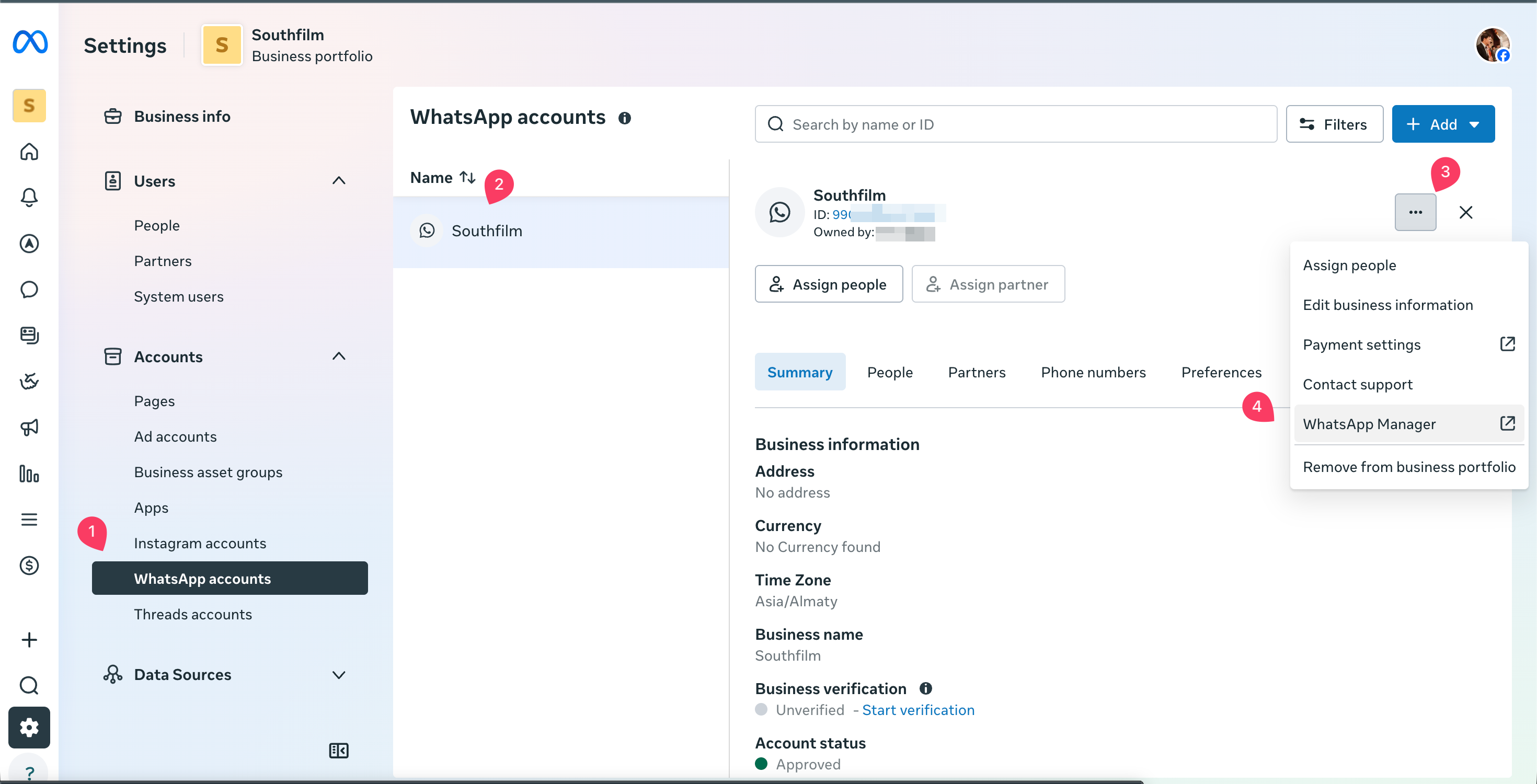
Click Settings (the gear icon in the bottom-left corner).
-
Select WhatsApp accounts.
-
Find the WhatsApp Business account that contains the phone number you want to migrate.
-
Click the ... (three dots) next to the account name and select WhatsApp Manager.
-
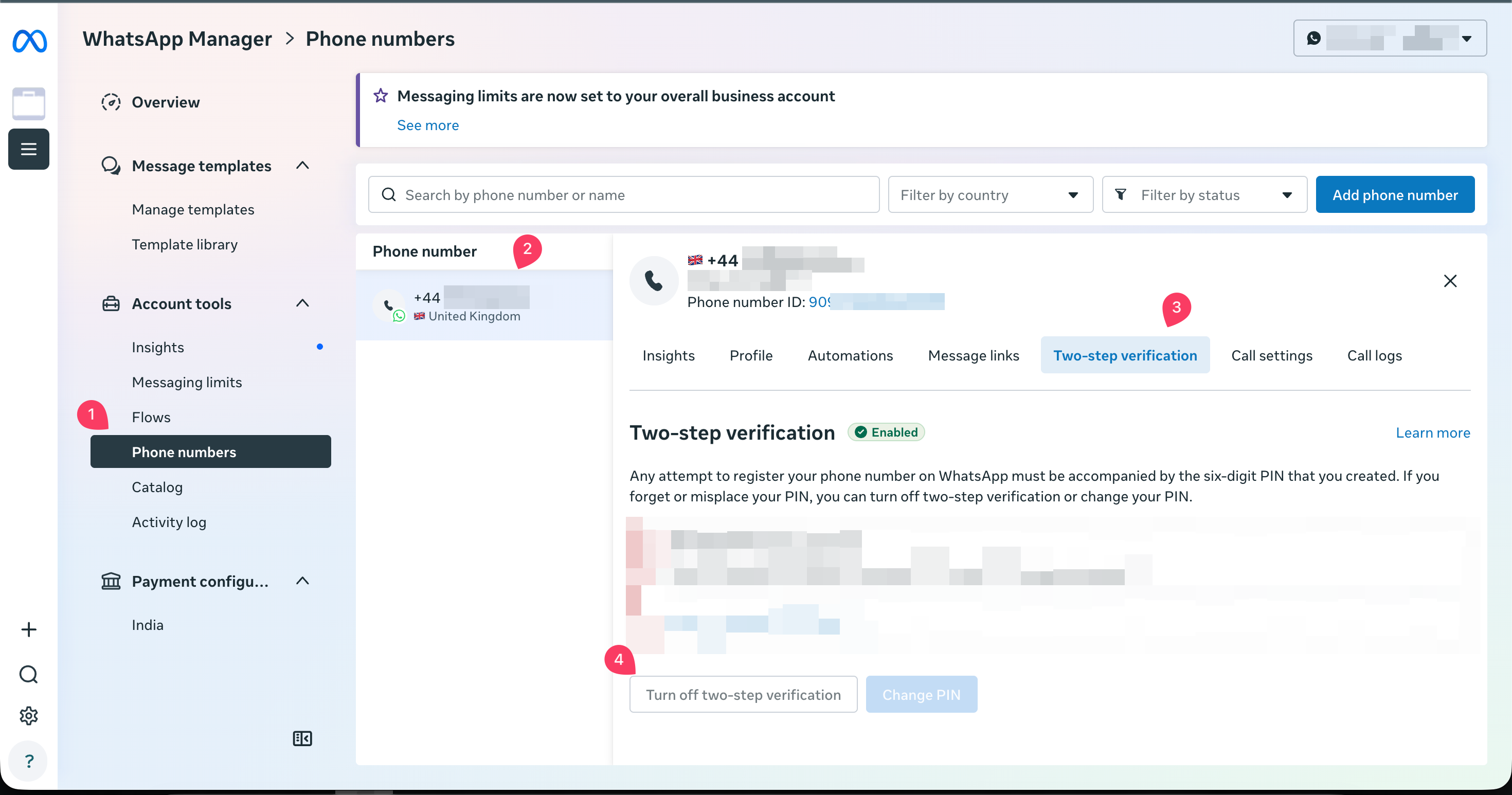
In the Phone numbers section, find the phone number you want to migrate and click the gear icon next to it.
-
Open the Two-step verification tab.
-
Click Turn off two-step verification.
Part 2. Migrate the Number in Voiso
-
Sign in to your Voiso account.
-
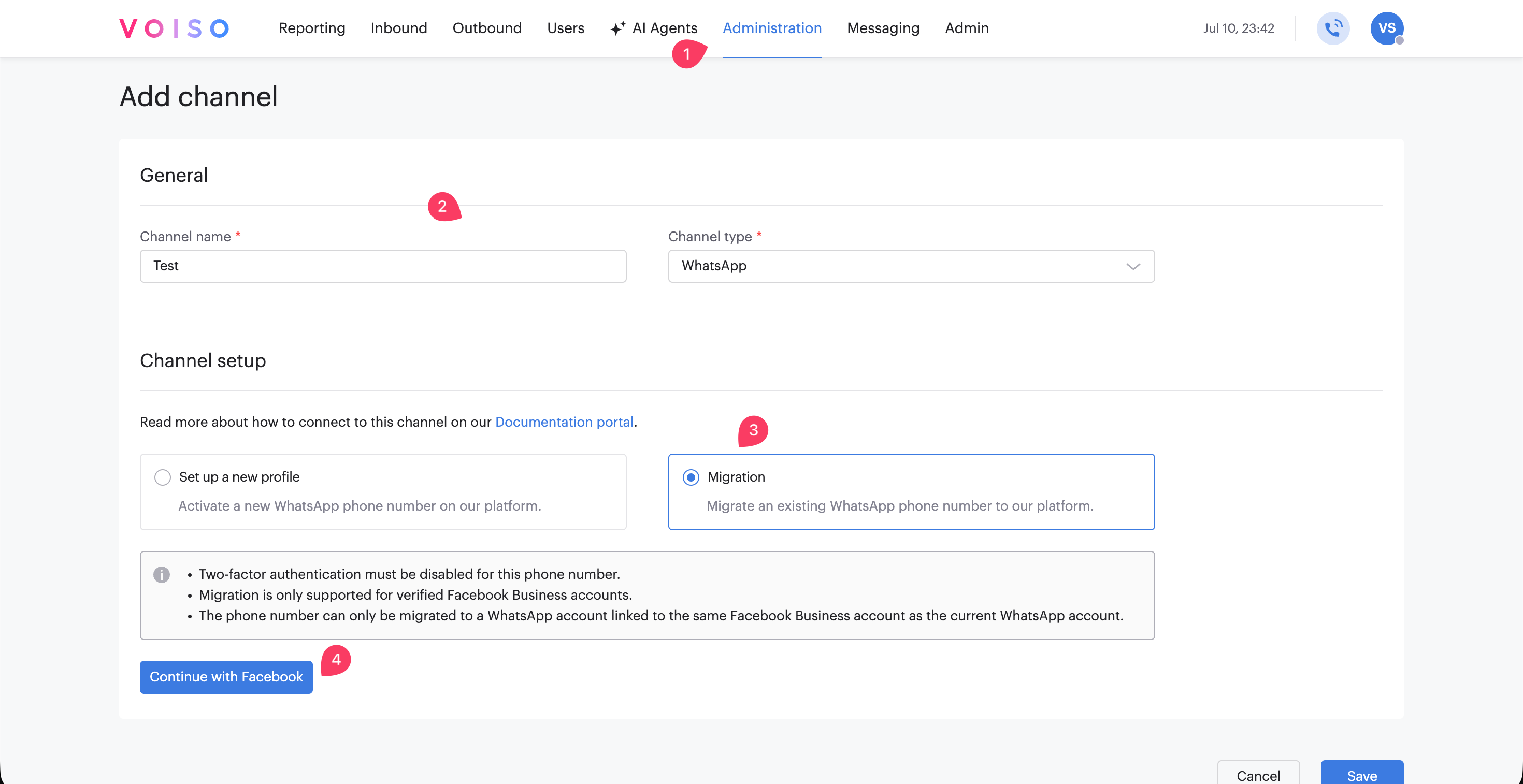
Go to Administration → Digital channels.
-
Delete the existing WhatsApp channel profile that you want to migrate.
-
Click Add channel.
-
Enter a channel name.
-
Select WhatsApp as the channel type.
-
Select Channel Setup Migration.
-
Click Continue with Facebook.
-
In the Meta window that opens, click Continue on the welcome screen.
-
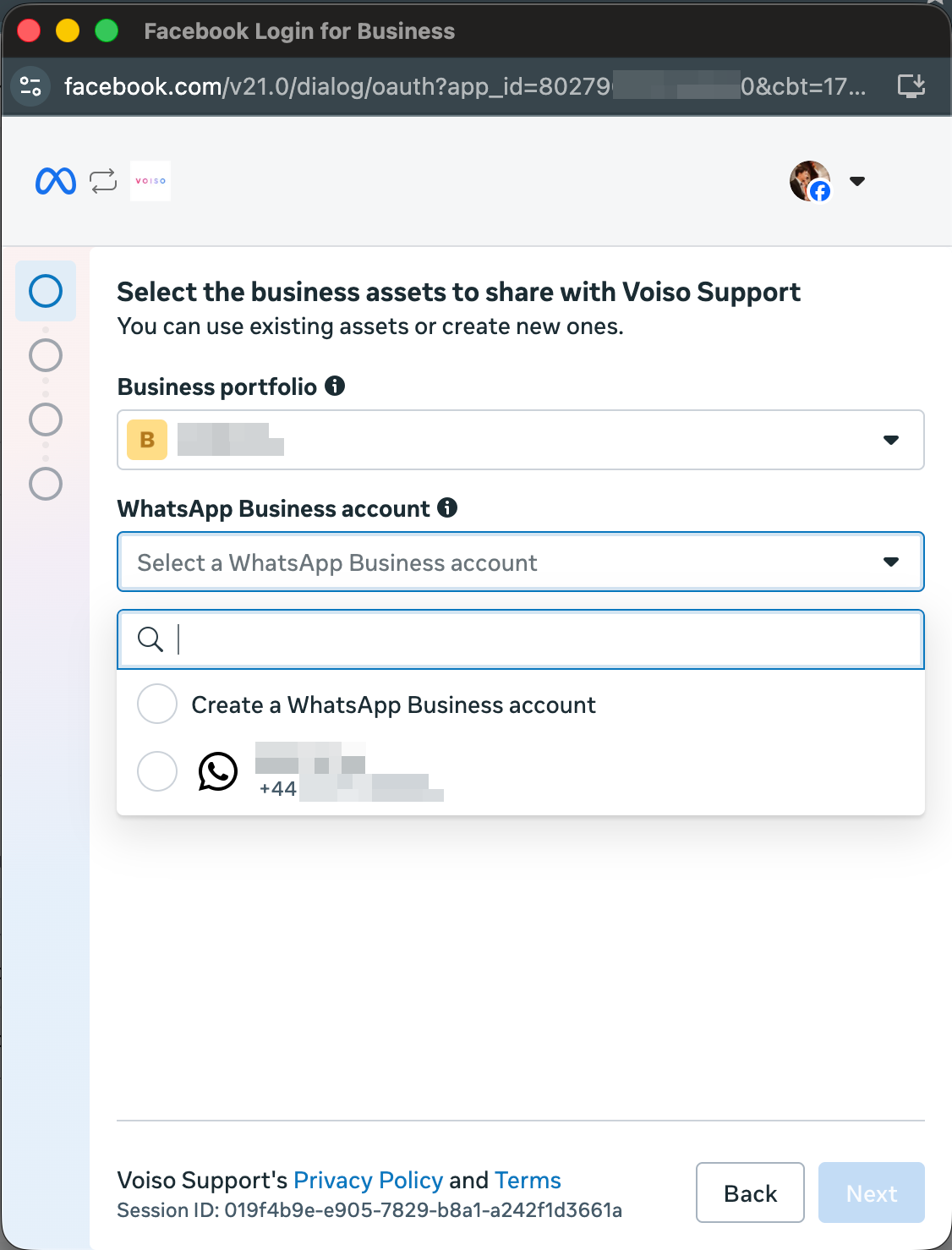
When prompted to Select the business assets to share with Voiso Support, select:
- Select your existing Business Portfolio.
- Select Create a new WhatsApp Business Account. Do not select your existing WhatsApp Business Account.
-
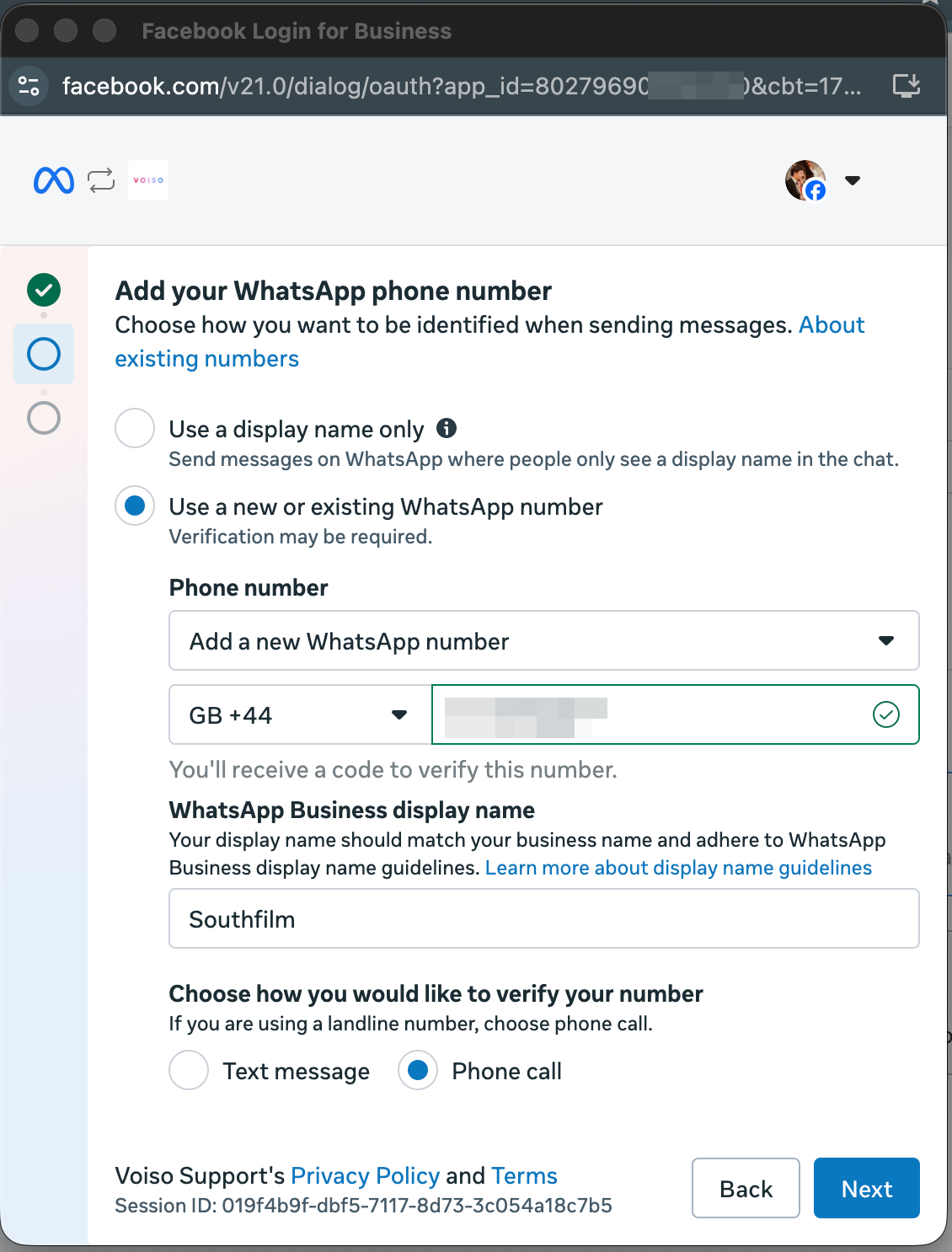
Select Use a new or existing WhatsApp number.
-
Enter the same phone number that is currently connected to your WhatsApp Business account.
-
When you receive the verification code (OTP), enter it to verify the number.
-
Complete the remaining steps in the Meta setup flow.
Migration Complete
Your WhatsApp number has been successfully migrated. Your phone number will remain the same, and you can continue using it in Voiso.
Your approved, high-quality message templates will be migrated automatically to the new WhatsApp Business Account created during the migration.
Template migration begins automatically but may take some time to complete. During this time, migrated templates may not be available for sending. Once the migration is complete, they will become available automatically.
All migrated templates will initially have an Unknown quality rating. Meta typically recalculates the quality rating within the first 24 hours based on messaging activity.