Who should read this article: Administrators
Strengthen access control for your contact center by configuring account lockout rules, two factor authentication behavior, and IP based access restrictions. These settings help reduce unauthorized access and protect user accounts.
Introduction
The Security tab comprises three sections that enable you to secure access to your contact center.
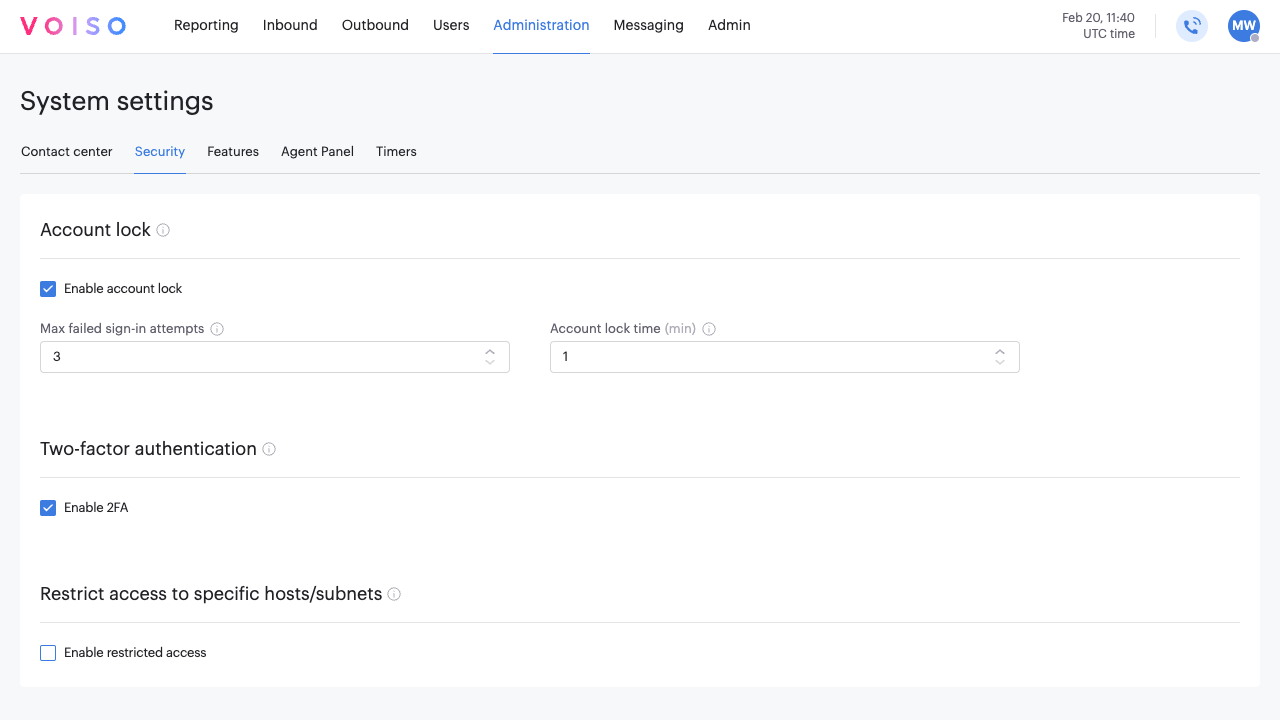
Account lock section
The Enable account lock option allows you to restrict users to a specific number of sign-in attempts before being locked out of the contact center.
Use the Max failed sign-in attempts setting to specify how many times a user may unsuccessfully attempt to sign in to their account before their account is locked.
Use the Account lock time setting to specify for how many minutes the account will be locked before the user may attempt to sign in again.
Refer to Account lockout.
Two-factor authentication section
Two-factor authentication (2FA) provides a higher level of security and protection for account users and systems than standard username/password login. Refer to Multi-factor authentication.
For most contact centers, 2FA is mandatory. However, some contact centers might opt to make 2FA optional or disable the feature. If 2FA is disabled for your contact center, then this section is not available on the Security tab.
Mandatory 2FA
This is the most common scenario. When 2FA is mandatory for your contact center, the Two-factor authentication section is displayed, but the Enable 2FA option cannot be modified.
Every new user that you create will have 2FA enabled for their account. They will not be able to sign-in without completing the 2FA setup process when signing in for the first time.
The user will be redirected to the Two-factor authentication page. They must complete the setup process before accessing Voiso.
On the user's profile page and on the Users page, the status Pending indicates that the 2FA setup process has not been completed. Once setup is complete, the status changes to Activated.
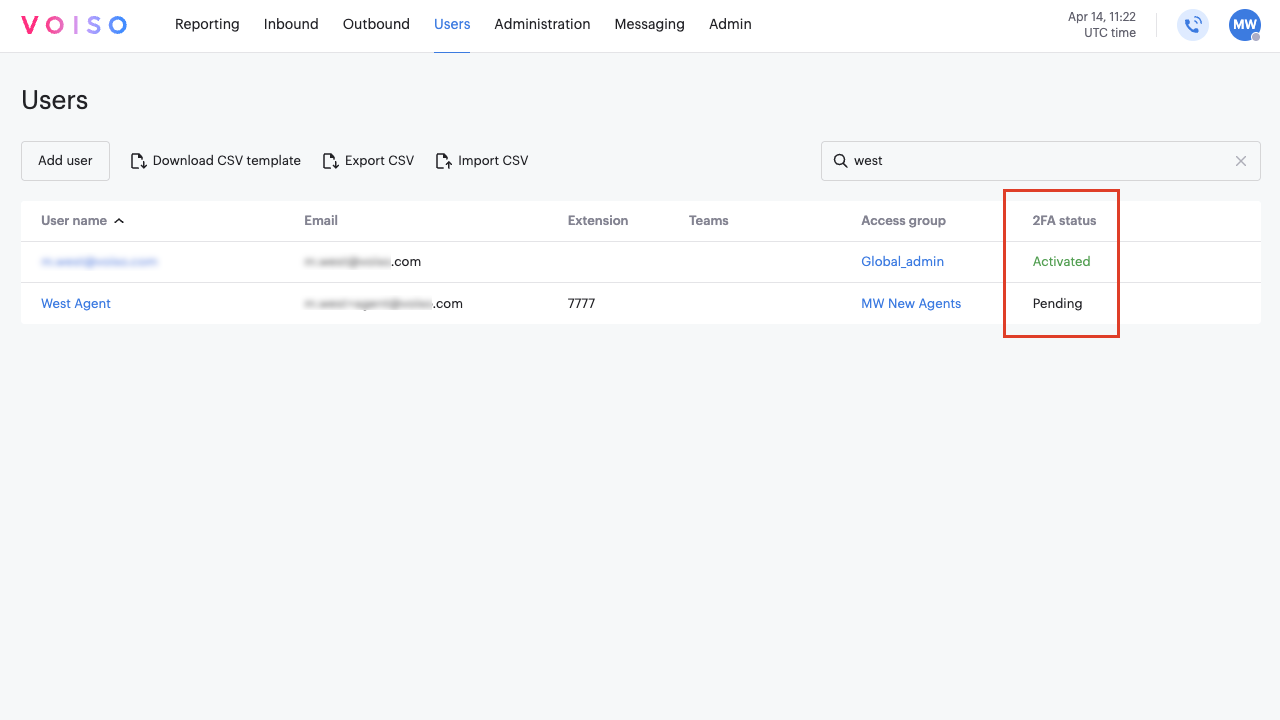
When two-factor authentication is mandatory, you cannot disable 2FA during bulk user import by setting 2FA Enabled to n in the CSV file. All newly imported users are created with their 2FA status set to Pending, regardless of the value specified.
Optional 2FA
If your contact center has requested that 2FA be optional, the Enable 2FA option is available and enabled by default. You can deselect it to disable 2FA for your contact center.
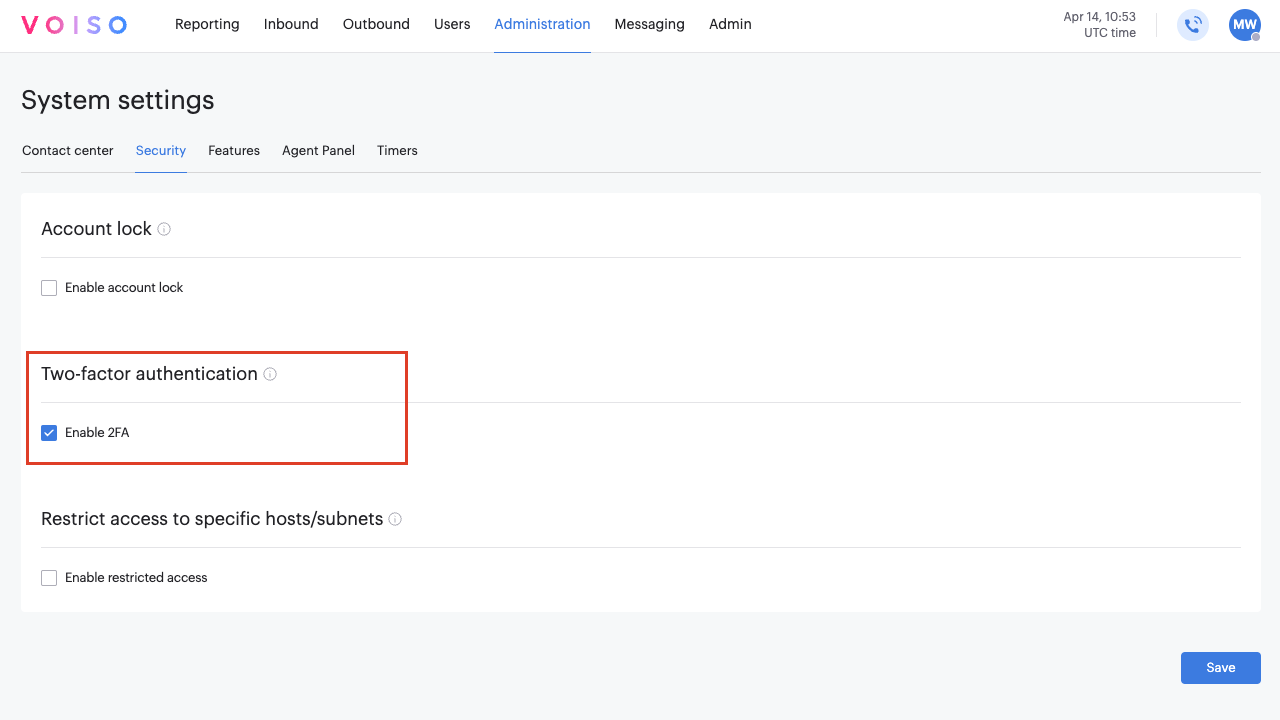
Restrict access to specific hosts/subnets section
The Restrict access to specific hosts/subnets option enables you to specify whether contact center access is restricted to certain IP addresses or entire subnets. For more information, refer to Allowed hosts/subnets.