Who should read this article: Administrators
Enable and configure optional Voiso features for your contact center, including Speech Analytics, Scheduled Callback, ASR performance optimization, Call suppression, Do Not Call Registry, in call announcements, call monitoring access codes, and picture in picture. Availability may vary by plan and by whether you use Security Access Group roles.
Introduction
Each section on the Features tab allows you to enable and configure different Voiso contact center features. Not all features described below are available for every contact center plan.
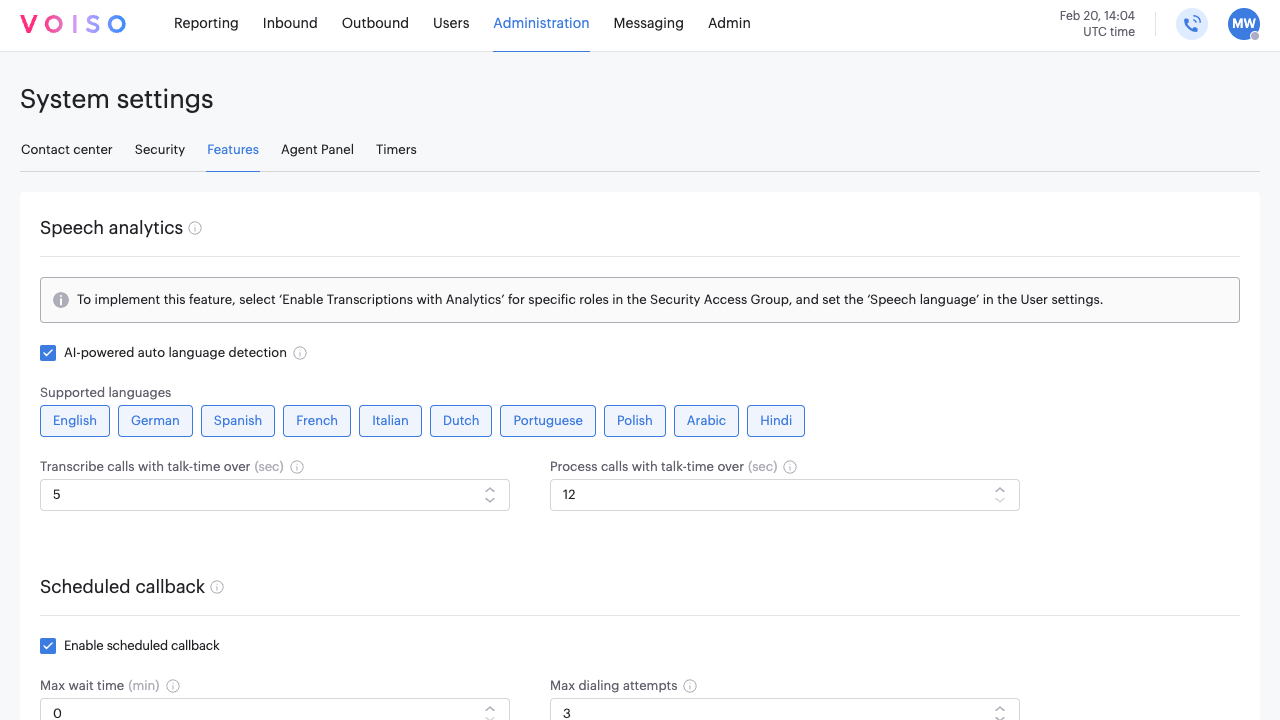
Speech Analytics section
The Speech Analytics feature is available for contact centers on the Pro plan or higher.
The Speech analytics section enables you to specify the Speech analytics feature settings.
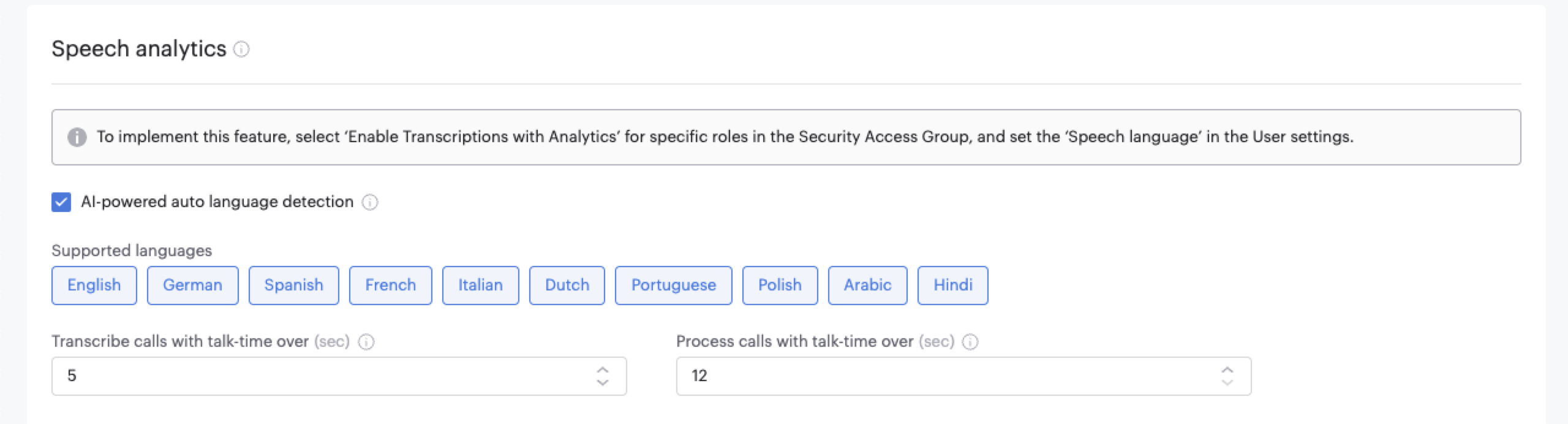
- In contact centers using security access groups, to implement this feature, select Enable Transcriptions with Analytics for specific roles in the Security Access Group, and set the Speech language option in the User settings.
- In contact centers not using security access groups, to implement this feature, select Enable Speech recognition and set the Speech language in the User settings.
The Voiso Speech Analytics service uses Artificial Intelligence (AI) and Machine Learning to process call audio recordings into text transcripts.
Custom keywords in a conversation are underlined in the transcript to make conversation review fast and easy. The highlighted keywords help supervisors instantly locate important parts of a conversation.
The Speech Analytics section includes the following settings:
| Feature | Description |
|---|---|
| AI-powered auto language detection | Specify that Voiso should automatically detect the language of a call using Artificial Intelligence (AI) and Machine Learning (ML), and then transcribe the call. Automatic language detection also applies to call recordings. By default, calls are transcribed in English. |
| Supported languages | Select one or more of the supported languages to use for call transcription. |
| Transcribe calls with talk time over x sec | Specify the minimum call length, in seconds, for a call to be transcribed. |
| Process calls with talk time over x sec | Specify the minimum call recroding length, in seconds, required for Speech Analytics AI to analyze, summarize, and score interaction transcripts. |
The Voiso Speech Recognition engine supports the following languages:
- Arabic
- Dutch
- English
- French
- German
- Hindi
- Italian
- Japanese
- Polish
- Portuguese
- Spanish
- Turkish
You can enable Speech Analytics and select a language for individual users on the Edit User page. In the Voiso navigation bar, go to Users, then edit an existing user or create a new one. Use the Speech recognition menu to enable the feature, and choose a language from the Speech Language menu.
To enable Speech Analytics for multiple users at once, upload a user CSV file on the Users page.
Scheduled callback section
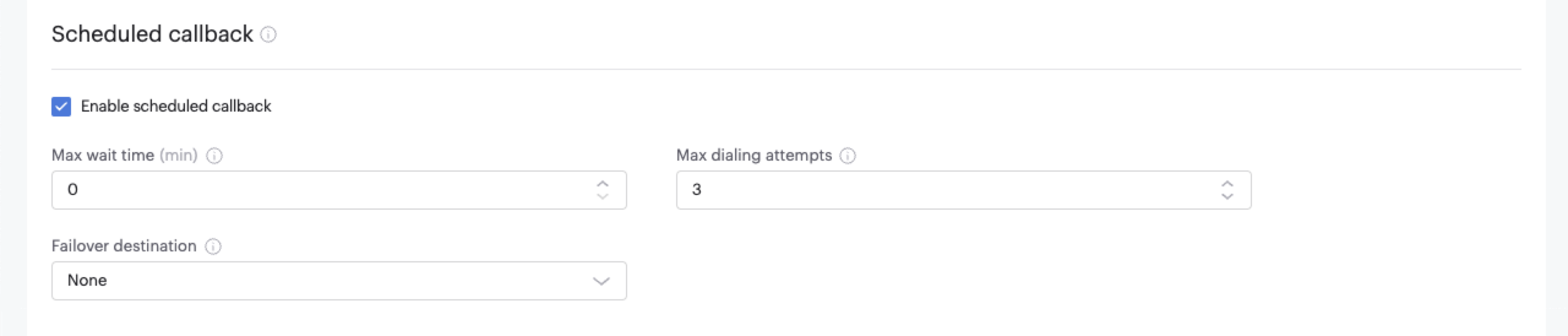
The Scheduled Callback section lets you configure this feature for your contact center.
- The Scheduled callback feature is enabled by default.
- Callbacks may be scheduled up to 30 days in advance.
For Start-up and Pro contact centers, if Scheduled Callback is enabled in the system settings, it is automatically enabled for all roles except Analyst and Hardware phone.
For contact centers using Security Access Group roles, once the Scheduled Callback feature is enabled for your contact center, you must enable it for specific users. To do this, assign the Enable Scheduled Callback permission to the appropriate role.
| Setting | Description |
|---|---|
| Max wait time | The duration, in minutes, to wait before making an additional callback attempt if the previous attempt was unsuccessful. The default delay is 30 minutes. You can specify delay intervals between 0 and 10080 minutes (1 week) in 30 minute increments. |
| Max dialing attempts | The number of call attempts Voiso should make before failover. If failover is enabled, Voiso makes the same number of call attempts again before the callback is cancelled. The default number of call attempts after the first unsuccessful attempt is 1. You can specify between 1 and 10 attempts before failover or cancelling the callback. |
| Failover destination | Select None to cancel the scheduled callback after the maximum number of calling attempts is reached. Select Queue to failover to a specified queue after the maximum number of calling attempts is reached. |
| Queue | The name of the failover destination queue. |
ASR performance optimization
ASR performance optimization helps maintain outbound performance by automatically replacing Caller IDs that have reached defined usage thresholds. When a Caller ID exceeds the configured limits, Voiso replaces it with another available number from your pool that uses the same country prefix.
You do not need to purchase a large reserve of numbers in advance. Voiso tracks available replacement numbers by country prefix and warns you when a destination-specific pool is running low or has no candidates left, so you can add numbers only when needed.
The feature applies to outbound calls made through Dialer campaigns, manual dialing, and click-to-call. It works across these workflows through Dialer campaign settings and Caller ID groups.
ASR and ACD are useful for monitoring and analysis, but they are not used as automatic replacement triggers. Instead, Voiso uses thresholds that you define on the Features tab of the System settings page:
- Max dialing attempts
- Replacement interval
- Replacement number alert
This approach gives you a clear and predictable way to manage Caller ID rotation.
Refer to ASR performance optimization for more information about this feature.
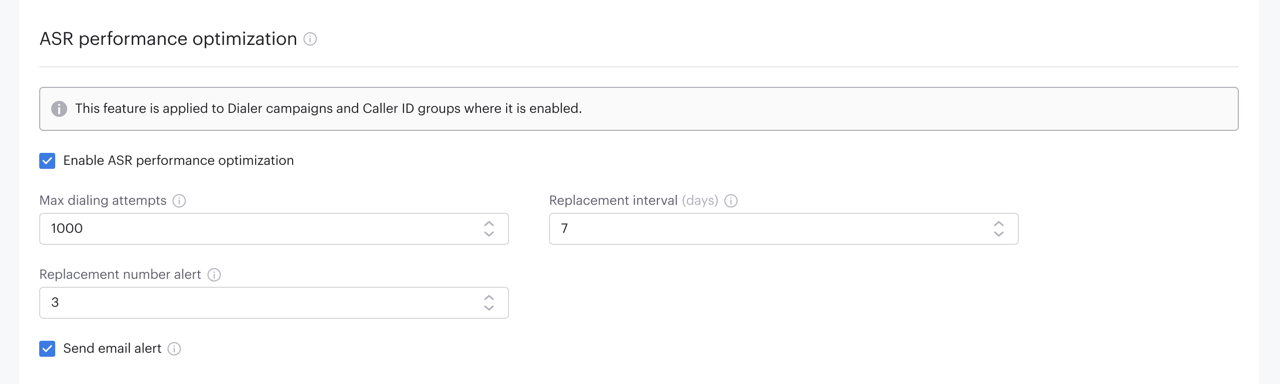
The ASR performance optimization section includes the following settings:
| Feature | Description |
|---|---|
| Enable ASR performance optimization | Enable the feature for Dialer campaign Caller ID sets and for Caller ID groups used for manual and click-to-call outbound dialing. The feature automatically replaces Caller IDs when the ‘Max dialing attempts’ or ‘Replacement interval’ is reached. Replacements, taken from your ‘Numbers’ list, share the same country code, and aren’t in use. |
| Max dialing attempts | The maximum number of dialing attempts, excluding failed attempts, before a number is automatically replaced for the current Caller ID. Set this option to 0 to only use 'Replacement interval'. |
| Replacement interval | The maximum number of days a Caller ID remains active before it is automatically replaced. Set this option 0 to only use 'Max dialing attempts'. |
| Replacement number alert | The minimum number of remaining phone numbers before an alert should be sent or the number should be highlighted on the Numbers page. |
| Send email alert | Specify whether an email will be sent to the email addresses specified for low balance alerts on the Billing page when the 'Replacement number alert' threshold is reached. |
| Show notification alert when a number is replaced | Display a notification whenever a Caller ID is replaced in a Caller ID group or Dialer campaign. The alert includes links to the affected numbers, Caller ID groups, and Dialer campaigns. |
Call suppression section
Refer to Call Suppression for more information about this feature.
The Call Suppression feature prevents excessive dialing to the same number in a single day, ensuring compliance and protecting network resources. Once a number hits the call limit, further dialing is blocked until the next day.
For Startup and Pro plans, the maximum is 10 attempts, adjustable from 1 to 10. Pro+ plans allow up to 15 attempts, adjustable from 1 to 15. Numbers exceeding the limit are automatically suppressed until the next day, but Pro+ administrators can manually release them if needed.
This mandatory feature cannot be disabled, ensuring appropriate, compliant outbound dialing practices.
For teams assigned to a Dialer campaign, the Max Dial Attempts value of the campaign cannot exceed the Max number of attempts value.
The Call suppression section includes the following settings:

The following default voice message, Call suppression, is played to an agent when they attempt to dial a suppressed number:
| Feature | Description |
|---|---|
| Max dialing attempts | Specify the number of dial attempts made to a number before the number is added to the list of suppressed numbers. |
| Limit reached voice message | Specify an alternative voice message to be played to an agent when the maximum number of dial attempts to a number is reached. |
| Exclude calls with 'failed' disposition | Specify whether failed calls are excluded from the calculation of Max dialing attempts for Call Suppression. |
| Apply 'Max dialing attempts' value to all teams | Override the maximum call attempts limit set for individual teams with the global Max dialing attempts value. |
Prefix override section
The Prefix override feature rewrites the destination number of outbound calls by matching and replacing its
leading digits before each call is placed. It is disabled by default.
In the Prefix override section, select Enable Prefix override, then click Save.
When enabled, the Prefix override page appears under the Outbound menu, where you define the prefix pairs. When disabled, the page is hidden and any saved prefix pairs are retained but not applied, so calls are unaffected.
Prefix override changes only the destination number (the B-number). It never changes the caller ID (the A-number) presented on the call.
Refer to Prefix override for more information about this feature.
Do Not Call Registry
Use the Do Not Call Registry (DNCR) feature to prevent outbound calls to contacts who have opted out of receiving calls from your organization.
In the Do Not Call Registry section, select Enable Do Not Call Registry, then click Save.
API integration with the UAE Etisalat Safecall service
For contact centers operating in the UAE, Voiso supports an API integration with the Etisalat Safecall service to verify outbound UAE numbers against the Do Not Call Registry in real time.
Your contact center can use only one DNCR mode at a time. To switch between manual CSV upload and the UAE Etisalat Safecall API method, contact your Voiso administrator.
API integration with the UAE Zen service
For contact centers operating in the UAE, Voiso supports an API integration with the Zen service to verify outbound UAE numbers against the Do Not Call Registry in real time.
Your contact center can use only one DNCR mode at a time. To switch between manual CSV upload and the UAE Zen API method, contact your Voiso administrator.
In call announcements section
Many regions require contact centers to notify contacts when their call is being recorded, including periodic reminders during the call that call recording is still active.
The In call announcements feature lets you select a voice message to automatically play at the start of every call, whether it is a structured greeting or a compliance announcement that the call is being recorded.
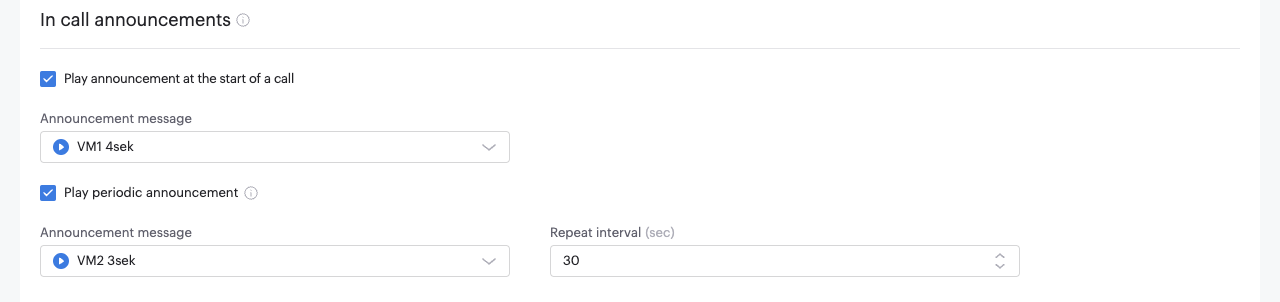
In the In call announcements section, click Play announcement at the start of a call, then select a voice message from the Announcement message menu.
To automatically play a reminder message or other indicator, such as a tone, that repeats periodically during a call, click Play periodic announcement. The default message, in English, informs the contact that the call is being recorded.
Use the Repeat interval field to set how often this reminder plays, from 5 to 600 seconds (default is 30 seconds). Then, select a voice message from the Announcement message menu. The default message reminds the contact, in English, that the call is being recorded.
When you select an announcement, click the play button next to the file name to preview the audio.
Default audio messages
Voiso provides the following default audio messages, in English, for the first and repeating announcements.
First announcement:
This call is being recorded for quality and training purposes. If you do not consent to this recording, please hang up now. Thank you for your understanding.
Ongoing announcements:
Call recording is in progress.
To use a different message, create a media file, upload it using the Administration > Media page.
Call monitoring access codes section
This feature was previously named Feature access codes
If your contact center uses Hardware Phone, third-party softphones, or the Voiso WebRTC Softphone, you can allow supervisors, admins, team leads, and others to dial a code that enables them to engage with a call being handled by an agent. Use the fields in this section to specify the number that a supervisor enters into their dialpad to silently monitor a call, whisper coach an agent without the contact hearing the supervisor, or barge into a call.
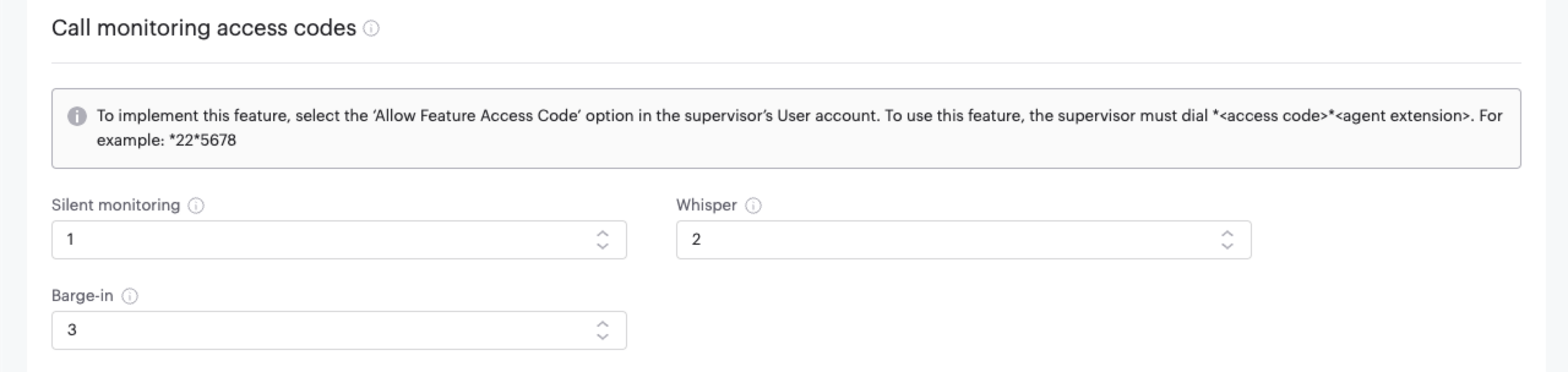
For a supervisor or other user to use this feature, their user account must have the Allow Feature Access Code option enabled. In contact centers without Security Access Groups enabled, the Allow Feature Access Code permission is granted on the user's account page.
To use the feature, the supervisor must dial the access code and then the agent's extension: *<access code>*<agent extension>. For example: *22*5678.
Supervisors and other users can monitor calls, interactions, and agents using the Agent Zoom feature.
Picture-in-picture
If activated for your contact center, the Picture-in-picture section lets you enable this feature for your users. It is disabled by default. To enable it, select Enable Picture-in-picture.

The Picture-in-picture feature allows users to use the softphone in a floating picture-in-picture window — staying visible while navigating other windows and apps. This enhances multitasking and reduces the need for tab-switching during live calls. For Agent Panel, refer to Getting started. For Omnichannel Workspace, refer to Using Omnichannel Workspace.
Picture-in-picture is supported only for the Google Chrome browser.