Who should read this article: Administrators
How to integrate Voiso with the Leverate CRM.
Introduction
The Voiso Leverate integration provides calling list import for outbound Dialer campaigns and click-to-call functionality for your agents while using Leverate. Agents can make calls using the Agent Panel by clicking the phone icon or a phone number in Leverate.
Features
The Voiso Integration app for Leverate enables the following CRM features:
| Feature | Description |
|---|---|
| Calling List Import | {{variable.BrandName}} pulls selected contact phone numbers directly from the Leverate contact list for Dialer campaigns |
| Click-to-call | Agents initiate calls in Leverate by clicking the phone icon or a phone number instead of manually dialing the number |
| Temporary lead access | Automatically assigns dialer campaign leads to agents in Leverate CRM for the duration of the call, giving them full access to the customer record |
Calling list import
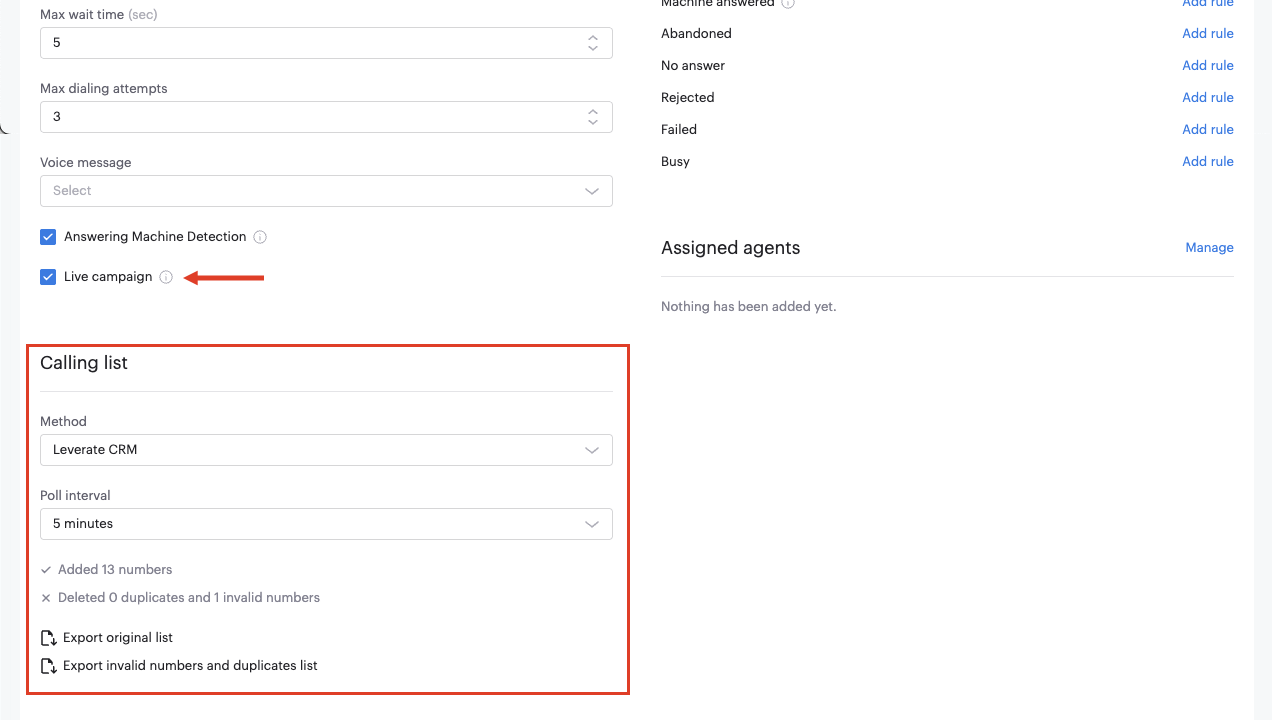
This feature allows you to import Calling lists from Leverate to Voiso. First create a list of leads or contacts with account IDs and phone numbers in Leverate, then use the list as a data source in the Voiso Dialer campaign builder. Both static and active contact lists are supported. The Voiso live campaign feature uses the Leverate active contact lists.
When you create a Dialer campaign, on the Add campaign page, click Live campaign, select Levearte CRM from the Method menu, and choose a Poll interval (how frequently Dialer should check for new contacts on Leverate.
Click-to-call
Agents can dial contact numbers directly from the Leverate application by clicking a phone icon or phone number in Leverate. This feature enables agents to make calls without manually dialing the number or copying and pasting a number into the dial pad, and without leaving the Leverate application to call from another application.
Temporary lead access
Temporary lead access automatically assigns dialer campaign leads to the connected agent in Leverate right before the screen pop opens, then returns the lead to a designated pool user unless the agent marks the call outcome as successful — in which case they keep the lead. This gives agents full access to the customer record for the duration of the call, without changing how leads are managed in Leverate otherwise.
Refer to Settings below to configure this feature.
Integration
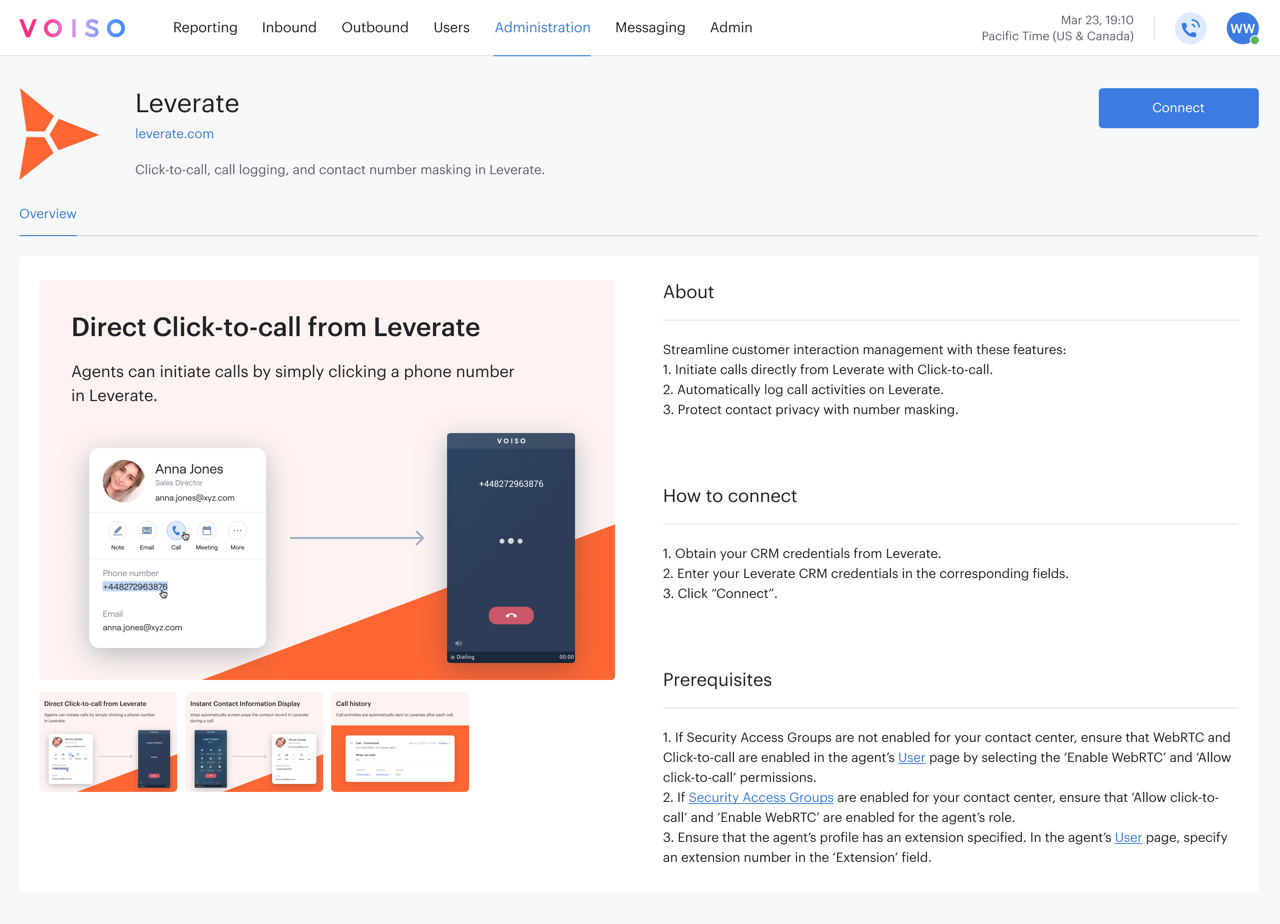
To integrate Voiso with Leverate, navigate to Administration > Integrations, then click the Leverate tile.
The Leverate page provides information about the Leverate integration, instructions for connecting the integration, and a list of prerequisites you should have in place before clicking Connect.
When you click Connect, the Connection setup panel is displayed. Enter the following information, then click Next to complete the integration:
- CRM URL
- VoIP Cloud Username
- VoIP Cloud Secret
- Database host
- Database port
- Database schema name
- Database view name
Managing your integration
To manage an existing Leverate integration, navigate to Administration > Integrations, then click the Leverate tile.
On the Leverate integration page, you can reconnect an integration that has lost connection or disconnect a connected integration.
Click the Edit connection button and selected either Reconnect or Disconnect.
Reconnecting an integration
To reconnect an integration that has been disconnected, either manually or as the result of an error, or to modify the connection, click Edit connection, then select Reconnect.
Follow the on-screen instructions to connect your integration.
Disconnecting an integration
To disconnect an integration, click Edit connection, then select Disconnect.
In the Disconnect integration panel, click Disconnect to remove the integration from your contact center.
Settings
The Leverate page Settings tab enables you to configure temporary lead access for dialer campaigns.
Temporary lead access
.png)
To enable temporary lead access:
- On the Leverate Settings tab, select Enable temporary lead access.
- In the Pool user ID field, enter the ID of a dedicated Leverate user that has access to all leads. Create this user directly in Leverate CRM before entering its ID here — it becomes the default owner of any lead that isn't currently assigned to an agent.
- Under API credentials, enter the GUID, Secret key, and Organization values from your Leverate account. Voiso uses these to authenticate lead assignment calls to Leverate.
- Under Assigned successful wrap-up codes, click Manage, then select the wrap-up codes that count as a successful call outcome.
.png)
Calls with any other wrap-up code — or no code selected before the after-call work timer expires — are treated as unsuccessful, and the lead is reassigned to the pool user. - Click Save.
- Add the Leverate user ID for each agent who will handle Leverate dialer campaigns — see Setting up agents for temporary lead access below. An agent without this ID configured will not get lead access during dialer calls.
If the Leverate assignment API call fails for any reason, the call still connects normally to the agent — the failure does not interrupt call routing, but the customer record won't be accessible until the lead is reassigned manually in Leverate.
Setting up agents for temporary lead access
When temporary lead access is enabled, a Leverate user ID field appears in the General section of the agent's Edit user page.
.png)
Add the agent's Leverate user ID to this field for any agent who will handle Leverate dialer campaigns — Voiso uses it to assign leads to that agent during dialer calls.
Agents without a Leverate user ID configured will not get lead access, and the customer record may fail to display during their dialer calls.
This is one of the required setup steps for temporary lead access — see the full setup sequence there.