Who should read this article: Administrators
Use API keys to authenticate your integrations with the Voiso v4 API.
Introduction
API keys let admins create static credentials for your integrations that use the Voiso v4 API. This approach keeps onboarding simple for integrations that need secure, cluster specific access without using OAuth.
Admins can create up to 50 static API keys per contact center and assign scopes that control which API endpoints each key can access. Each key acts as an application for the entire contact center.
The API keys page
The API keys page lets you create and manage API keys for your applications that use the Voiso v4 API.
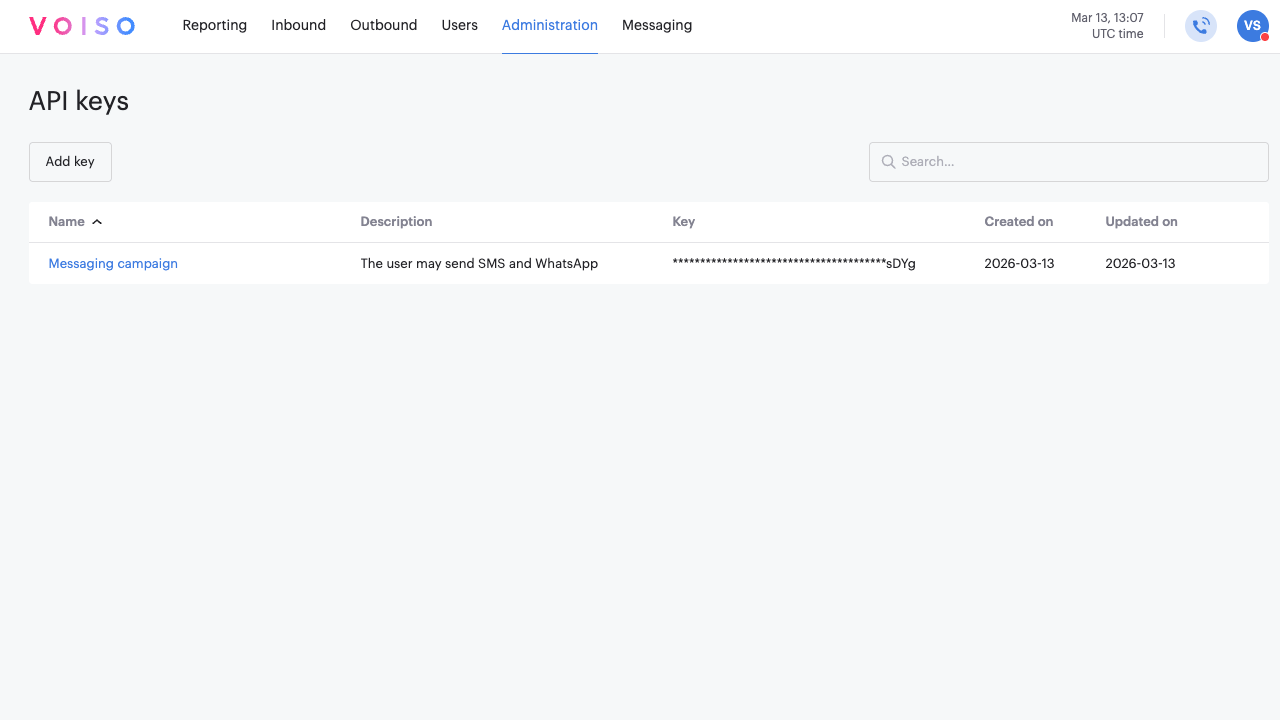
The page includes a table listing your generated API keys with the following attributes:
| Heading | Description |
|---|---|
| Name | The name you assigned the key. |
| Description | Information you have added about what the key does. |
| Key | A masked key with only the last 4 characters displayed. |
| Created on | The date the key was first created. |
| Updated on | The date the key was last modified. |
On this page you can perform the following actions:
- Click Add key to create a new API key.
- Find an existing key using the Search field.
- Review existing keys in the table.
- View and update a key by selecting the key name in the table.
- Delete a key by clicking the Delete icon in the key row. Deleting a key revokes it immediately.
Scope selection tips
When selecting scopes:
- Start with the minimum set required for your integration.
- Prefer read scopes when the integration only needs reporting or data retrieval.
- Add manage or dedicated action scopes only when the integration must create or change data, or perform higher risk operations like sending messages.
How authentication works
Your integration authenticates requests using this header:
"Authorization: Bearer <contact_center_api_key>"
The backend checks whether the key scopes cover the endpoint being requested. If the scope does not allow that operation, the request is rejected.
For more information refer to Authentication in the Voiso Developer's Guide.
Permissions required
If the API Keys feature is enabled for your contact center, only users with access can view, create, edit, and delete API keys.
For contact centers with Security Access Groups, the following permissions may be granted to roles:
- View API keys: View the list of API keys and key details, including assigned scopes, last used, and audit history.
- Create API keys: Create new API keys for integrations and assign the required scopes.
- Edit API keys: Update existing API keys, including renaming keys and changing their assigned scopes.
- Delete API keys: Delete API keys to revoke access immediately.
In contact centers without Security Access Groups, anyone with the Admin role automatically has all of the above permissions.
Create an API key
To create a new API key to allow access to specific functional scopes, go to the Administration menu and select API keys.
-
On the API keys page, click Add key.
-
Enter a name to identify the integration scope.
-
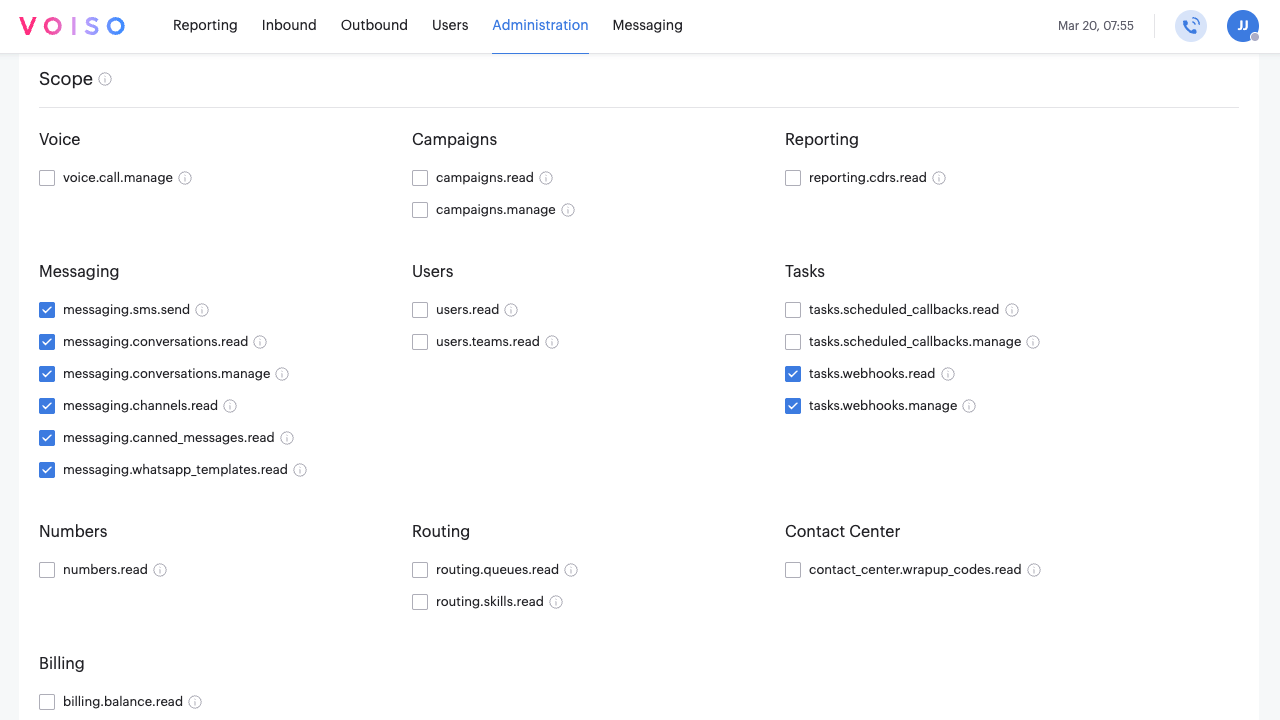
Select one or more scopes for the application.
-
Click Generate key.
-
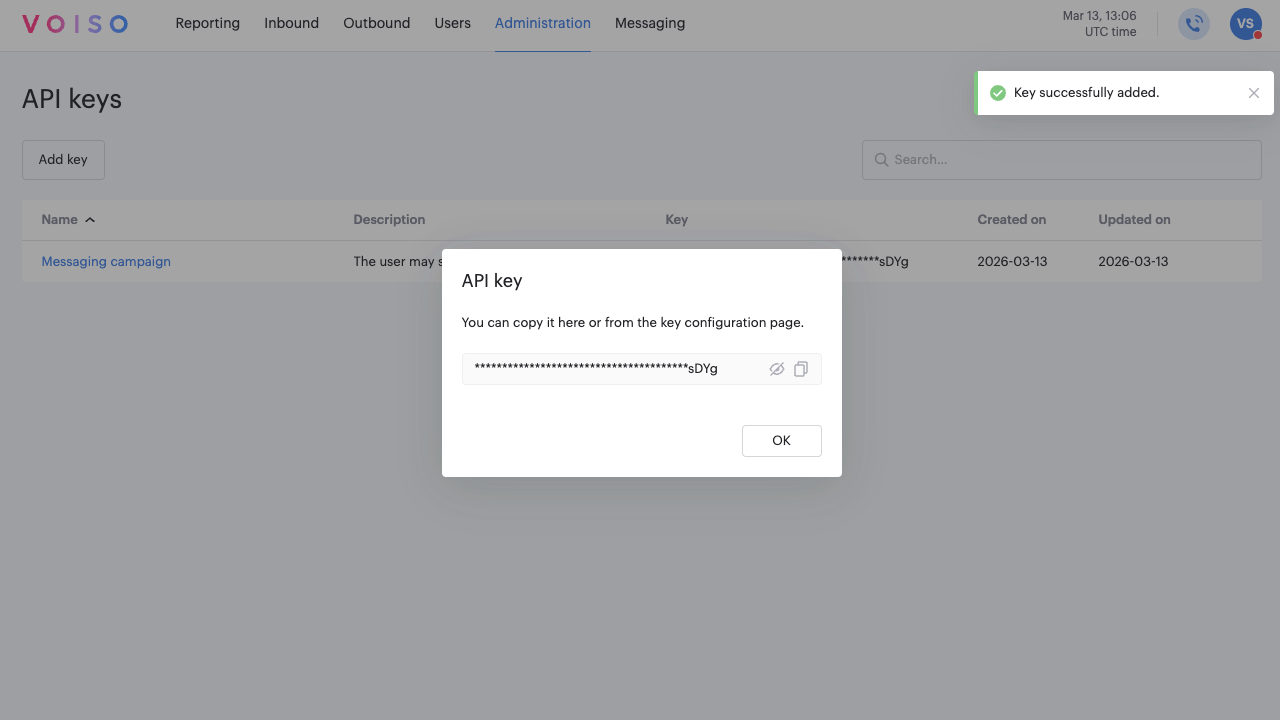
When the API key panel is displayed, copy the key and store it securely. You may access this key at any time from the API keys page if you have the correct permissions.
Scope definitions
| Domain | Scope | Definition |
|---|---|---|
| Voice | voice.call.manage | Start and stop voice calls. |
| Campaigns | campaigns.read | View information about existing Dialer campaigns. |
| campaigns.manage | Create, start, update, and stop Dialer campaigns. | |
| Reporting | reporting.cdrs.read | View Call Detail Records. |
| Messaging | messaging.sms.send | Send an SMS to a phone number. |
| messaging.conversations.read | View digital channels messages. | |
| messaging.conversations.manage | Create digital channels conversations and messages. | |
| messaging.channels.read | View digital channels profiles. | |
| messaging.canned_messages.read | Read digital channels and SMS message templates. | |
| messaging.whatsapp_templates.read | Read WhatsApp message templates. | |
| Users | users.read | View user and deleted user information. |
| users.teams.read | View team information, including users and supervisors assigned to teams. | |
| Tasks | tasks.scheduled_callbacks.read | View a list of scheduled callback interactions. |
| tasks.scheduled_callbacks.manage | Create and view callback interactions. | |
| tasks.webhooks.read | View information about failing webhooks. | |
| tasks.webhooks.manage | Retrigger failing webhooks. | |
| Numbers | numbers.read | View information about contact center numbers. |
| Routing | routing.queues.read | View information about contact center queues. |
| routing.skills.read | View information about contact center skills. | |
| Contact Center | contact_center.wrapup_codes.read | View information about contact center wrap-up codes. |
| Billing | billing.balance.read | View information about your contact center billing balance. |
Edit scopes or rename a key
If you have the Edit API keys permission assigned you may edit an existing API key scope. Follow these steps:
- Go to the API keys page.
- Click an API key to open the Edit API key page.
- Update the name or scopes.
- Save changes.
Rotate an API key
Voiso supports key rotation by allowing multiple keys with the same scope to coexist. To rotate a key, follow these steps:
- Create a new API key with the scopes your integration needs.
- Update your integration to use the new key.
- Confirm the integration is working.
- Delete the old API key.
Revoke an API key
Deleting an API key revokes it immediately. Any request using that key will fail after deletion. To delete a key, follow these steps:
- Go to the API keys page.
- In the row for the key, select Delete.