Who should read this article: Administrators
The Voiso app is available from the Apple and Android stores to enable agents to work from any location. This article also guides you on how to configure user accounts to support smartphone access to Omnichannel Workspace on Android and iOS. Use this configuration to enable agents to handle calls and digital conversations away from the office.
Introduction
The Voiso mobile app provides mobile access to Omnichannel Workspace and Agent Panel on Android and iOS devices, enabling agents to handle interactions and manage their work from a smartphone. Unlike personal phones, the Voiso mobile app ensures complete integration with your contact center’s systems, giving supervisors full oversight of agent activities.
Equipping agents with the Voiso mobile app allows them to:
- Work from anywhere – agents do not have to work at a desk.
- Be mobile without losing access to key tools like chats, SMS, call handling, performance metrics, and status control.
- Operate within an environment where supervisors may monitor calls and ensure compliance.
Refer to the Agent Guide articles for information about how to use Agent Panel and Omnichannel Workspace.
Download the Android app
The Voiso app is available on the Google Play store. To download and install it, follow these steps:
- On your Android device, open Google Play.
- Use Search to find Voiso.
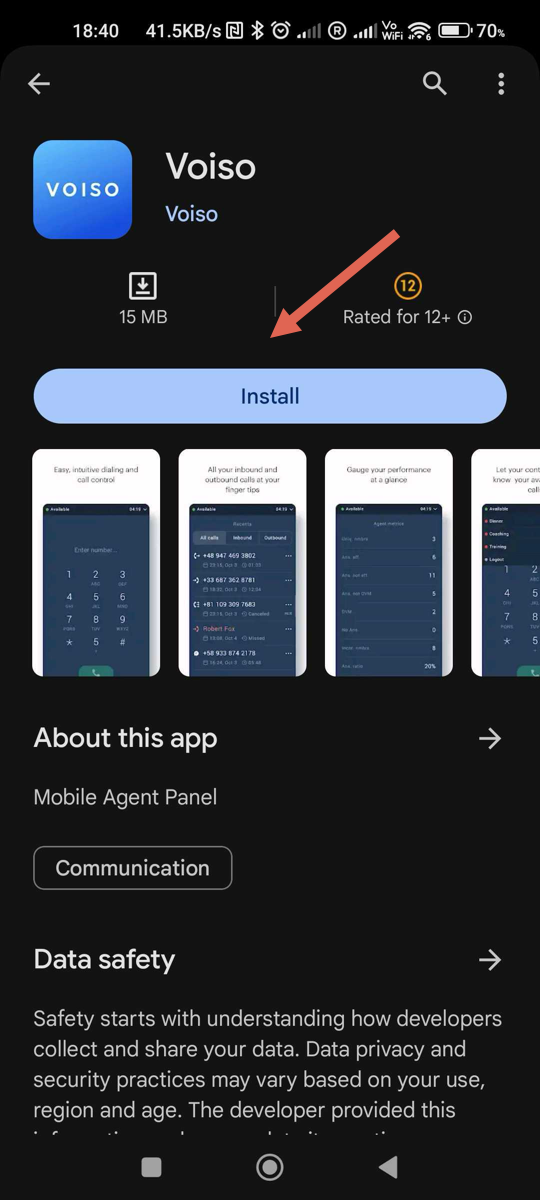
- Tap Install.
- After the app finishes installing, tap it to launch it.
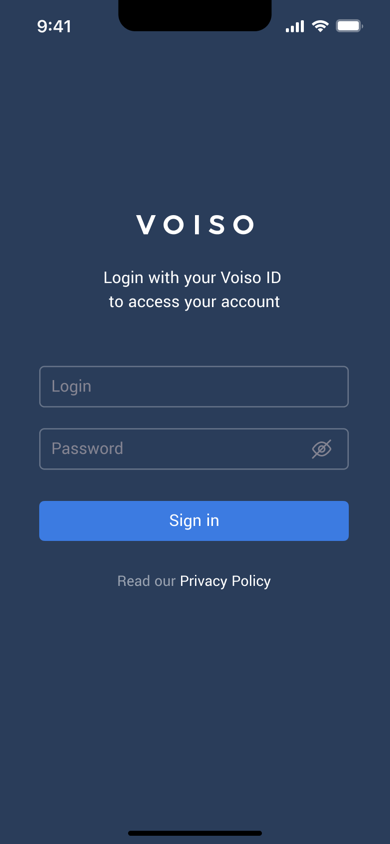
- Sign in with your Voiso credentials (you might also have to choose your Voiso contact center cluster).
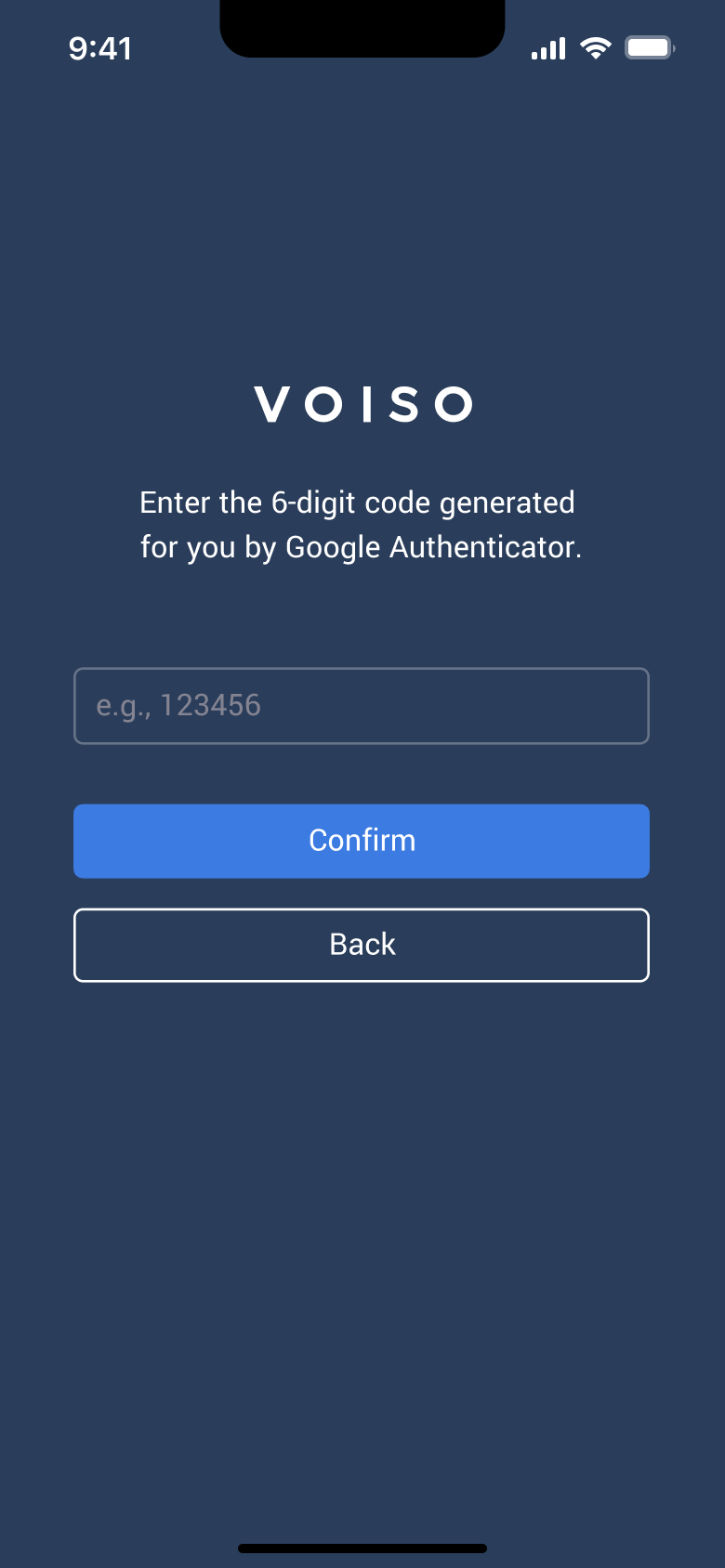
- If your contact center uses two-factor authentication (most contact centers), enter the 6-digit code generated for you by Google Authenticator.
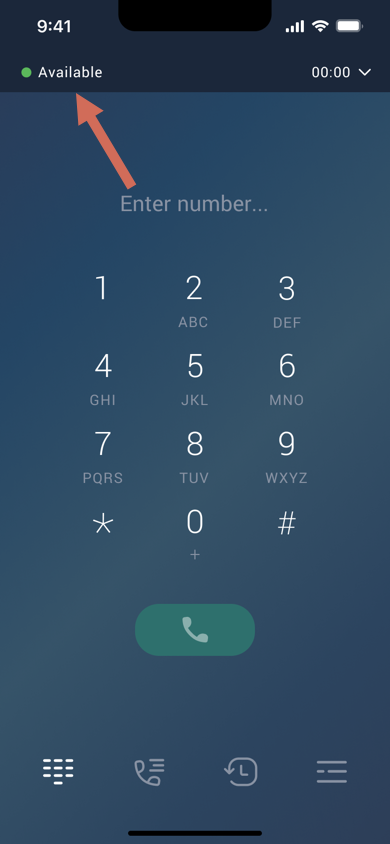
- When you are ready to receive calls, set your status to Available.
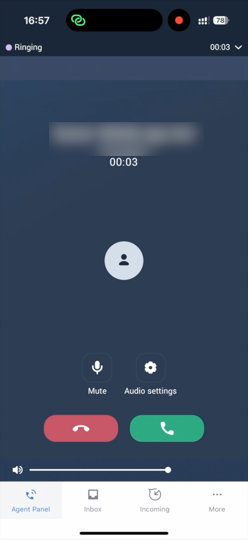
- If you receive an inbound call while you are using another app, a system notice is displayed; otherwise, the call rings in the Voiso app.
Download the iOS app
The Voiso app is available on the Apple App Store. To download it, follow these steps:
- On your iOS device, open App Store.
- Use Search to find Voiso.
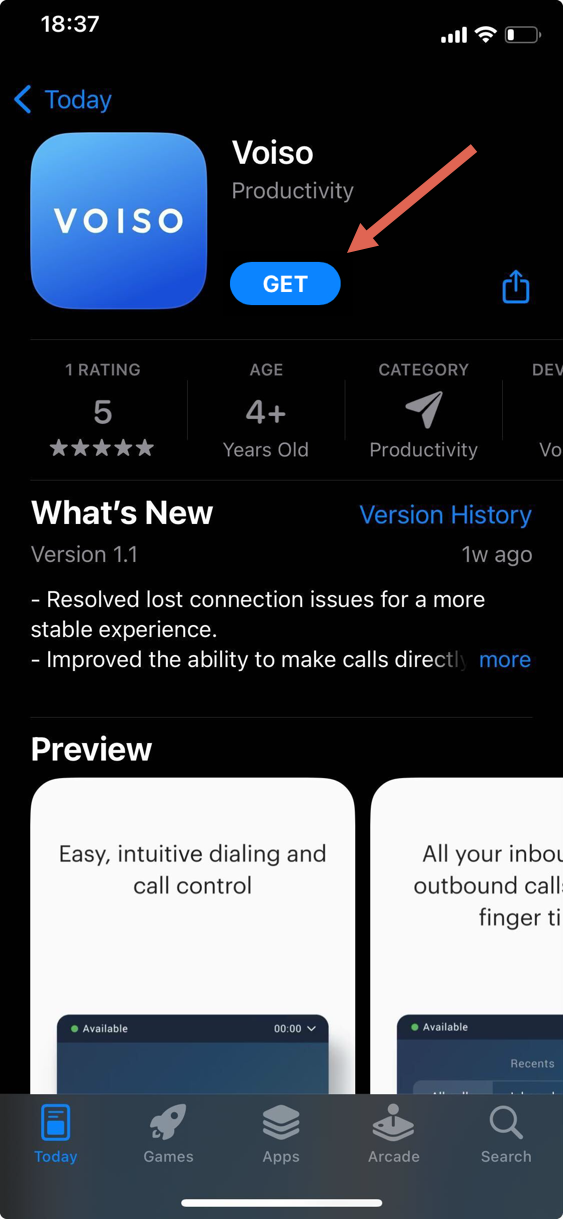
- Tap Get.
- After the app finishes downloading, tap it to launch it.
- Sign in with your Voiso credentials (you might also have to choose your Voiso contact center cluster).
- If your contact center uses two-factor authentication (most contact centers), enter the 6-digit code generated for you by Google Authenticator.
- When you are ready to receive calls, set your status to Available.
- If you receive an inbound call while you are using another app, a system notice is displayed; otherwise, the call rings in the Voiso app.
Features
The Voiso mobile app provides the same user experience as the Omnichannel Workspace and Agent Panel with the following capabilities:
- Manual and click-to-call outbound calls
- Inbound calls
- Contact list
- Call history
- Caller ID management
- Status control
- Performance metrics
- Wrap-up codes
- Complete call management features, including transfer, consult, conference, mute, and record
- Send important private documents using SMS, WhatsApp, or Telegram
- Handle Webchat interactions
- Access message templates for digital channels
- View contact information if your contact center is integrated with a supported CRM
Mobile app experiences
The functionality available in the Voiso mobile app depends on the permissions assigned to the user account.
| Experience | Description |
|---|---|
| Digital interactions and voice | Agents use Omnichannel Workspace together with embedded Agent Panel functionality to handle both digital and voice interactions. |
| Digital interactions only | Coming soon. Agents use Omnichannel Workspace to manage digital conversations. |
| Voice only | Coming soon. Agents use Agent Panel to handle voice interactions. |
Digital interactions and voice
To configure an agent account to use Omnichannel Workspace to handle both digital and voice interactions on a smartphone enable the permissions on either the user's account page or, if you contact center uses security access groups, the user's role.
Basic user configuration
On the user's account page grant the following permissions:
| Permission | Required | Description |
|---|---|---|
| Omnichannel Workspace Enabled | ✔ |
Primary permission to enable an agent to use the Omnichannel Workspace to handle digital interactions. |
| Allow manual outbound calls | Optional | Grant this permission to enable an agent to dial contacts directly. |
| WebRTC Enabled | ✔ |
Primary permission to enable an agent to use Agent Panel embedded in the Omnichannel Workspace. |
| Call Notes Enabled | Optional | Enables agents to add notes to voice calls in Agent Panel. |
| Replace client numbers with Acc IDs | Optional | Mask contact phone numbers and other information in Agent Panel and Omnichannel Workspace. |
| Disable recordings download | Optional | Ensure that the agent does not have access to voice call recordings. |
| Click-to-call client number masking | Optional | For click-to-call dialed numbers in a CRM, ensure the agent does not see a contact's phone number in Agent Panel. |
| Allow Click-to-call | Optional | The agent may initiate calls in a CRM by clicking an icon or link instead of manually dialing the number. |
Security Access Groups configuration
Create a role and enable the following permissions:
| Permission | Required | Description |
|---|---|---|
| Access to Web interface | ✔ |
Primary permission to enable an agent to sign-in to their Voiso contact center account. |
| Enable WebRTC | ✔ |
Primary permission to enable an agent to use Agent Panel embedded in the Omnichannel Workspace. |
| Omnichannel Workspace Enabled | ✔ |
Primary permission to enable an agent to use the Omnichannel Workspace to handle digital interactions. |
| View Call History | ✔ |
Enable an agent to access their personal call history in Agent Panel. |
| Allow Click-to-call | Optional | The agent may initiate calls in a CRM by clicking an icon or link instead of manually dialing the number. |
| Enable Answering Machine Detection | Optional | Enable Voiso to automatically detect answering machines for all outbound calls and terminate the call. |
| Enable Call Notes in WebRTC | Optional | Enables agents to add notes to voice calls in Agent Panel. |
| Allow manual outbound calls | Optional | Grant this permission to enable an agent to dial contacts directly. |
| Display SMS functionality in Agent Panel | Optional | Grant this permission to enable an agent to send and receive SMS messages during voice calls. |
Supervisors
The Voiso mobile app ensures that supervisors retain access to essential monitoring and management tools, including:
- Compliance monitoring
- Speech analytics and conversation performance scores
- Agent performance metrics