Who should read this article: Administrators
The Numbers tab of a Dialer campaign shows where every number in the campaign's calling list stands in the dialing process.
Introduction
A Dialer campaign calls the numbers you import into it, either from a CSV or XLSX file or from a calling list in your CRM. While the campaign runs, the Numbers tab reports the state of each of those numbers: whether it is still waiting to be called, how many times it has been dialed, how the last call ended, and when the next call is due.
The tab is a report. It shows the numbers and lets you search and export them, and in a live campaign it lets you deactivate all queued numbers at once. You cannot add or re-dial a number from it.
The Numbers tab is part of Dialer campaigns and is available to every contact center that uses the Dialer. In a contact center that uses Security Access Groups, the user also needs the View number status in campaign permission.
Opening the Numbers tab
From the Voiso navigation bar, navigate to Outbound > Dialer campaigns, then do one of the following:
- Click the campaign's Queued numbers value. The campaign opens on its Numbers tab in a new browser tab. When a campaign has more than 10,000 queued numbers, the value shows 10k+.
- Click the campaign name to open the Edit Dialer campaign page, then select the Numbers tab. It sits between Settings and Report.
A campaign has no Numbers tab while it is in the Draft or Import error status, or while it holds no numbers. In those cases the Queued numbers value is plain text instead of a link.
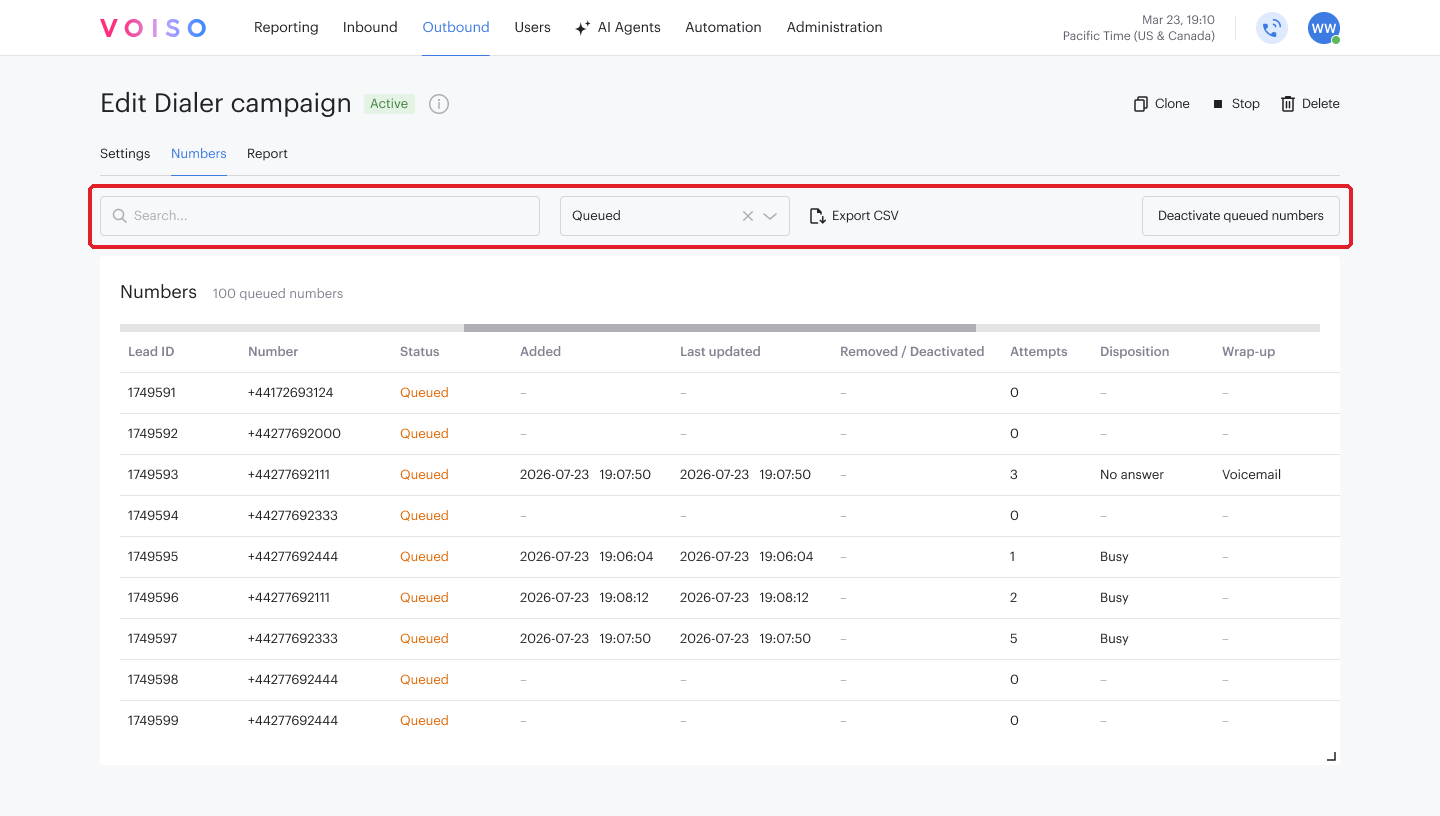
While the tab loads for the first time, it reports its progress as Loading… Fetching N numbers. A campaign that has no numbers to show displays No numbers yet. Once loaded, the heading shows how many numbers match the current filter, for example 250 queued numbers.
The Numbers table
Each row is one number from the calling list.
| Column | Description |
|---|---|
| Lead ID | The ID of the number in the campaign. The Dialer campaign API identifies a number by this ID. |
| Number | The phone number the Dialer calls. |
| Status | Where the number stands in the dialing process. Refer to Number statuses. |
| Added | The date and time the number was added to the campaign. |
| Last updated | The date and time the number was last changed, including deactivation. |
| Removed / Deactivated | The date and time the number was deactivated. |
| Attempts | How many times the Dialer has called the number. |
| Disposition | How the last call ended: Answer, No answer, Busy, Rejected, Failed, or Machine answered. |
| Last called | The date and time of the last call to the number. |
| Next call | The date and time the next call is due. A number waiting out a follow-up rule delay shows when that delay ends. |
| Wrap-up | The wrap-up code the agent selected on the last call. |
| Name | The contact name imported with the number. |
| CRM | For a number imported from a CRM, a View record link that opens the CRM record in a new browser tab. |
Every other field imported with the number becomes its own column after CRM — the extra columns of your calling list file, and the lead fields of a CRM or API calling list. Up to 10 of these columns are shown. A cell with no value shows a dash.
Lead ID, Number, and Status stay in place while you scroll the table sideways. A horizontal scrollbar above the table lets you scroll sideways without going to the bottom of a long page.
Dates and times are shown in your own time zone.
Number statuses
| Status | Description |
|---|---|
| Queued | The number is waiting to be called. A number keeps this status between attempts, so a number that has already been dialed and is due another call is still Queued. |
| Completed | The Dialer has finished with the number and no further call is due. |
| Inactive | The number stays in the list but is not dialed. A number gets this status when you deactivate the campaign's queued numbers, or when your system turns it off through the API: active set to false in an Update campaign leads request, or isActive set to 0 in an Add contacts or Update contacts request. When your system turns the number on again (active set to true, or isActive set to 1), it goes back to Queued. |
Searching
Type in Search above the table to find numbers. The search matches the phone number (spaces, dashes, and other separators are ignored), the status, disposition, wrap-up code, and name, the Last called and Next call dates as they are shown in your time zone, and the custom columns imported with your calling list.
Search works together with the status filter: only numbers that match both are shown.
Filtering by status
Use Select status or statuses above the table to choose which statuses to show. You can select any combination of them.
The tab opens with only Queued selected, so you see the numbers the campaign still has to call. Select Completed or Inactive to add them to the table.
Sorting and paging
Click a column heading to sort the table by that column. Number, Status, Added, Last updated, Removed / Deactivated, Attempts, Disposition, Last called, Next call, and Name can be sorted.
The table shows 100 numbers per page and adds paging controls above it when the campaign has more.
To show more or fewer rows at once, drag the handle under the table to make it taller or shorter.
The tab holds up to 10,000 numbers for each campaign. When a campaign has more, the 10,000 most recently added numbers are kept.
Exporting the numbers
Click Export CSV to download the table as a CSV file. The file holds the numbers your search and status filter leave visible, in the order the table is sorted. It has the columns LEAD_ID, Number, Status, Attempts, Disposition, Last called, Next call, Wrap-up, Name, CRM, and Created (the date the number was added), followed by your custom columns.
When a campaign holds more than 10,000 numbers, the Export CSV panel opens first and asks how many lines to take. Enter a Number of lines up to 10,000, then export.
Deactivating queued numbers
In a Live campaign that is active or paused, you can stop the Dialer from calling every number that is still waiting to be called.
- Click Deactivate queued numbers.
- In the Confirm deactivation queued numbers dialog, click Confirm.
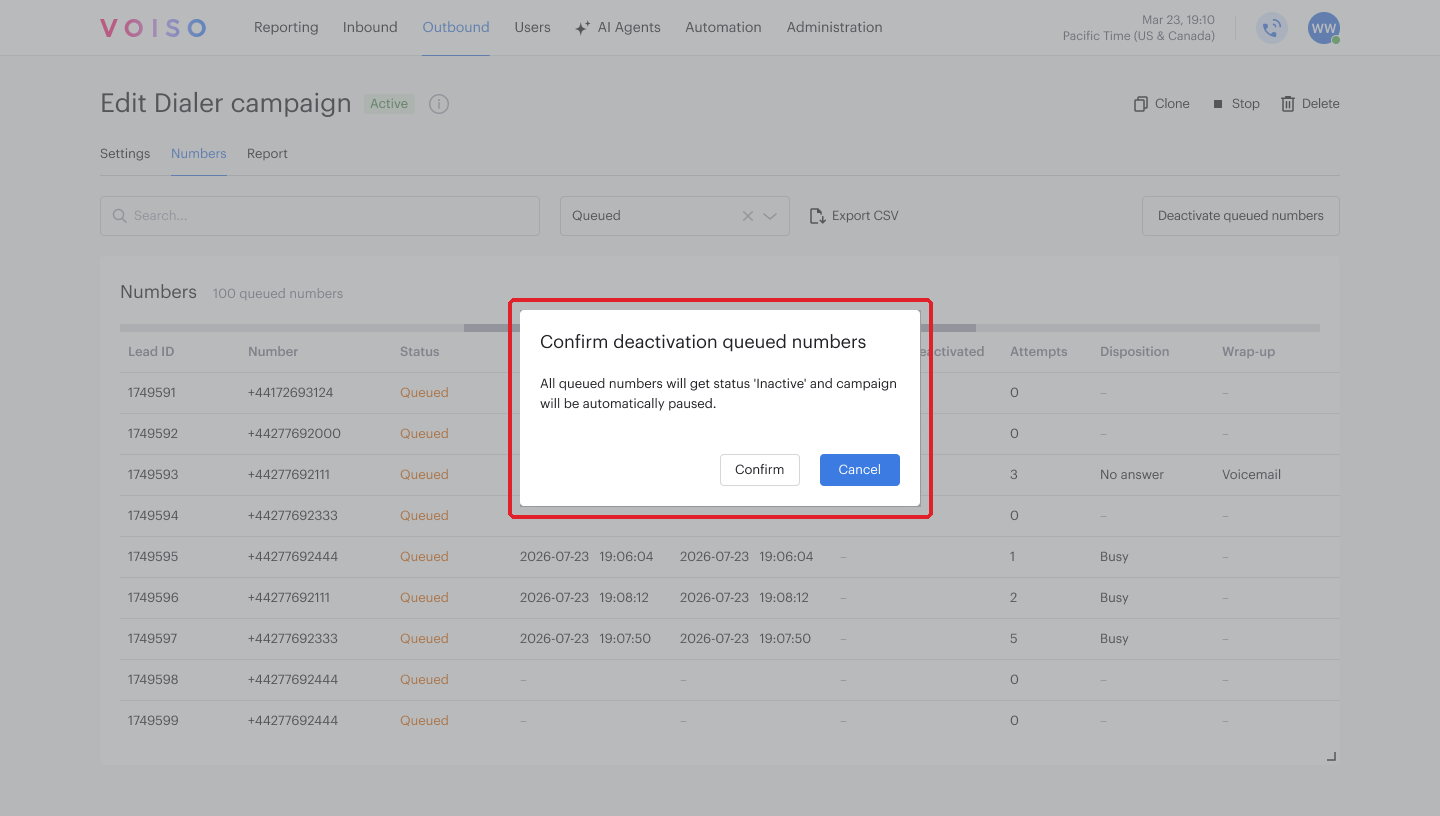
All queued numbers get the Inactive status, and the campaign is paused automatically. While the deactivation runs, the campaign shows the Deactivating status, and search, the status filter, and export are unavailable on the tab. The deactivation can take a while for a large campaign. You can leave the page, and you are notified when it is done.
When the deactivation finishes, Voiso sends the dialer.numbers.deactivated webhook event, listing the Lead ID and phone number of every deactivated number, so your CRM or other system can stay in step.
Deactivate queued numbers is shown only for live campaigns, and it is unavailable when the campaign has no queued numbers left.
Completed campaigns
When a campaign has finished, the Numbers tab shows Completed and the date and time the campaign ended next to the tab heading. The numbers stay available for review and export.