Who should read this article: Administrators
Set up the Voiso actions for the Salesforce mobile app so agents can place calls and open their conversation list from the Voiso mobile app on Android and iOS.
Introduction
The Voiso Salesforce package adds three actions to the Salesforce mobile app:
- Voiso Call places a call from a phone number on the current record. Salesforce passes the number to the Voiso mobile app, which places the call through your contact center. After the call ends, Salesforce records the interaction using the standard Voiso call logging features.
- Voiso Inbox opens the agent's conversation list in the Voiso mobile app.
- Voiso WhatsApp starts or continues a WhatsApp conversation with the contact on a Lead, Contact, or Account record, using the Voiso mobile app.
On mobile, all three actions open the Voiso mobile app. The Voiso workspace is not embedded in the Salesforce mobile app the way it is on desktop.
This guide covers the setup for all three actions.
Prerequisites
Before you begin, ensure that:
- The Salesforce CRM integration is already configured and connected to your Voiso contact center.
- The Voiso Salesforce package is installed.
- Agents have the Voiso mobile app installed on their devices.
- Agents are signed in to the Voiso mobile app.
- Agents have the Voiso permissions assigned, with field-level-security read access to the phone fields they will call. Fields an agent cannot see do not appear in the action.
About the Voiso Call action
The Voiso Call action is a Salesforce quick action that enables agents to place calls from Salesforce records using the Voiso mobile app.
When an agent opens the action, Salesforce displays all populated Phone-type fields on the current record — for example, a Contact record might show Phone, Mobile, Other Phone, and any custom phone fields. The agent selects a number and Salesforce passes it to the Voiso mobile app, which places the call through your contact center.
The Voiso Salesforce package includes the Voiso Call action for the following standard Salesforce objects:
- Account
- Contact
- Lead
You can also create the action for custom objects that contain Phone-type fields.
Enable mobile click-to-call for standard Salesforce objects
Add the Voiso Call action to the page layouts your agents use:
- In Salesforce, navigate to Setup > Object Manager.
- Select the object you want to configure.
- Open Page Layouts and edit the layout used by your agents.
- In the palette, select Mobile & Lightning Actions.
- Locate the Salesforce Mobile and Lightning Experience Actions section. If it still shows the override the predefined actions link, click it first to start customizing the section.
- Drag Voiso Call into the section, keeping the existing default actions.
- Click Save.
- Repeat these steps for Account, Contact, and Lead.
Using Dynamic Actions
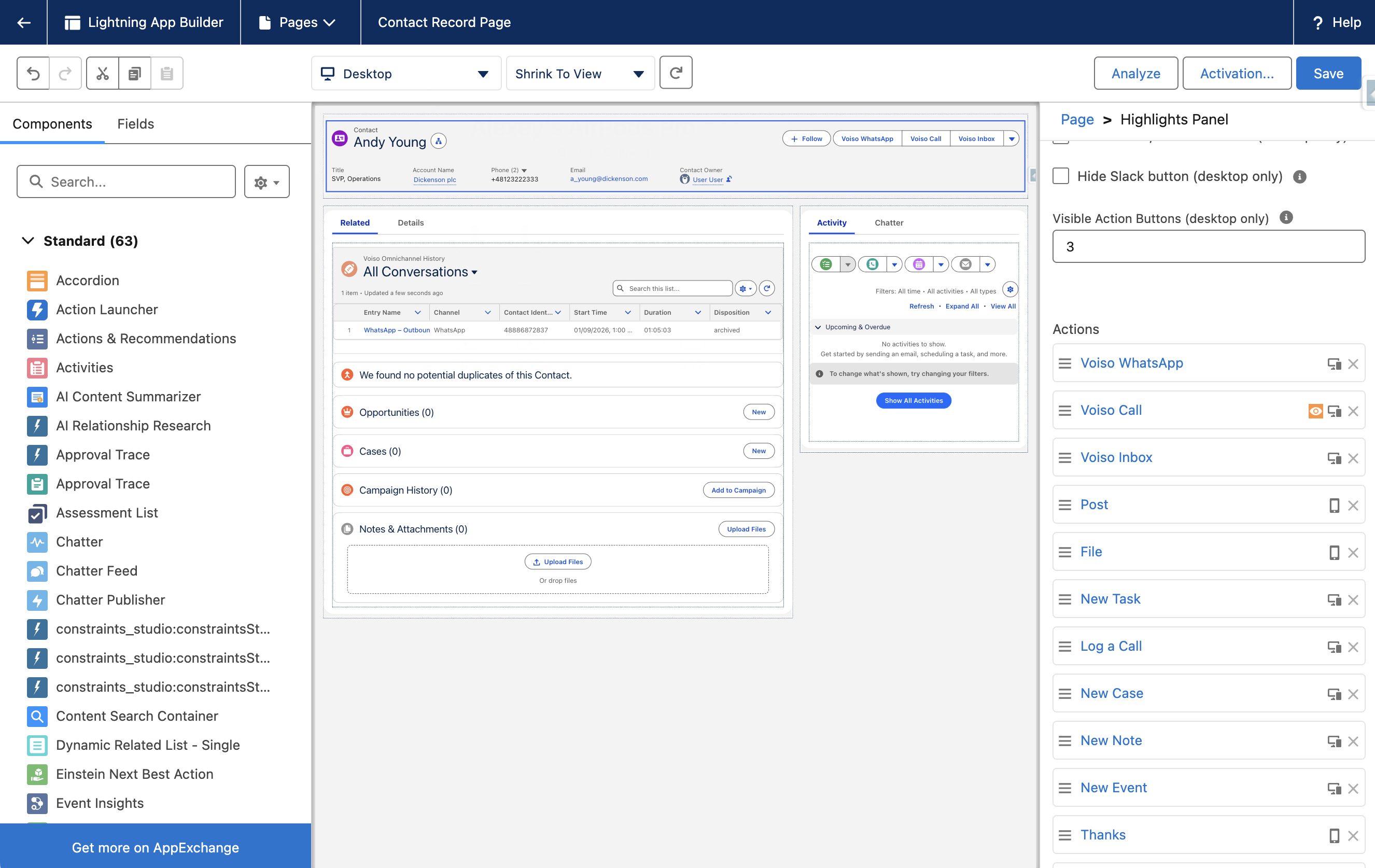
Alternatively, use Dynamic Actions to assign and manage the record page's actions in the Lightning App Builder instead of the page layout:
- Add Voiso Call through the Highlights Panel in the Lightning App Builder instead of the page layout.
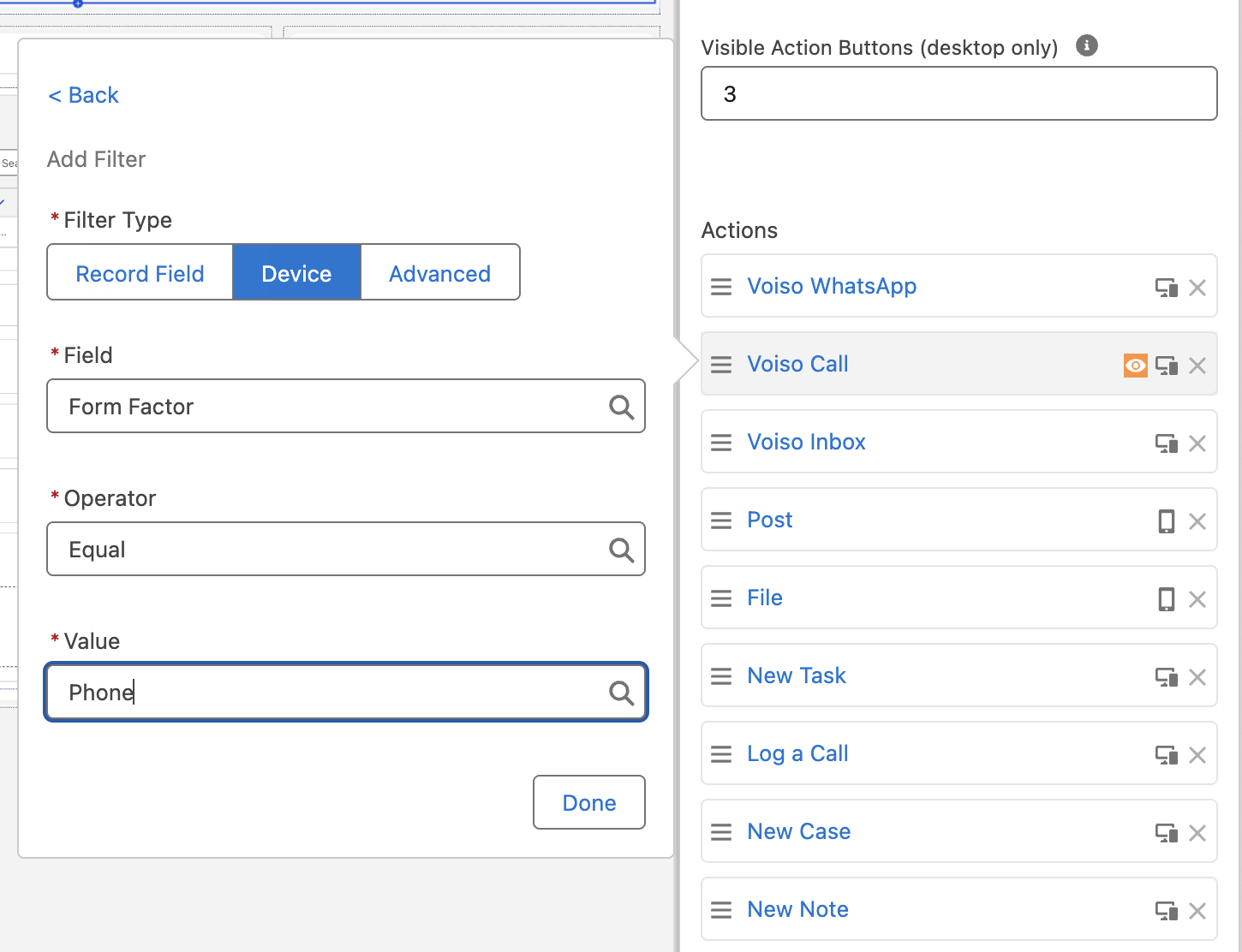
- Update the visibility filter on the Voiso Call action so it appears only in the Salesforce mobile app. Make sure the record page is activated for the phone form factor.
Enable mobile click-to-call for custom objects
You can enable mobile click-to-call for any Salesforce object that contains Phone-type fields.
Create the quick action
- Navigate to Setup > Object Manager.
- Select the object.
- Open Buttons, Links, and Actions.
- Click New Action.
- Configure the action:
| Field | Value |
|---|---|
| Action Type | Lightning Component |
| Lightning Component | Voiso:voisoCallQuickAction |
| Height | 250 |
| Label | Voiso Call |
| Name | Voiso_Call |
- Click Save.
Add the action to the mobile layout
- Open the object's page layout.
- Select Mobile & Lightning Actions.
- Drag Voiso Call into the Salesforce Mobile and Lightning Experience Actions section, keeping the existing default actions.
- Click Save.
About the Voiso Inbox action
The Voiso Inbox action opens the Voiso mobile app on the agent's conversation list.
When the agent taps Voiso Inbox, the Voiso app opens on the conversation list. If it does not open automatically, Salesforce shows an Open Voiso app button to try again.
Add the Voiso Inbox action
Add the Voiso Inbox action to each object where your agents need it:
- In Salesforce, navigate to Setup > Object Manager.
- Select an object your agents work with, such as Contact.
- Open Page Layouts and edit the layout used by your agents.
- In the palette, select Mobile & Lightning Actions.
- Drag Voiso Inbox into the Salesforce Mobile and Lightning Experience Actions section, keeping the existing actions.
- Click Save.
- Repeat for each object your agents work with.
The action then appears in the record's action bar in the Salesforce mobile app. To control who sees it, use Dynamic Actions on the Lightning record page.
About the Voiso WhatsApp action
The Voiso WhatsApp action starts or continues a WhatsApp conversation with the contact on a Lead, Contact, or Account record, using the Voiso mobile app.
When an agent taps the action, it lists the record's WhatsApp-eligible phone numbers. Numbers with an existing WhatsApp conversation are marked with a green icon and listed first. If there is only one eligible number, the agent still taps it to continue — opening the Voiso app requires a tap.
Tapping a number opens the conversation in the Voiso mobile app. If there is no existing conversation with that number, the app opens a template message to start one.
Add the Voiso WhatsApp action
Add the Voiso WhatsApp action to the Lead, Contact, and Account page layouts:
- In Salesforce, navigate to Setup > Object Manager.
- Select Lead, Contact, or Account.
- Open Page Layouts and edit the layout used by your agents.
- In the palette, select Mobile & Lightning Actions.
- Drag Voiso WhatsApp into the Salesforce Mobile and Lightning Experience Actions section, keeping the existing actions.
- Click Save.
- Repeat for Lead, Contact, and Account.
The Voiso Inbox action must also be added to the same app — Voiso WhatsApp hands the conversation to it.
Verify the configuration
To verify the Voiso Call action:
- Ensure the Voiso mobile app is installed on the device.
- Sign in to the Voiso mobile app using a test agent account.
- Open the Salesforce mobile app.
- Navigate to a record containing a populated phone number.
- Open the action menu.
- Tap Voiso Call.
- Confirm that available phone numbers are displayed.
- Tap a phone number.
- Confirm that the Voiso mobile app opens and places the call.
- Complete the call.
- Confirm that the call is logged to the Salesforce record according to your contact center's Salesforce integration configuration.
To verify the Voiso Inbox action:
- Ensure the Voiso mobile app is installed and you are signed in.
- Open the Salesforce mobile app and go to a record on an object where you added the action.
- Open the action menu and tap Voiso Inbox.
- Confirm that the Voiso mobile app opens on the conversation list.
To verify the Voiso WhatsApp action:
- Ensure the Voiso mobile app is installed and you are signed in.
- Open the Salesforce mobile app and go to a Lead, Contact, or Account record with an eligible phone number.
- Open the action menu and tap Voiso WhatsApp.
- If prompted, select a number.
- Confirm that the Voiso mobile app opens the conversation.
Troubleshooting
Voiso Call action is not visible
Possible causes:
- The action was not added to the page layout.
- The wrong page layout is assigned to the user.
- Dynamic Actions are configured but not enabled for mobile.
The action shows "No phone numbers available for this record"
Possible causes:
- The record has no Phone-type field with a value.
- The number is held in a text field, not a Phone-type field.
- The user has no field-level-security read access to the phone fields.
The action shows "Unable to load phone numbers"
Possible causes:
- The user has no Read access to the object, the record, or its phone fields.
Tapping a phone number does nothing
Possible causes:
- The Voiso mobile app is not installed on the device.
- The user is not signed in to the Voiso mobile app.
Voiso Inbox action is not visible
Possible causes:
- The action was not added to the object's page layout.
- The wrong page layout is assigned to the user.
- A Dynamic Actions rule is hiding it for this user.
Voiso Inbox does not open the Voiso app
Possible causes:
- The Voiso mobile app is not installed on the device. On the Open Voiso app screen, use the App Store or Google Play link to install it.
- The Voiso mobile app is not up to date.
Voiso WhatsApp action is not visible
Possible causes:
- The action was not added to the object's page layout.
- The wrong page layout is assigned to the user.
- A Dynamic Actions rule is hiding it for this user.
Voiso WhatsApp does not open the Voiso app
Possible causes:
- The Voiso Inbox action is not part of the same app.
- The Inbox utility item's Start automatically setting is not enabled — the first tap of the session is lost; tapping the action again works.
- The Voiso mobile app is not installed or not up to date.
The Voiso WhatsApp action shows "No phone numbers available for this record"
Possible causes:
- The record has no phone number in an eligible field.
- The field that holds the number is not in the eligible set.
- The user has no field-level-security read access to the eligible fields.
The Voiso WhatsApp action shows a message to contact the administrator instead of a number list
Possible causes:
- No phone-type field has been added to the object's eligible field set.
The Voiso WhatsApp action shows "Unable to load phone numbers"
Possible causes:
- The user has no Read access to the object, the record, or its phone fields.