Who should read this article: Administrators
The Voiso Contact Center for Freshdesk app integrates your phone system with the Freshdesk platform, enabling your sales and support teams to handle more calls more effectively. Users manage all call-related activities inside Freshdesk through the Agent Panel.
Introduction
The Voiso Contact Center for Freshdesk app adds the Voiso softphone to the Freshdesk left navigation bar. Click the Voiso icon to log in to your Voiso contact center, then handle both outbound and inbound calls directly from Freshdesk.
Key Features:
- Call contacts directly from a contact record with a single click (click-to-call) that launches the outbound call in the Voiso softphone.
- Automatic ticket creation for outbound and inbound calls, with call details, notes, and, when enabled, a playable call recording added to the ticket in Freshdesk.
- Inbound call screen pop.
- Advanced call management, including mute, record, transfer, conference, consult, call notes, and wrap-up codes.
- Automatic contact creation when a new contact calls your contact center.
If your contact center uses two-factor authentication (most contact centers), also known as 2FA or multi-factor authentication, agents must complete the 2FA setup process prior to the first time they sign-in to their Voiso account on Freshdesk.
Integration
- Sign in to Voiso using the same email address that you use to administer Freshdesk to use the self-service integration feature.
- You require your Freshdesk subdomain and API key, which you can obtain from your Freshdesk profile page.
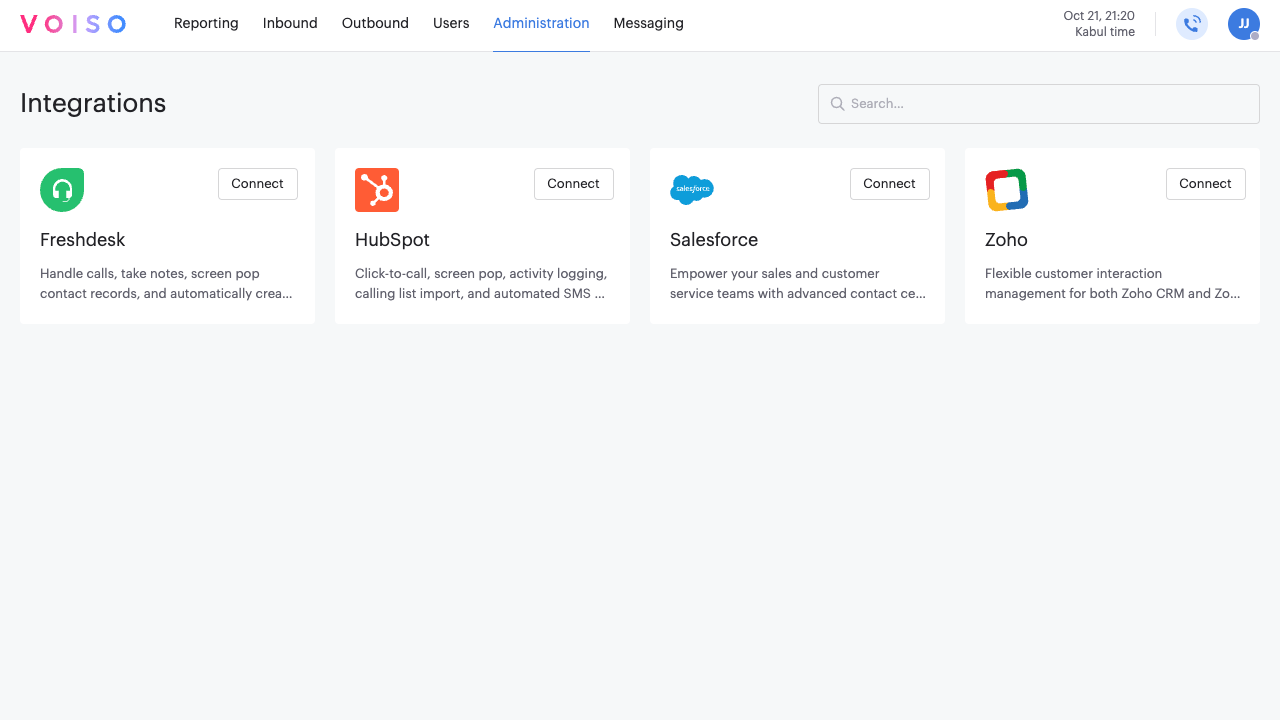
To integrate Voiso with Freshdesk, navigate to Administration > Integrations, then click the Freshdesk tile.
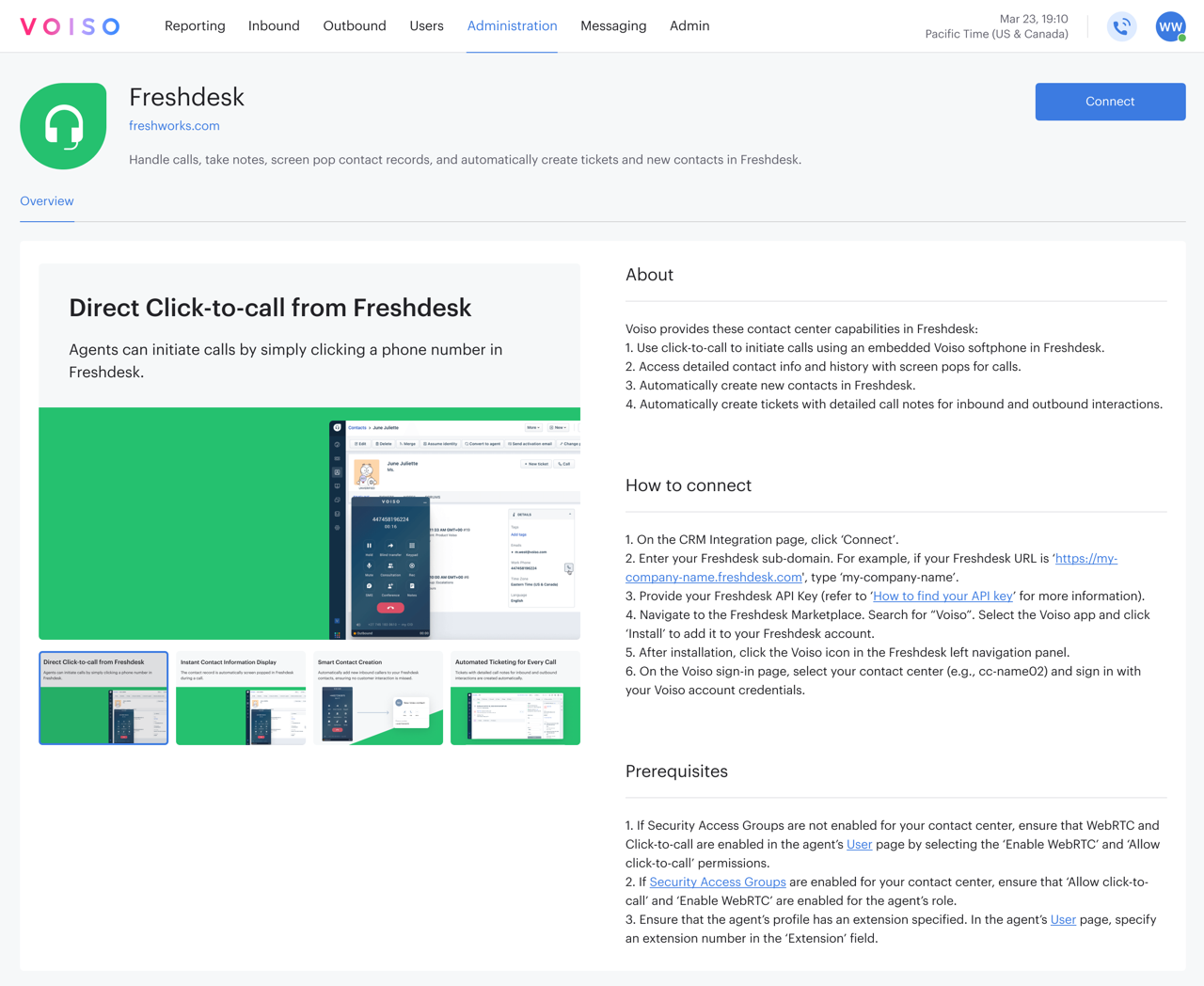
The Freshdesk page provides information about the Freshdesk integration, instructions for connecting the integration, and a list of prerequisites you should have in place before clicking Connect.
The following video walks you through the integration process.
Managing your integration
To manage an existing Freshdesk integration, navigate to Administration > Integrations, then click the Freshdesk tile.
On the Freshdesk integration page, you can reconnect an integration that has lost connection or disconnect a connected integration.
Click the Edit connection button and selected either Reconnect or Disconnect.
Settings
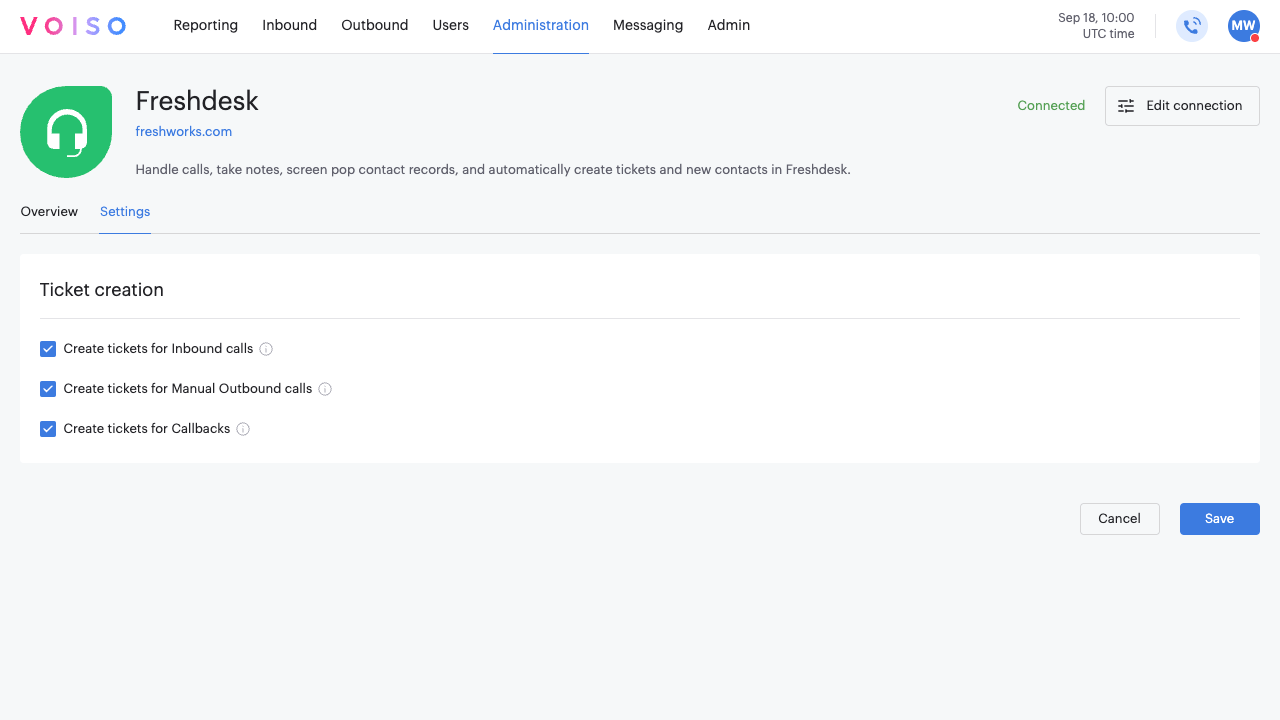
The Freshdesk page Settings tab enables you to enable available features.
General
To play call recordings directly within Freshdesk tickets using an embedded audio player, enable the Enable in-CRM recording playback option. Recordings appear in the ticket description after each completed call. A link to the call recording in the Call Details Record is also included.
Ticket creation
Use the following settings to specify for which call types you want automatic Freshdesk ticket creation.
Create tickets for Inbound calls: Automatically create a ticket in FreshDesk for all answered, missed, answered by Voicemail, and abandoned calls.
Create tickets for Manual Outbound calls: Automatically create a ticket in FreshDesk for all manual and click-to-call calls.
Create tickets for Callbacks: Automatically create a ticket in FreshDesk for all queue callback and scheduled callback calls.
Reconnecting an integration
To reconnect an integration that has been disconnected, either manually or as the result of an error, or to modify the connection, click Edit connection, then select Reconnect.
Follow the on-screen instructions to connect your integration.
Disconnecting an integration
To disconnect an integration, click Edit connection, then select Disconnect.
In the Disconnect integration panel, click Disconnect to remove the integration from your contact center.
Ticket field mapping
The Freshdesk page Ticket field mapping tab enables you to map Voiso interaction data fields to specific Freshdesk ticket fields. Map Voiso interaction data to Freshdesk ticket fields to capture call details in the most relevant way for your workflow. This flexibility allows you to align Voiso data with your Freshdesk system and custom fields, improving visibility and consistency across tickets.
Voiso fields are predefined and represent standard call data attributes, while Freshdesk fields are loaded dynamically for each account.
Voiso fields can only be mapped to compatible Freshdesk field types. For example, numeric values can only be mapped to numeric fields. Each Freshdesk field can be mapped once, except for the Description field, which can receive multiple Voiso fields.
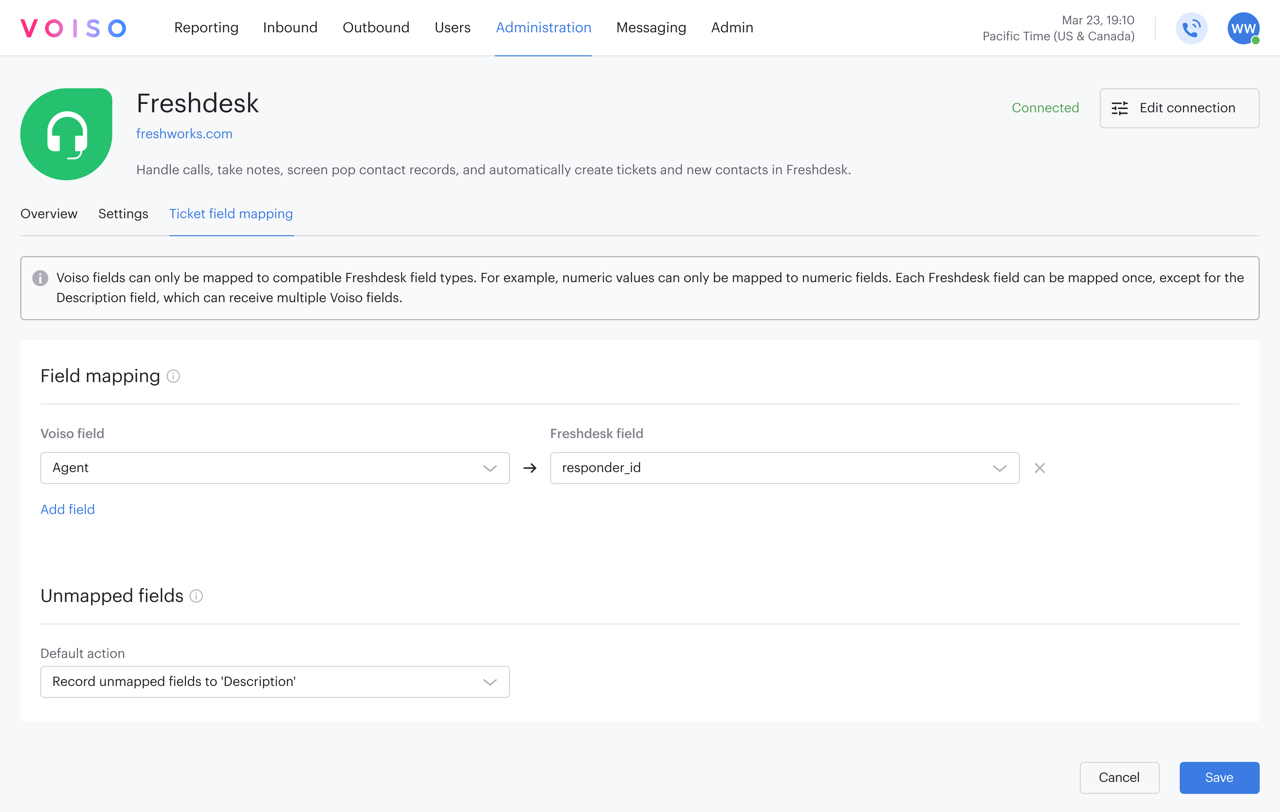
The Ticket field mapping tab includes two sections that control how Voiso call data is written to Freshdesk tickets. Mapped fields, specified by the settings in the Field mapping section are automatically populated when a call ends. Unmapped fields are handled according to the settings in the Unmapped fields section.
Field mapping
Use the Field mapping section to define how specific Voiso fields are mapped to Freshdesk ticket fields. Each row represents a Voiso call data attribute, which can be assigned to a system or custom Freshdesk field. These fields are retrieved dynamically from Freshdesk, ensuring the available options match your current configuration.
To assign a Voiso interaction data field to a Freshdesk ticket field, select one of the field names from the Voiso field menu, then select the corresponding field from the Freshdesk field menu. The Freshdesk field menu is divided into two sections, System and Custom. You can map Voiso fields to any compatible Freshdesk field type. When you select a Voiso field, only compatible Freshdesk fields are displayed in the Freshdesk field menu.
To add additional mapping fields, click Add field.
To remove a mapping field, click the X next to the mapping row.
This table shows you the mappable Freshdesk field types for each Voiso interaction field:
| Voiso field | Compatible Freshdesk field type |
|---|---|
| Agent | single-line text |
| Agent ID | number |
| Agent start time | single-line text |
| Call Duration | decimal |
| Call Recording URL | single-line text |
| Call outcome | single-line text |
| Called Number (B-number) | single-line text |
| Caller ID (A-number) | single-line text |
| CPC (Cost Per Call) | decimal |
| Customer Email | single-line text |
| Customer Name | single-line text |
| Disposition | single-line text |
| Event | single-line text |
| Notes | multi-line text |
| Object | single-line text |
| Queue | single-line text |
| Queue Time | decimal |
| Source | Excluded from manual mapping. It is set to Phone by default. |
| Start time | single-line text |
| Total handle time | decimal |
| Type (call type detail) | single-line text |
| Wrap-up codes | single-line text |
When configuring field mapping, ensure that any Freshdesk fields receiving Voiso data are not set as required if the corresponding data may be empty.
If a field is required in Freshdesk but no value is provided by Voiso, ticket creation may fail.
This also applies to custom Freshdesk fields. Some Voiso fields, such as Queue, may not be populated for all interactions, including outbound calls. If these fields are mapped, make sure the corresponding Freshdesk fields are not required unless you are certain they will always receive a value.
Unmapped fields
Use the Unmapped fields section to define how Voiso fields without an assigned mapping are handled. Depending on your settings, unmapped data can be added to the ticket description or excluded from the ticket.
The following options are available from the Default action menu:
| Option | Behavior |
|---|---|
| None | Unmapped fields are not added to any Freshdesk ticket field. See Important note below. |
| Record unmapped fields to 'Description' | Default behavior. Unmapped Voiso fields are appended to the Freshdesk ticket's Description field. |
| Duplicate all fields to 'Description' | All Voiso interaction fields are written to the Freshdesk ticket's Description field irrespective of individual field mapping specified in the Field mapping section. |
If you select None from the Default action menu, you must first make the Description field Optional in your Freshdesk field settings.
- In Freshdesk, go to Admin > Workflows > Ticket Fields.
- Click the Description field to configure its settings.
- In the BEHAVIOR FOR AGENTS section de-select Required when submitting the ticket.
Use case: Click-to-call
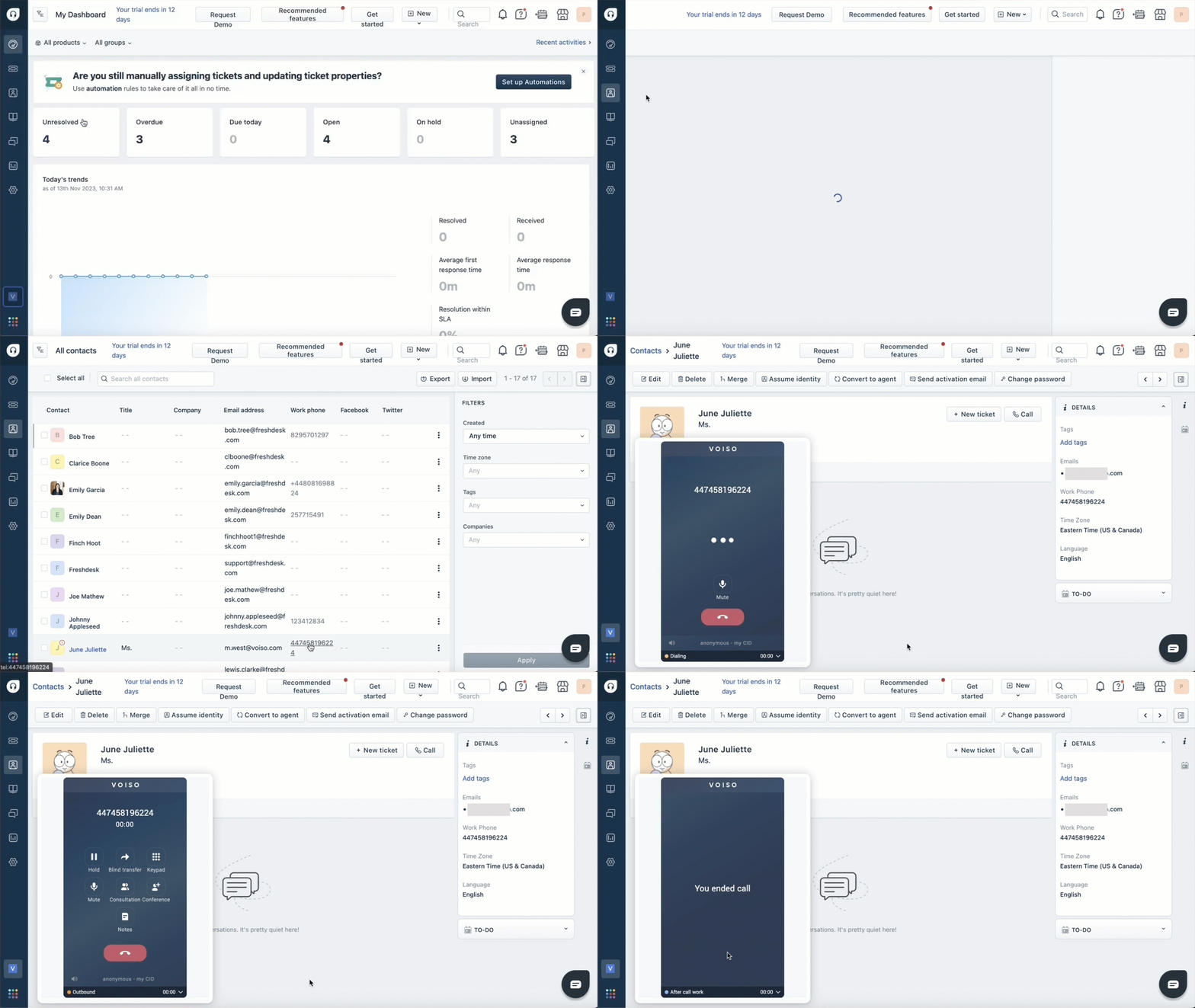
Voiso enables your contact center agents to make calls directly from Freshdesk. After signing in to Voiso from Freshdesk, agents can call contacts by clicking any phone number in Freshdesk or by navigating to a contact record and clicking Call.
With the Voiso Agent Panel embedded in Freshdesk, agents have access to all the Voiso call handling features, including call recording, call notes, transfer, consult, conference, and send SMS without leaving Freshdesk.
In Freshdesk, clicking Call or clicking a phone number opens Agent Panel and dials the call automatically.
Use case: Ticket creation
Depending on your settings, when an agent uses the Voiso Contact Center for Freshdesk app to handle either an inbound or outbound call, Voiso automatically creates a new ticket in Freshdesk for the call.
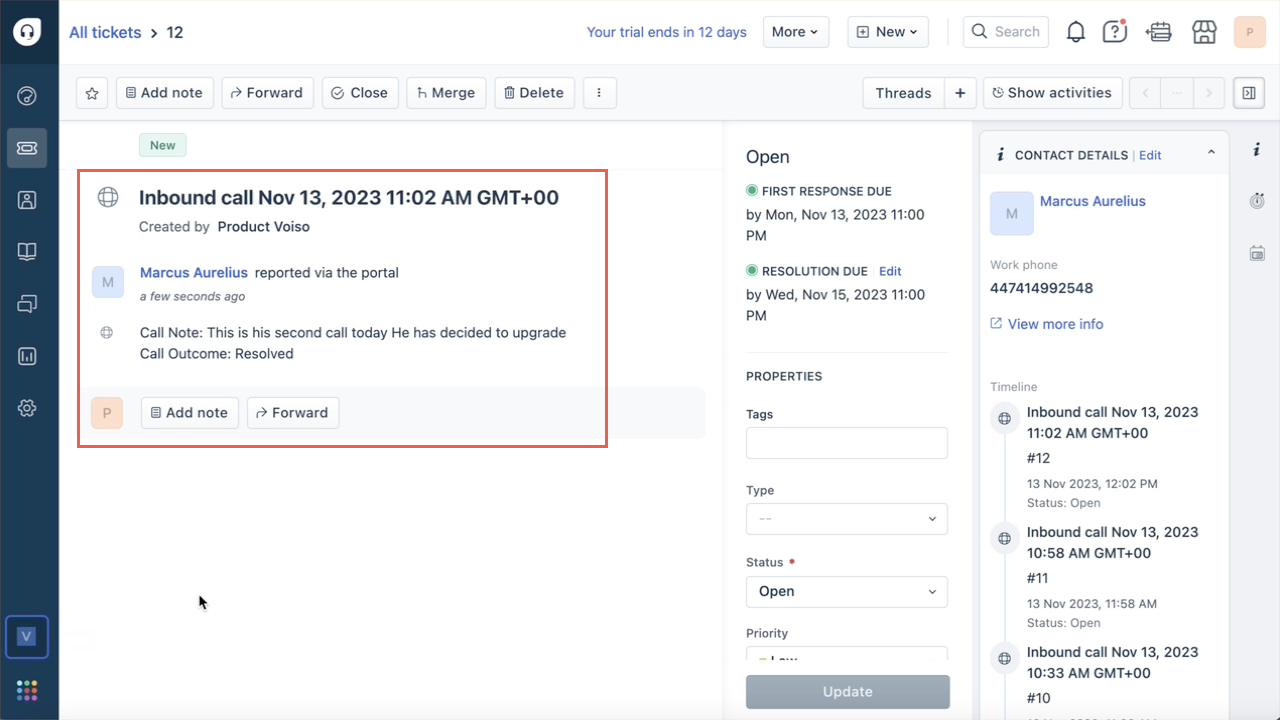
The ticket includes the following information about the call from Voiso:
- The time of the call.
- The name of the Freshdesk user who made the call.
- Call notes added by the agent in the Agent Panel during the call.
- Call outcome wrap-up code added by the agent in the Agent Panel during the call.
- Call recording link.
Use Case: Inbound calls and screen pop
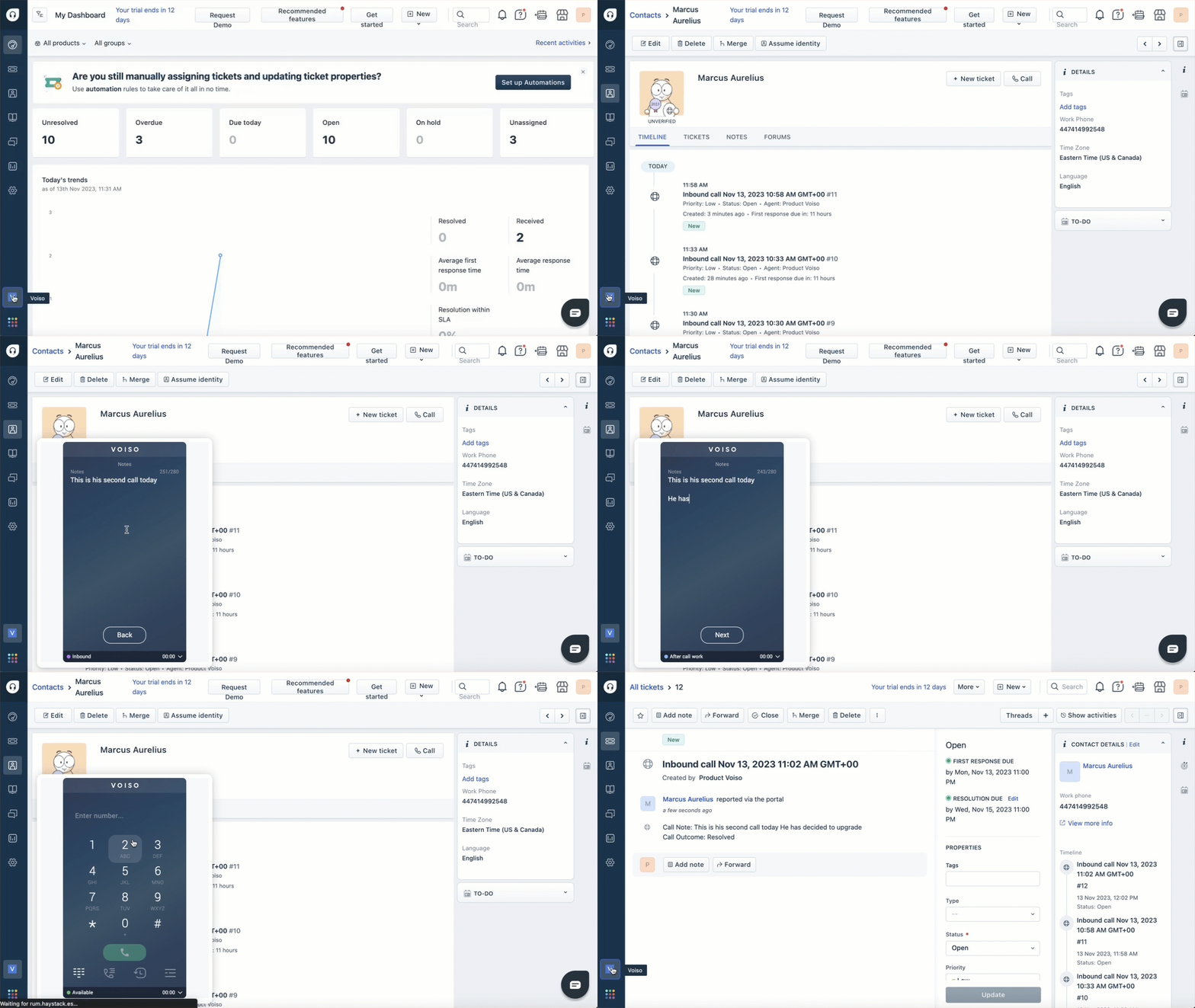
When a known contact calls your contact center, Voiso routes the call to the queue or user (agent) you have specified in your inbound flow.
The call rings in the Agent Panel in Freshdesk and the contact record is screen popped for rapid information retrieval.
With the Voiso Agent Panel embedded in Freshdesk, agents have access to all the Voiso call handling features, including call recording, call notes, transfer, consult, conference, and send SMS without leaving Freshdesk.
At the end of the call, Voiso creates a ticket in Freshdesk that includes call notes and wrap-up codes.
Use Case: New contact creation
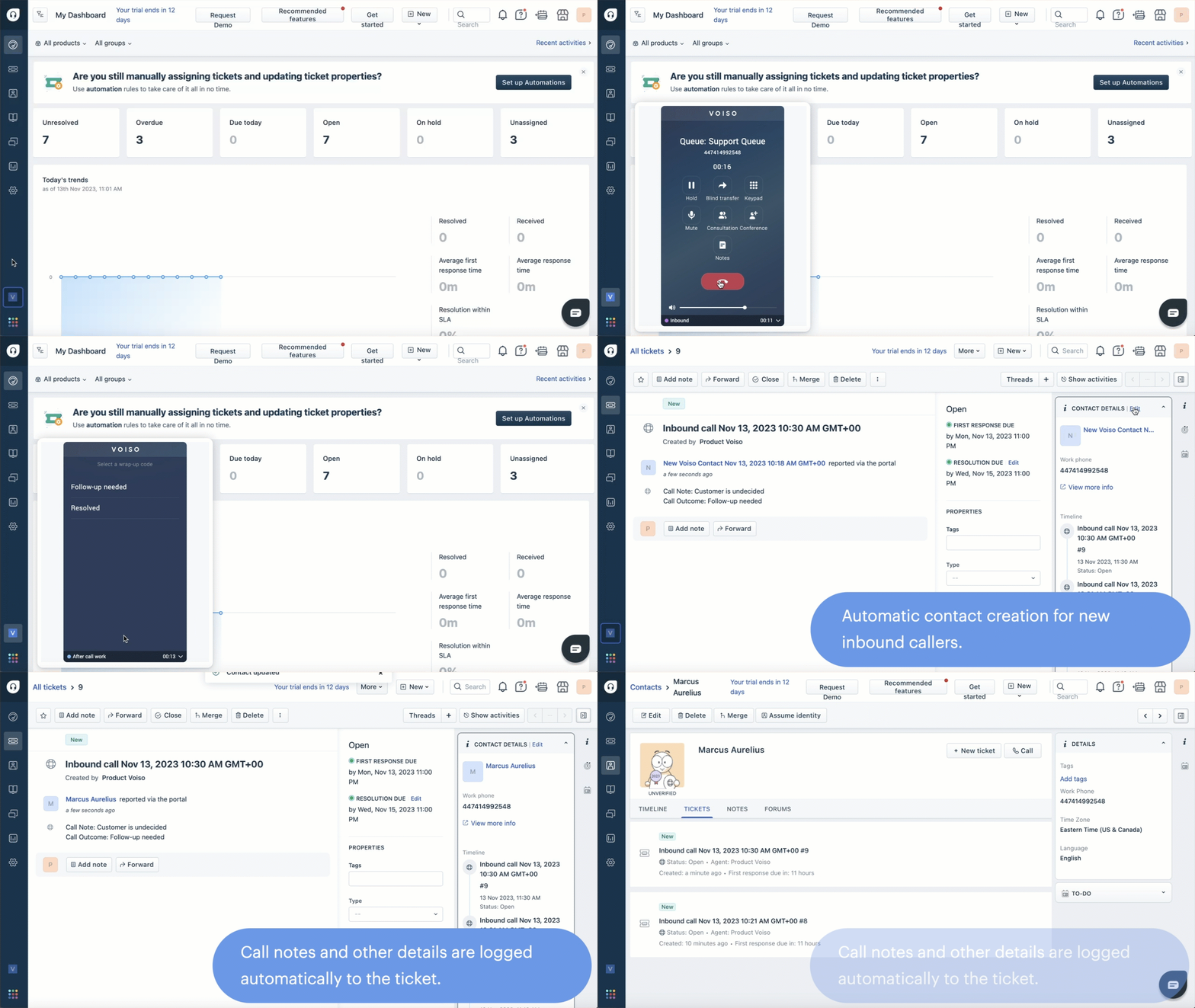
When a new client calls your contact center, Voiso routes the call to the queue or user (agent) you have specified in your inbound flow.
The call rings in the Agent Panel in Freshdesk.
With the Voiso Agent Panel embedded in Freshdesk, agents have access to all the Voiso call handling features, including call recording, call notes, transfer, consult, conference, and send SMS without leaving Freshdesk.
At the end of the call, Voiso creates a ticket in Freshdesk that includes call notes and wrap-up codes.
Troubleshooting
If agents experience issues signing in or making calls, verify that the following is correct:
- Ensure that the agent is a member of the cluster that is specified during sign-in.
- Ensure that the Freshdesk API key used to register the Voiso Contact Center for Freshdesk app is correct.