Who should read this article: Administrators, Supervisors
This is part 6 of the How to run a Dialer campaign use case.
Reporting
Voiso offers several ways to review the results of your outbound Dialer Campaign. These include:
- Automatically generated campaign reports
- Detailed calling list reports for campaigns that use a CSV
- A range of historical reports.
- Comprehensive Call Detail Records (CDRs), which are searchable by a variety of parameters.
Campaign reports
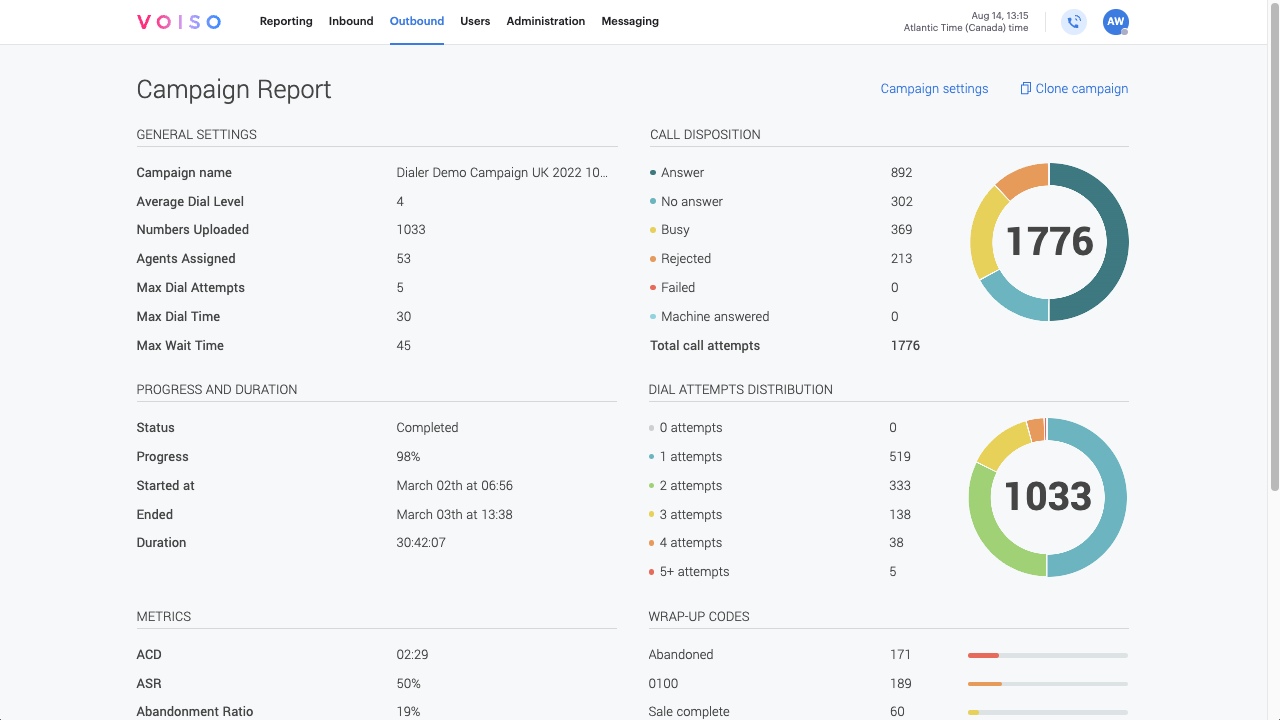
Voiso generates campaign reports that provide a concise summary of campaign performance and key metrics. Reports are available for every campaign except those in the Draft, Loading data, or Import error status.
To view a campaign report:
- Navigate to Outbound > Dialer campaigns in the Voiso navigation bar to open the Dialer campaigns page.
- Locate the campaign in the Campaigns table.
- Click the campaign name to open the Edit campaign page.
- Select the Report tab to view the campaign summary.
The campaign report includes the following entries:
| Report entry | Description |
|---|---|
| General settings | The current campaign settings you specified. |
| Progress and duration | The percentage completed, as well as the start and end dates and times. For campaigns that are still in progress, unavailable values display as -. |
| Metrics | Key campaign metrics, including: ACD, ASR, Abandonment Ratio, Average Waiting Time, and Average wrap-up time. |
| Call disposition | A pie-chart of call Disposition codes. |
| Dial attempts distribution | A pie chart showing the number of dial attempts for each call. |
| Wrap-up codes | A bar graph summarizing the use of wrap-up codes. |
Calling list reports
For campaigns that use a CSV calling list, Voiso Original calling list and Invalid numbers and duplicates appear once the list has been processed, including in Draft; Call dispositions and wrap-up codes appears only when the campaign is Completed or Stopped. These reports provide insights into the quality of your calling list and the outcomes of each call.
To view calling list reports:
- Navigate to Outbound > Dialer campaigns in the Voiso navigation bar to open the Dialer campaigns page.
- Locate the campaign in the Campaigns table.
- Click the campaign name to open the Dialer campaign page.
- Select the Settings tab and scroll down to the Calling list section.
The following reports are available for download in CSV format:
- Original calling list: The initial list of contacts uploaded for the campaign.
- Invalid numbers and duplicates: A list of phone numbers that were invalid or duplicated.
- Call dispositions and wrap-up codes: A detailed report of call outcomes, categorized by disposition and wrap-up codes.
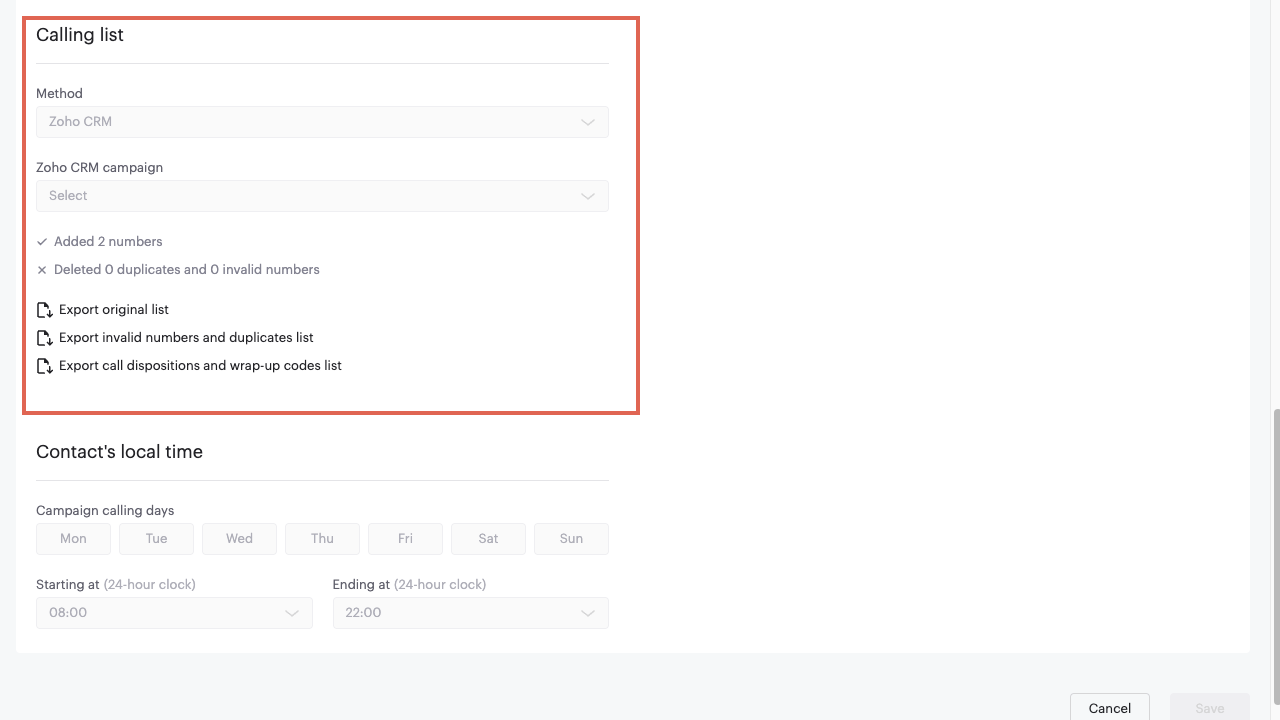
Click the report links to download the data for further analysis.