Who should read this article: Administrators, Supervisors
Enable Speech Analytics for your contact center and users when you are not using Security Access Groups.
Speech Analytics is available for contact centers on the Pro plan or higher.
Before you start
This article applies to contact centers that use basic user roles such as Admin, Analyst, and Supervisor.
If you use Security Access Groups, follow: Configuration for Security Access Groups
Enable Speech Analytics for the contact center
- In the Voiso navigation menu, go to Administration > System Settings.
- Open the Features tab.
- Scroll to the Speech Analytics section.
- Configure the following settings:
- Language selection
Choose AI-powered auto language detection or select specific languages. - Transcription threshold
Set the minimum call length in Transcribe calls with talk time over.
This helps avoid transcribing very short calls.
- Language selection
Configure supporting features
To get the most value from Speech Analytics, configure the following:
See: Keyword groups and Keyword compliance
Topics
- Configure Topics.
See: Topics and Topic identification
Optional: S3 replication
- Replicate all your call recordings to your Amazon S3 bucket.
See: Call Recordings Replication to S3
Enable Speech Analytics for users
Access to Speech Analytics is controlled through permissions. See: Basic user roles.
Speech Analytics requires configuration for two types of users:
- Agents
Generate calls that are transcribed and analyzed - Supervisors, Analysts, and Admins
View transcripts, analytics, and reports
Agents
The following settings must be made on the user's account page:
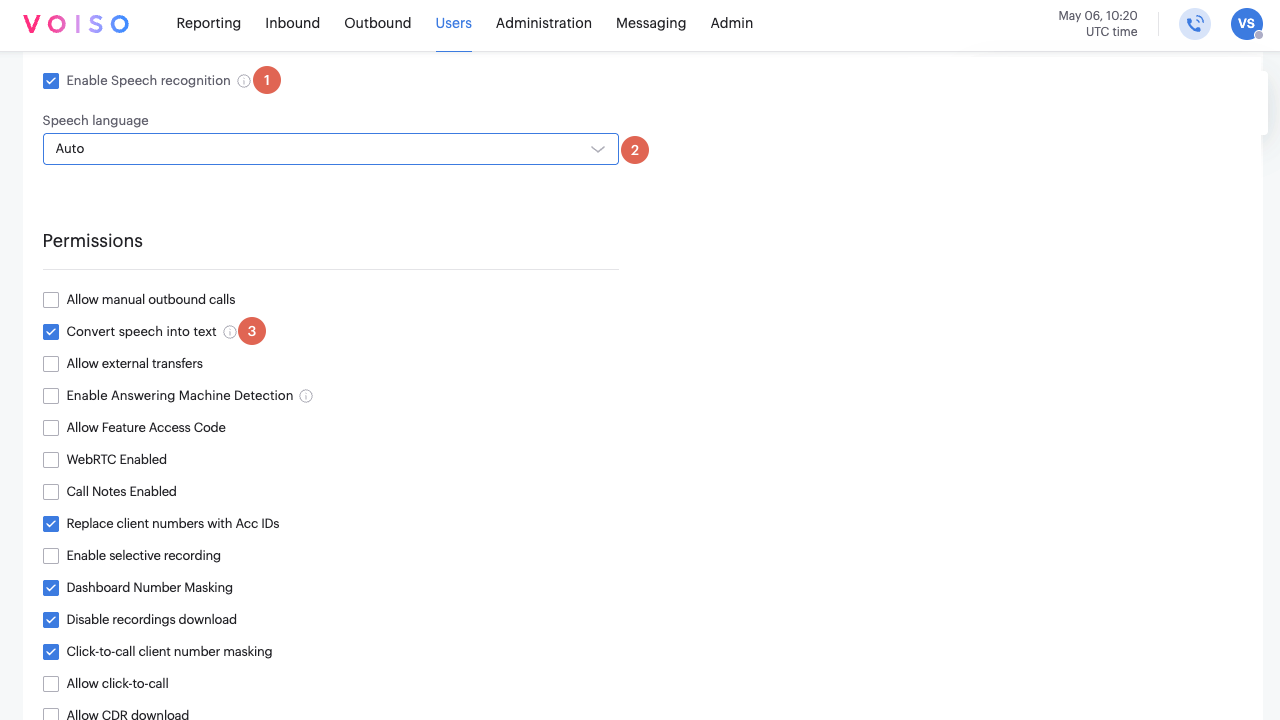
- Enable Speech recognition
- Speech language (select Auto for automatic language detection or select a specific language for transcription)
- Convert speech into text
Supervisors, Analsyts, and Admins
To give users access to Speech Analytics results:
- Go to Administration > Users.
- Create or edit a user.
- Assign one of these roles:
- Admin
- Analyst
- Supervisor
- Enable the following settings:
- Enable Speech recognition
- CDR enabled
- Select the user’s preferred language in Speech language.
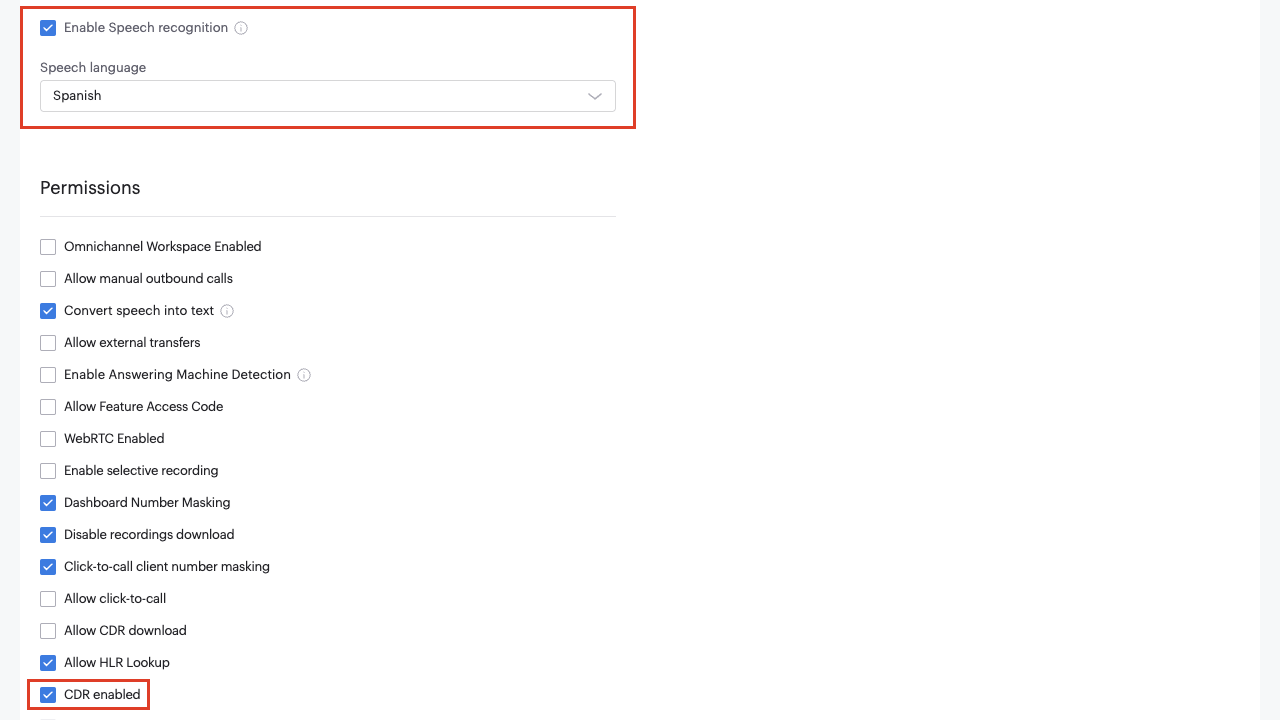
Once enabled, users can view transcripts and analytics in Call Detail Records.