Who should read this article: Agents
If you are used to Agent Panel, this article helps you find your way around the new Agent Workspace. Use the table below to see where each feature was before and where it is now.
Introduction
Agent Panel opened in a small window that held your calls along with call history, SMS, Dialer campaigns, metrics, and other tools. With so much in a small space, information was hard to read and features were hard to find.
The new Agent Workspace keeps these features together and adds a full screen view, where each of them has its own page. Depending on your setup, you can work in a compact window, similar to Agent Panel, or in full screen when you need more space. This gives you:
- More room to work. Call history, SMS, Dialer campaigns, and your metrics each have a full page, so you can see more at once and find what you need faster.
- Contact information at hand. Contact details and past interactions appear next to your calls, SMS, and conversations, so you have the context you need without switching tools.
- Complete call and SMS details. Select a call to see its result, duration, and wrap-up code, or an SMS to see its delivery status and full message.
- Faster follow-ups. Send an SMS, schedule a callback, or check a number with HLR lookup straight from any call or SMS record, with the number already filled in.
- Everything in one place. Calls, SMS, and digital conversations share one workspace.
Where to find features
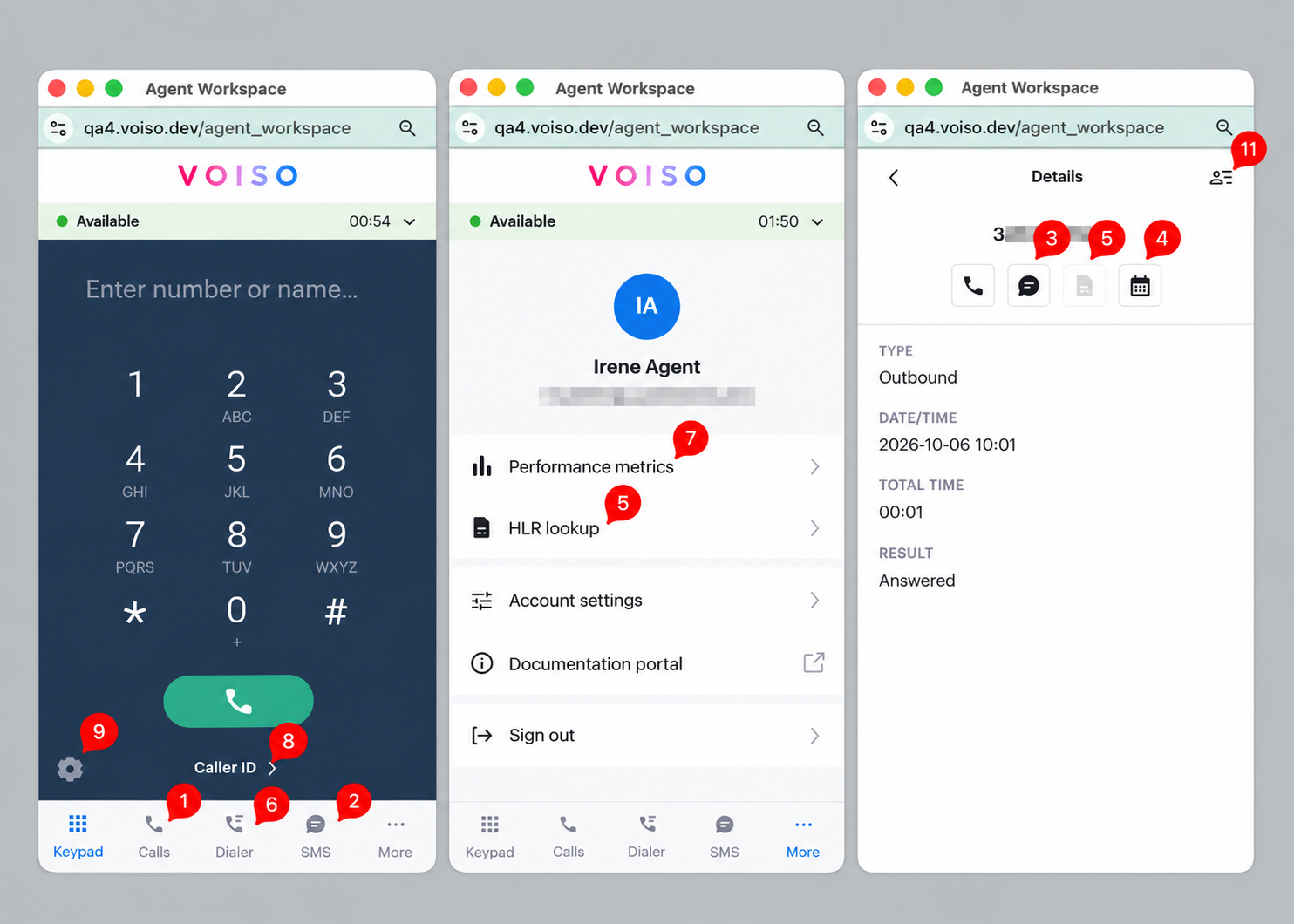
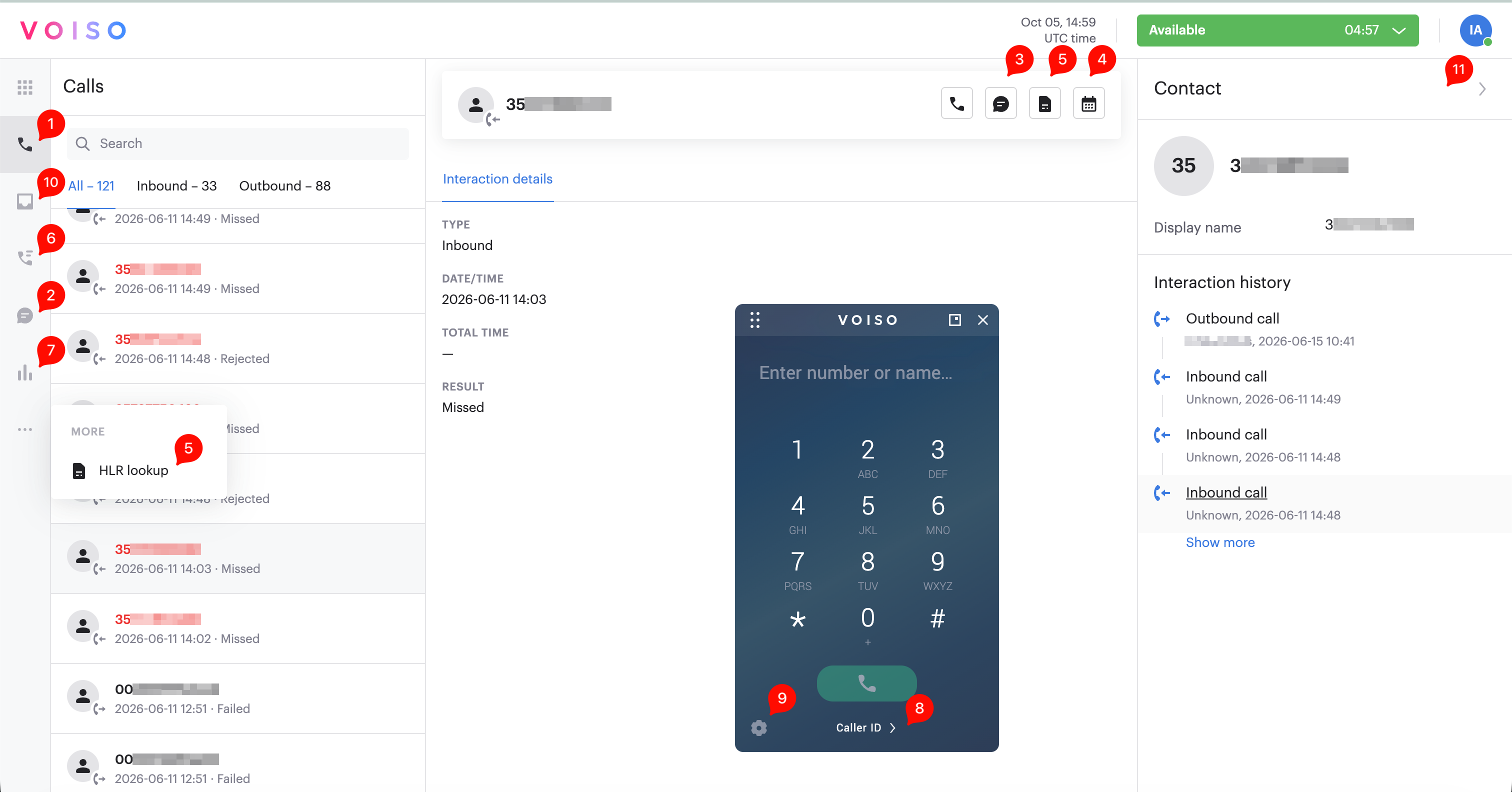
The numbers in the images below match the rows in the Feature locations table.
Compact view
Compact view opens Agent Workspace in a window about the same size as Agent Panel, with the navigation bar at the bottom.
Full screen view
In Full screen, the navigation bar is on the left, and each section opens as a full page.
Feature locations
| # | Feature | Before (Agent Panel) | Now (Agent Workspace) |
|---|---|---|---|
| 1 | Call history | Call History tab | Calls section |
| 2 | SMS history | Call History tab, mixed with calls | SMS section |
| 3 | Send an SMS | More menu, a call history record, or during a call | Send SMS in the SMS section, or the Send SMS icon on any call or SMS record. Also available during a call. |
| 4 | Schedule a callback | A call history record, or the More menu during a call | The Schedule Callback icon on any call or SMS record. Also available during a call. |
| 5 | HLR lookup | More menu or a call history record | More in the navigation bar, or the HLR icon on any call or SMS record |
| 6 | Dialer campaigns | Join to a campaign screen | Dialer campaigns section (Dialer in Compact view) |
| 7 | Agent metrics | More menu | Performance metrics section (under More in Compact view) |
| 8 | Caller ID group | More menu | Caller ID > link below the dialpad |
| 9 | Audio settings | More menu | Gear icon on the dialpad. Also available during a call. |
| 10 | Digital conversations | Omnichannel Workspace | Inbox section |
| 11 | Contact information | Omnichannel Workspace only | Contact panel in the Calls, SMS, and Inbox sections (the contact icon on a record in Compact view) |
What stays the same during a call
You still handle calls the way you are used to:
- Dialing, answering, and ending calls
- Hold, mute, keypad, and recording
- Transfer, Consult, and Conference
- Sending an SMS or scheduling a callback during a call
- Call notes and wrap-up codes after a call
- Leaving a Dialer campaign
See Getting started with Agent Panel for details.
Choosing your view
If digital channels are not enabled for you, you can choose how Agent Workspace opens:
- Compact view — a smaller window, similar to Agent Panel.
- Full screen — each section opens as a full page.
To change the view:
- Open Account settings.
- Under Agent Workspace display layout, select Compact view or Full screen.
- Click Save.
The new view applies the next time you open Agent Workspace.
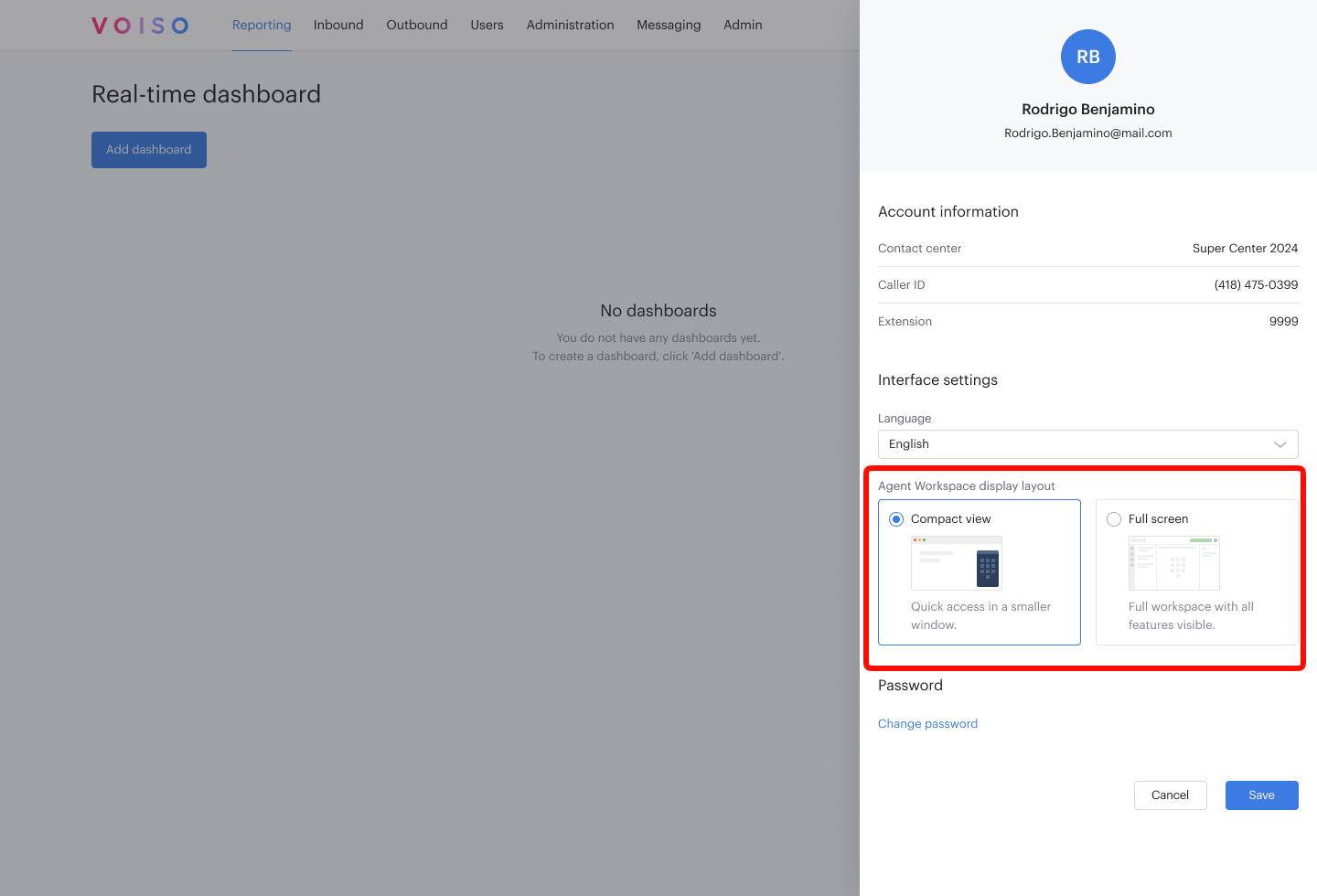
If digital channels are enabled for you, Agent Workspace always opens in Full screen.