Who should read this article: Administrators
Assign an unlimited-use license to a user so that the services included in the license are free for that user, for a fixed monthly fee per seat.
Introduction
An unlimited-use license replaces per-use charging for a single user. You pay a fixed fee for that seat each month, and the services included in the license are then free for that user. Services that are not included are charged as usual. A user who holds an unlimited-use license for a whole billing period is not charged the standard license fee for that period.
Standard and unlimited-use licenses work side by side in the same contact center. You choose which users hold an unlimited-use license, and you can change that at any time.
To manage unlimited-use licenses, from the Voiso navigation bar, navigate to Administration > Billing, then select the Unlimited-use licenses tab. Access to the tab follows the same rules as the rest of the Billing page. Refer to Billing for more information about who can open it.
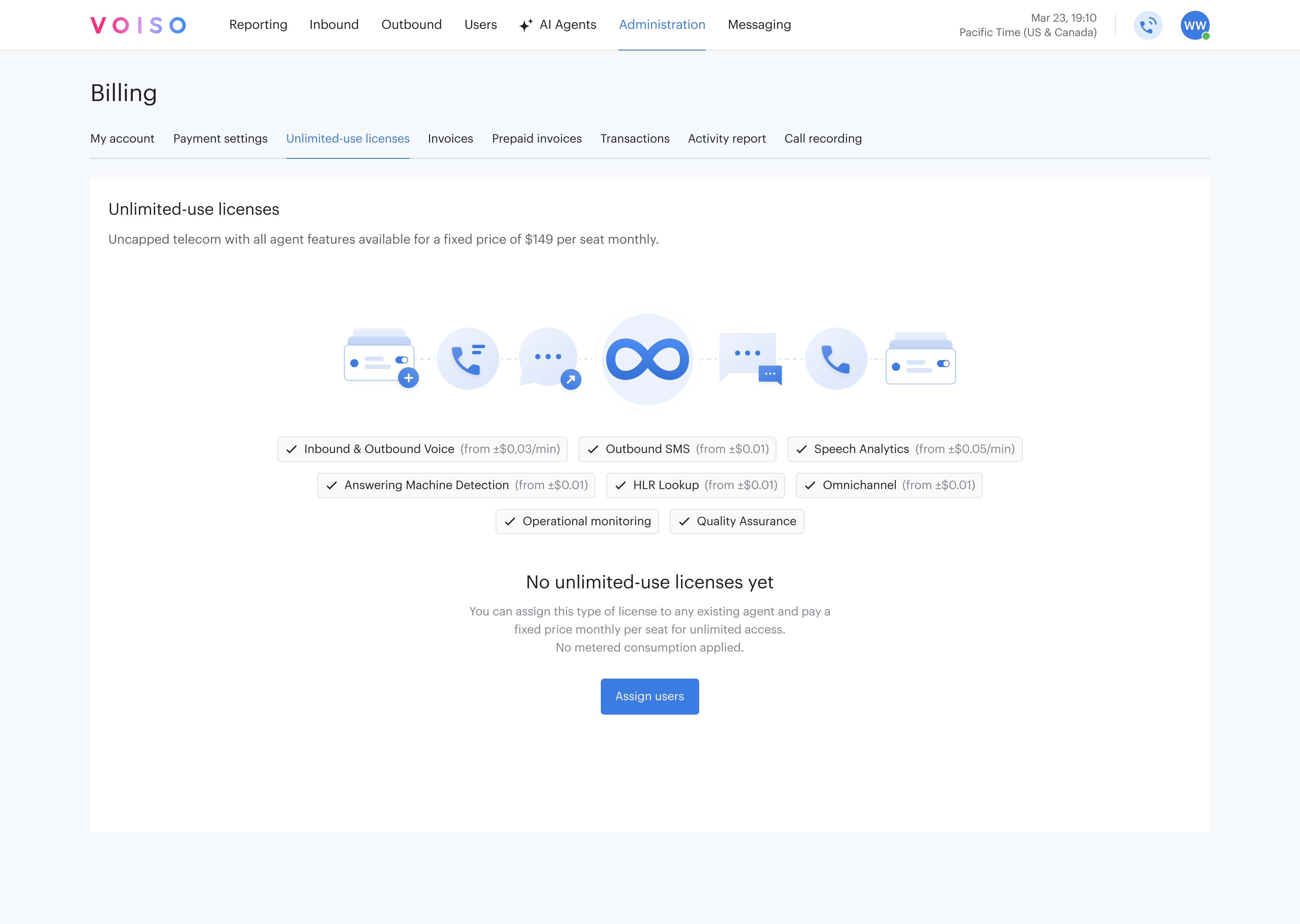
The following information is displayed for each user who holds a license:
| Property | Description |
|---|---|
| User name | The real name of the person. |
| The email address the person uses to sign in to their Voiso account. | |
| License assigned on | The date on which the license was assigned. For a user who held a license before, this is the date of their first assignment. |
| Monthly fee | The fee charged for this seat each month. |
Use the search field above the table to filter the list by name or email address. A user remains in the table for as long as the license is paid for, even if their role or phone setup changes after the license was assigned, so that you can always remove the license.
Voiso enables unlimited-use licenses for your contact center and sets the monthly fee per seat. If the Unlimited-use licenses tab does not appear on the Billing page, contact your account manager.
What an unlimited-use license covers
The following services are included in the license. For a user who holds one, they are free:
| Service | Notes |
|---|---|
| Inbound and outbound calls | Includes Dialer campaign calls and the surcharge on calls carried over your own carrier. |
| Outbound SMS | Applies to messages the user sends. |
| Answering Machine Detection | The AMD service fee for the user's outbound calls. |
| HLR Lookup | Applies to lookups the user performs. |
| Speech Analytics | The speech recognition charge for the user's calls. |
Any service that is not in this list is charged as usual. An included service is free only when it is attributed to a user who holds an unlimited-use license. A call that is not attributed to any user, such as a Dialer campaign call that no agent joined, is charged as usual.
A transaction is still recorded for each included service the user consumes, with a charge of $0 and the real price kept alongside it, so your usage reporting stays complete.
Who you can assign a license to
You can assign an unlimited-use license to users who are charged a standard license fee. The following users are not eligible and do not appear in the assignment list:
- Users with the Hardware Phone role, and any other user without access to the web interface
- Virtual agents and AI agents
How the fee is charged
The fee is charged upfront, in the same way as the fee for a phone number.
- When you assign the license, Voiso charges your account balance for the days left in the current month, including the day of the assignment. The amount is the monthly fee divided by the number of days in the month, multiplied by the number of days left.
- At the end of each billing period, Voiso charges a full month for every user who holds an unlimited-use license at that moment, covering the month ahead.
The fee is not refunded when you downgrade a user to a standard license, or when unlimited-use licenses are turned off for your contact center. The prorated fee covers the rest of the month either way.
Assigning unlimited-use licenses
You can assign licenses to one user or to several users at once. The cost is shown before your balance is charged. To assign licenses, follow these steps:
- On the Unlimited-use licenses tab, click Assign users.
- In the User assignment panel, select one or more users on the All users tab, or select one or more teams on the Teams tab. Use the search field to find a user. The number of users you have selected is displayed at the bottom of the panel.
- Click Next.
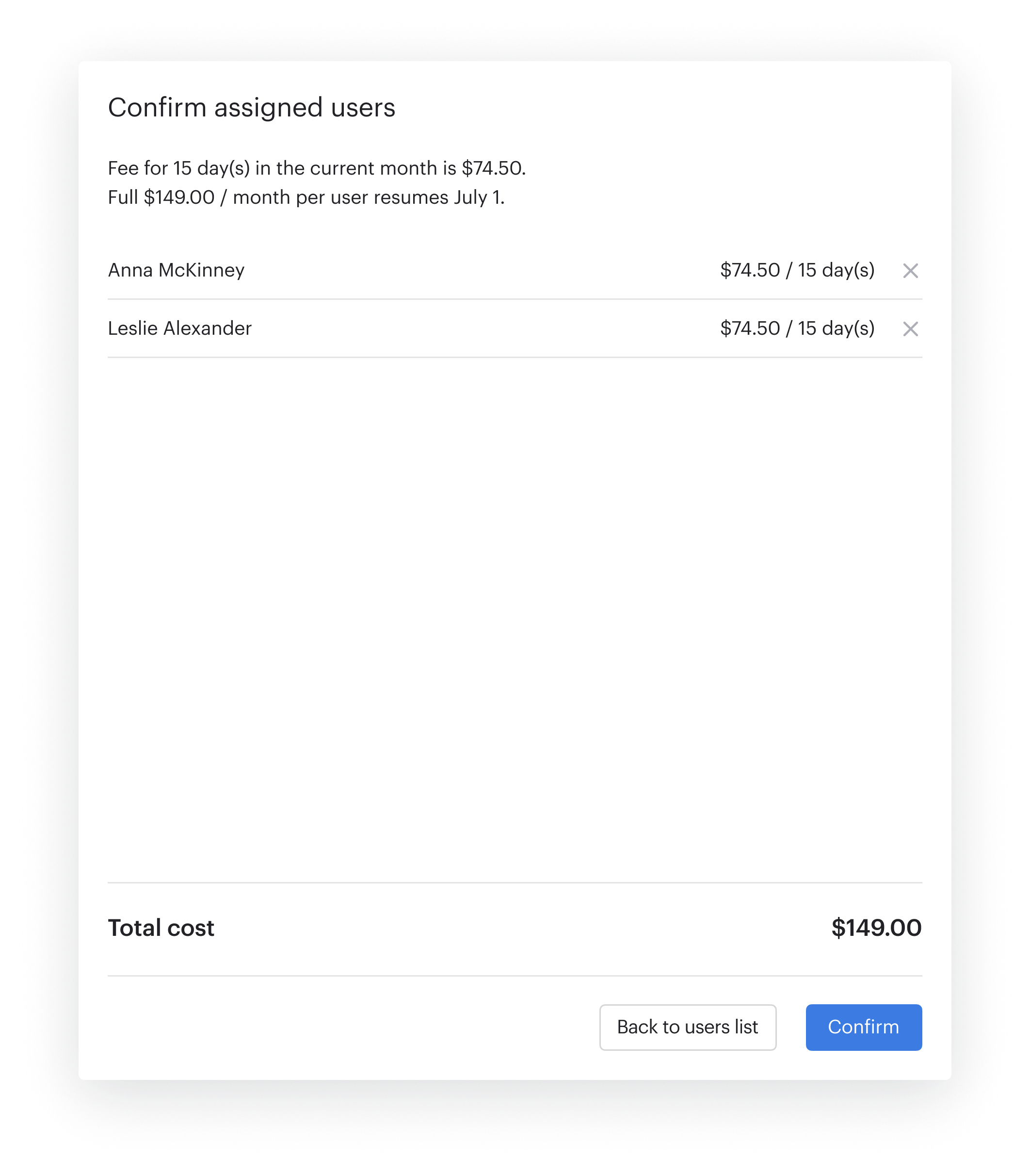
- In the Confirm assigned users panel, review the cost. The panel displays the part-month fee for each selected user, the date on which the full monthly fee starts, and the Total cost that is taken from your balance now. To remove a user from the list, click the remove icon on their row.
- Click Confirm.
A message confirms how many seats were purchased. The users are added to the table on the Unlimited-use licenses tab.
Downgrading a user to a standard license
Downgrade a user to return them to standard licensing and per-use charging. You downgrade one user at a time.
- On the Unlimited-use licenses tab, hover over the row of the user you want to downgrade, then click the Downgrade to standard licenses icon at the far right.
- In the Confirm licenses downgrade panel, click Downgrade.
The user is removed from the table and their services are charged for each use again. The fee already paid is not refunded.
If Voiso turns unlimited-use licenses off for your contact center, every license is removed in the same way and all users return to standard licensing.
Where the fee appears
- On the My account tab of the Billing page, the Unlimited license fee per user line displays the fee set for your contact center, and the Estimated upcoming license charge adds your standard and unlimited-use license fees together.
- On your statement, the Unlimited license fee per user line displays the fee, the number of seats, and the amount. It covers both the part-month charge taken during the period and the full-month charge for the month ahead.