Who should read this article: Administrators, Supervisors
Use AI to analyze call recordings, generate transcripts, and extract insights such as keywords, topics, and conversation scores.
Speech Analytics is available for contact centers on the Pro plan or higher.
What is Speech Analytics?
Voiso Speech Analytics uses Artificial Intelligence (AI) to process and analyze call recordings.
It converts audio into text and enriches it with structured insights that help you monitor quality, compliance, and customer interactions.
How Speech Analytics data is generated
Speech Analytics works as a two-step process:
- Agents handle calls, which are recorded and processed
- Supervisors, Analysts, Admins, and custom roles review transcripts, analytics, and reports
For Speech Analytics to work correctly, you must first enable the feature in your contact center, then configure each role. Refer to the following articles for details:
-
If you are using security access groups, see: Configuration for Security Access Groups
-
If you are not using security access groups, see: Configuration for Basic users
What you can do with Speech Analytics
Speech Analytics powers several features across the platform:
-
Keyword compliance
Track whether specific words or phrases are used during calls. -
Conversation scoring
Evaluate calls using automated scoring models. -
Topic identification
Identify common themes and subjects in conversations.
The Voiso Speech Recognition engine supports the following languages:
- Arabic
- Dutch
- English
- French
- German
- Hindi
- Italian
- Japanese
- Polish
- Portuguese
- Spanish
- Turkish
How it works
Once enabled, Speech Analytics:
- Transcribes call recordings into text
- Detects the language automatically or uses a predefined language
- Applies keyword matching, topic detection, and scoring
- Stores results in Call Detail Records for review and reporting
Where to view results
You can access Speech Analytics data in:
- Call Detail Records (CDR)
- Call transcription view
- Reports and analytics dashboards
Use Case: Call transcript review
Reviewing call recordings to ensure compliance with your organization's standards is time-consuming for supervisors. With the transcripts produced by the Keywords and Speech analytics features, supervisors can quickly review the content of a call recording without spending time listening to the audio.
The Extended Call Details record for each analyzed call recording includes the transcript with highlighted keywords and a table displaying the count of keywords, the group they belong to, and the person who said the keywords.
Transcripts enable Supervisors to review conversations quickly, and the highlighted content permits supervisors to focus on the crucial quality elements, ensuring that calls are handled correctly.
You can specify the minimum call duration for transcription by setting the Transcribe calls with talk time over x sec option in the Speech analytics section of the System settings page.
Filtering by keyword
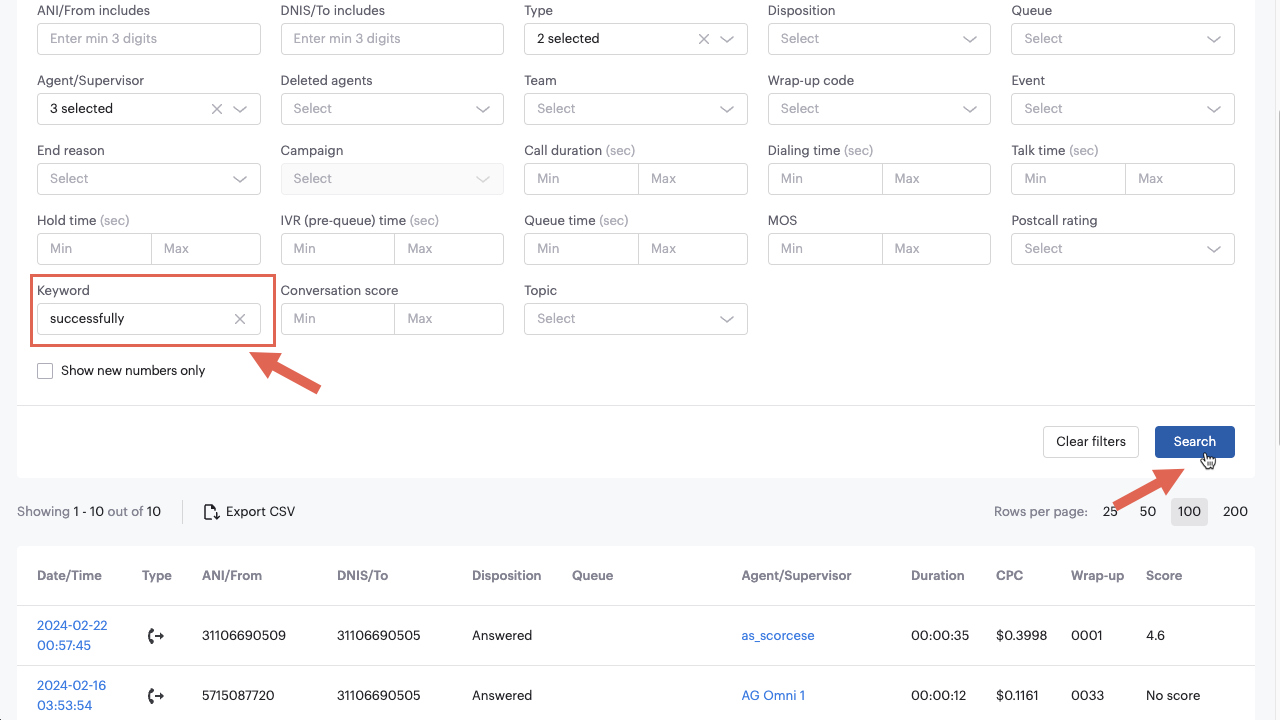
Use the Keyword filter in the Call Detail Records page to search for interactions where that keyword or keywords occur in the transcript.
Call transcript
The Call transcription panel is displayed at the bottom of an extended call detail record page after the audio clip. Use the Search field to find specific words and phrases in the transcript.
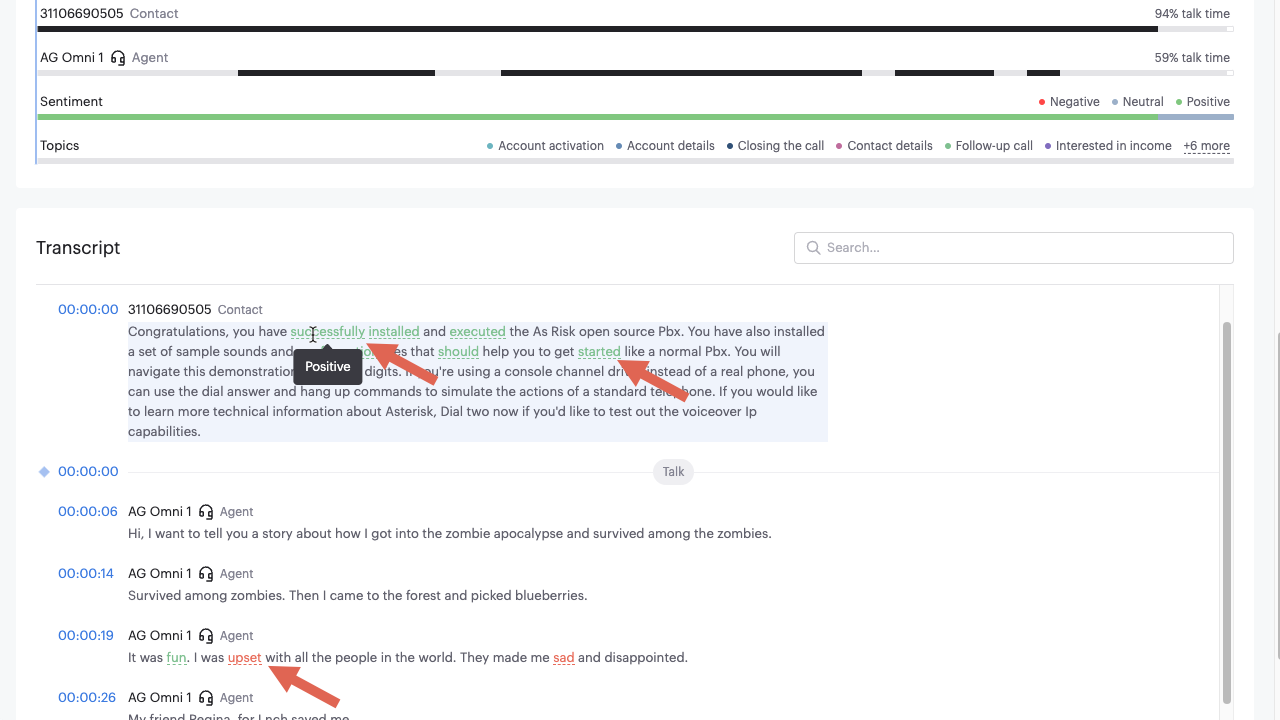
The transcript includes timestamps for each spoken part. Click the timestamp to go directly to that part in the recording to hear the speech in context.
You can replicate call transcripts to your Amazon S3 bucket for use outside of Voiso. Refer to Call Recordings Replication to S3 for information about setting up this feature.
Transcripts uploaded to AWS S3 do not include any analysis data. Only the raw transcript is uploaded. To leverage the analysis capabilities, use the CDR Call transcription feature transcription and table views.
Automatic transcript translation
Users with CDR access granted, typically Supervisors and Analysts, can select their preferred transcript language. Refer to User Profile in the Supervisor Guide for information about enabling this feature and selected languages you want to translate to your preferred language.
- There might be a delay of up to 10 hours before changes to your Account Settings takes effect.
- Auto-translation might not work on existing calls, only new calls, unless other users in your contact center have already had the particular translation combination already implemented.
When you choose a language for translation, voice call transcripts are automatically translated into your preferred language from the languages you selected in your User Profile. Voice calls that are not in one of your selected languages are not translated. For example, if you specify that all calls in French or Spanish should be translated into German, then calls in English, Dutch, and other languages will not be translated.
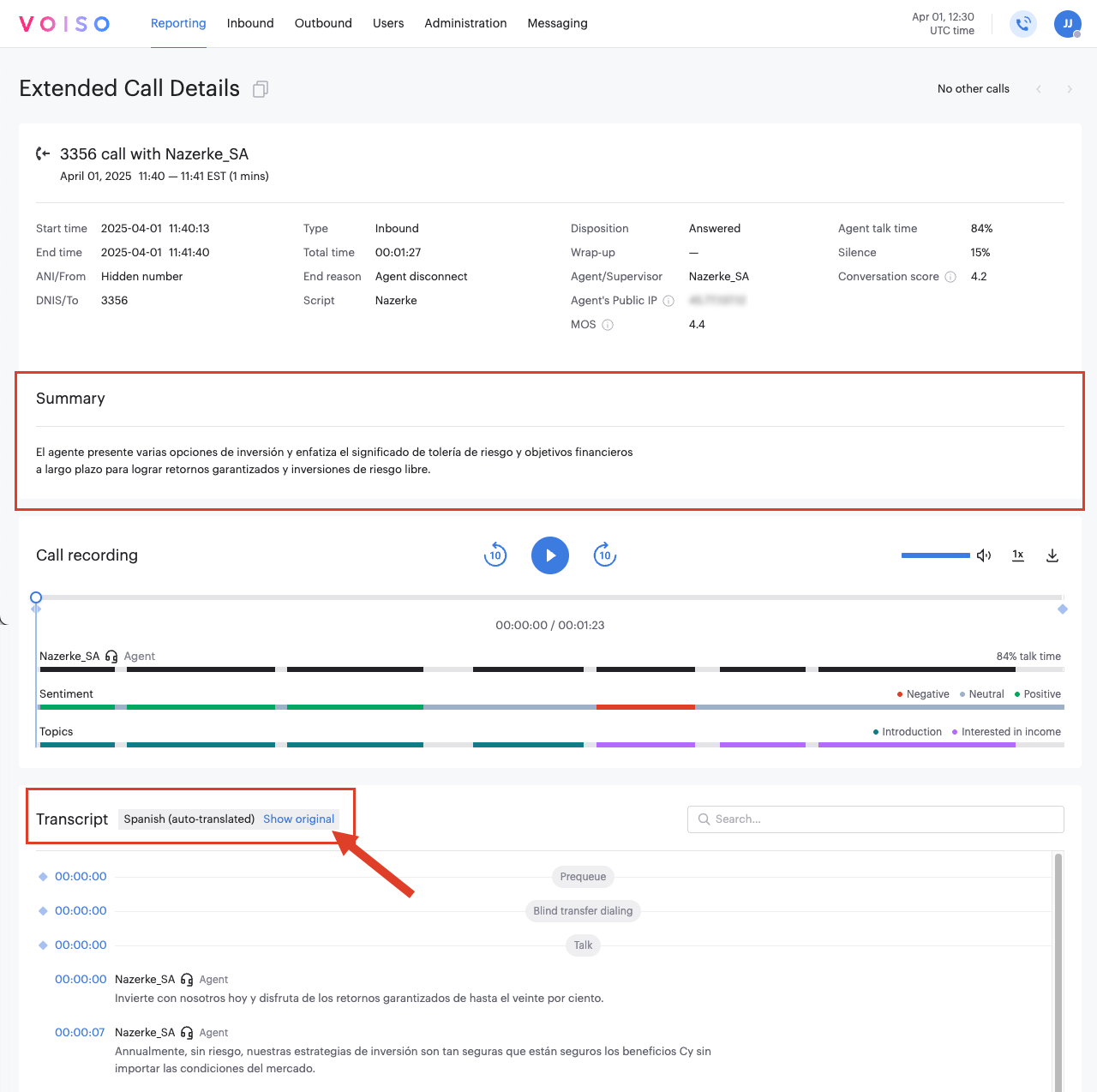
On the Extended Call Details page, when a transcript has been translated, a notice appears at the top of the transcript. Click Show original to view the transcript in its original language.
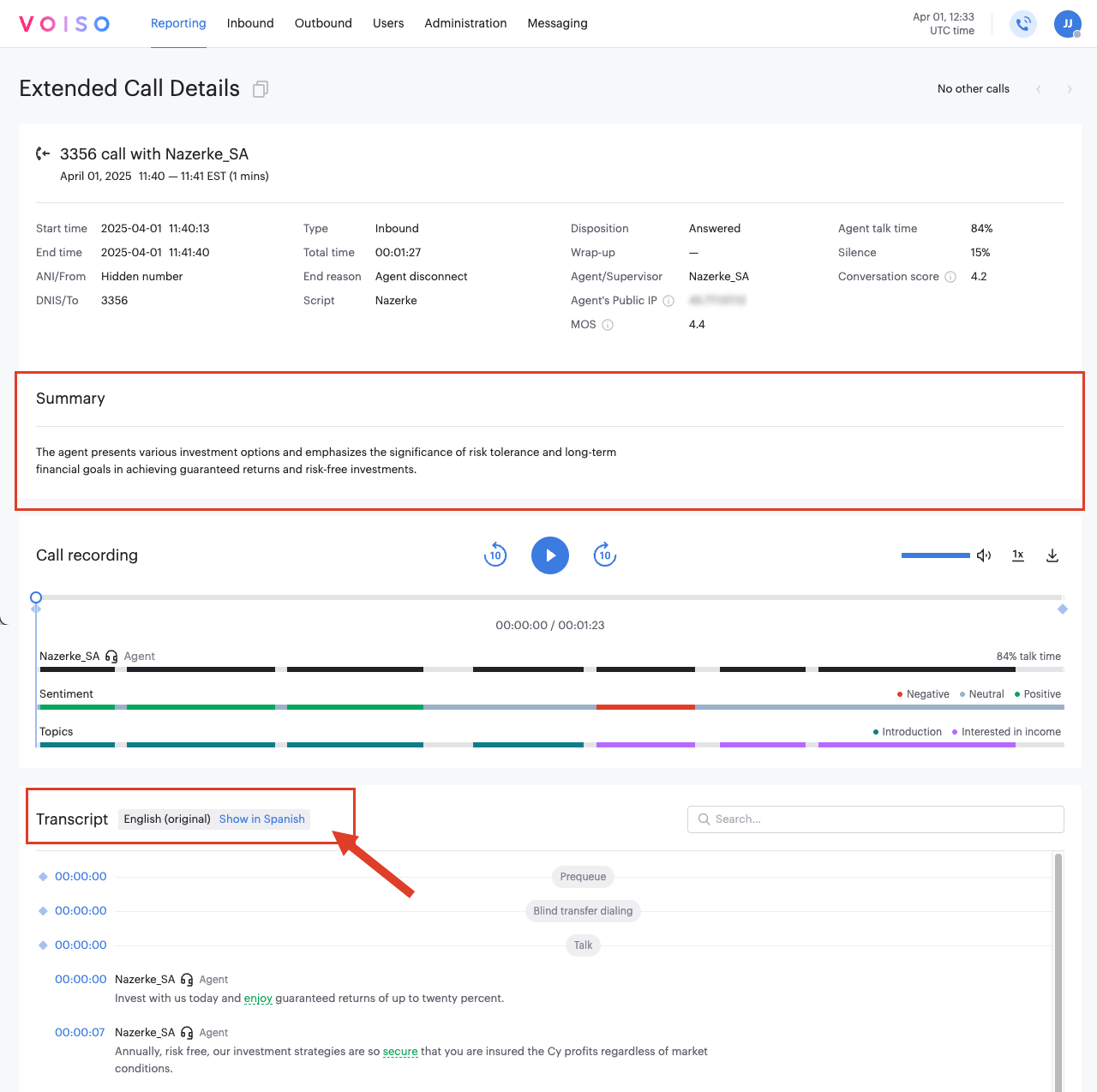
If you are viewing the original transcript, click Show in <your preferred language> to return to the translated transcript.
Watch this long form video to see how to modify your account settings to enable automatic transcript translation to your preferred supported language:
Next steps
To start using Speech Analytics:
-
If you are using security access groups, see: Configuration for Security Access Groups
-
If you are not using security access groups, see: Configuration for Basic users